Beginner-Friendly Guide to Use the OneDrive Duplicate File Remover Tool
Step 1
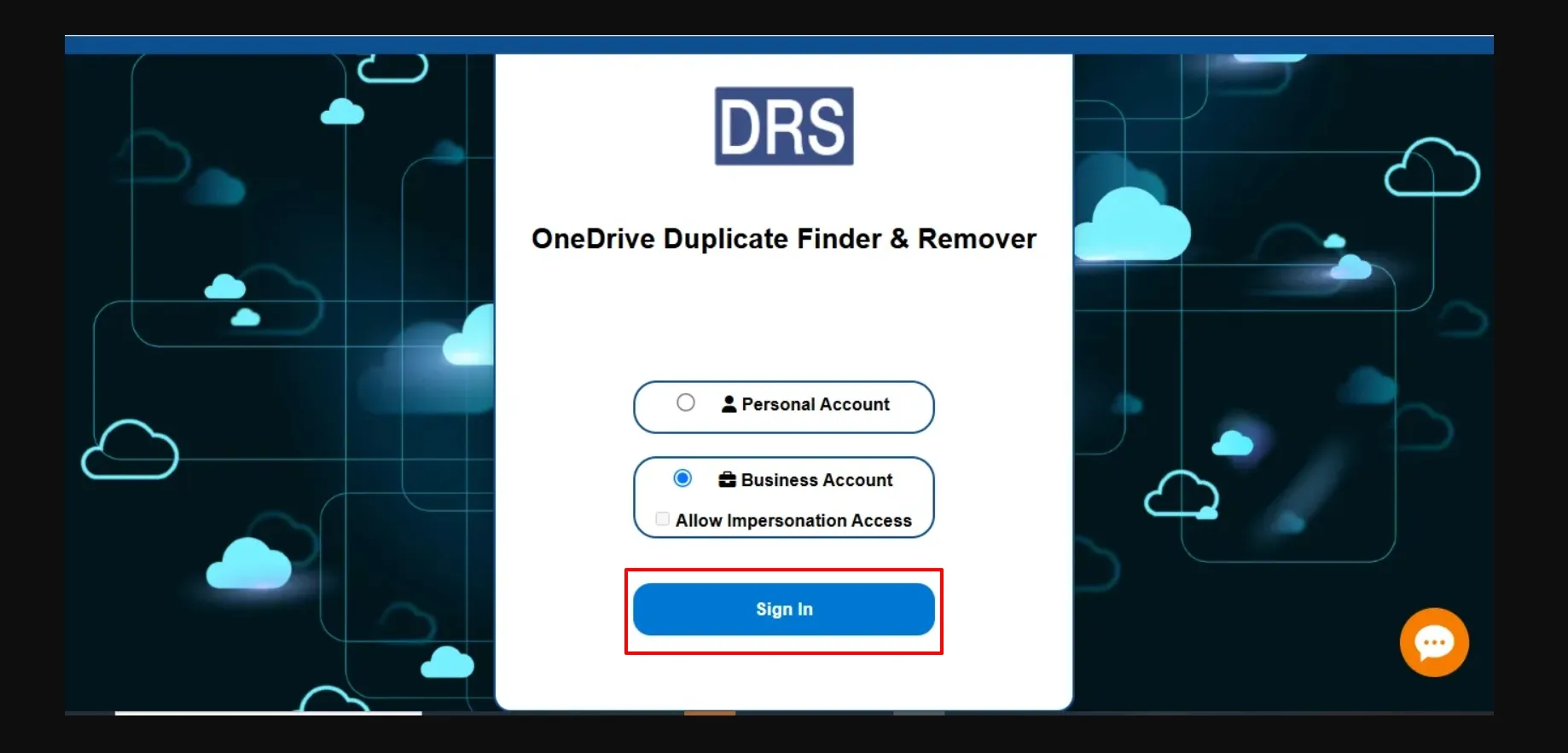
Download & Install the MigrateEmails OneDrive Duplicate Remover Tool → Sign in.
Step 2
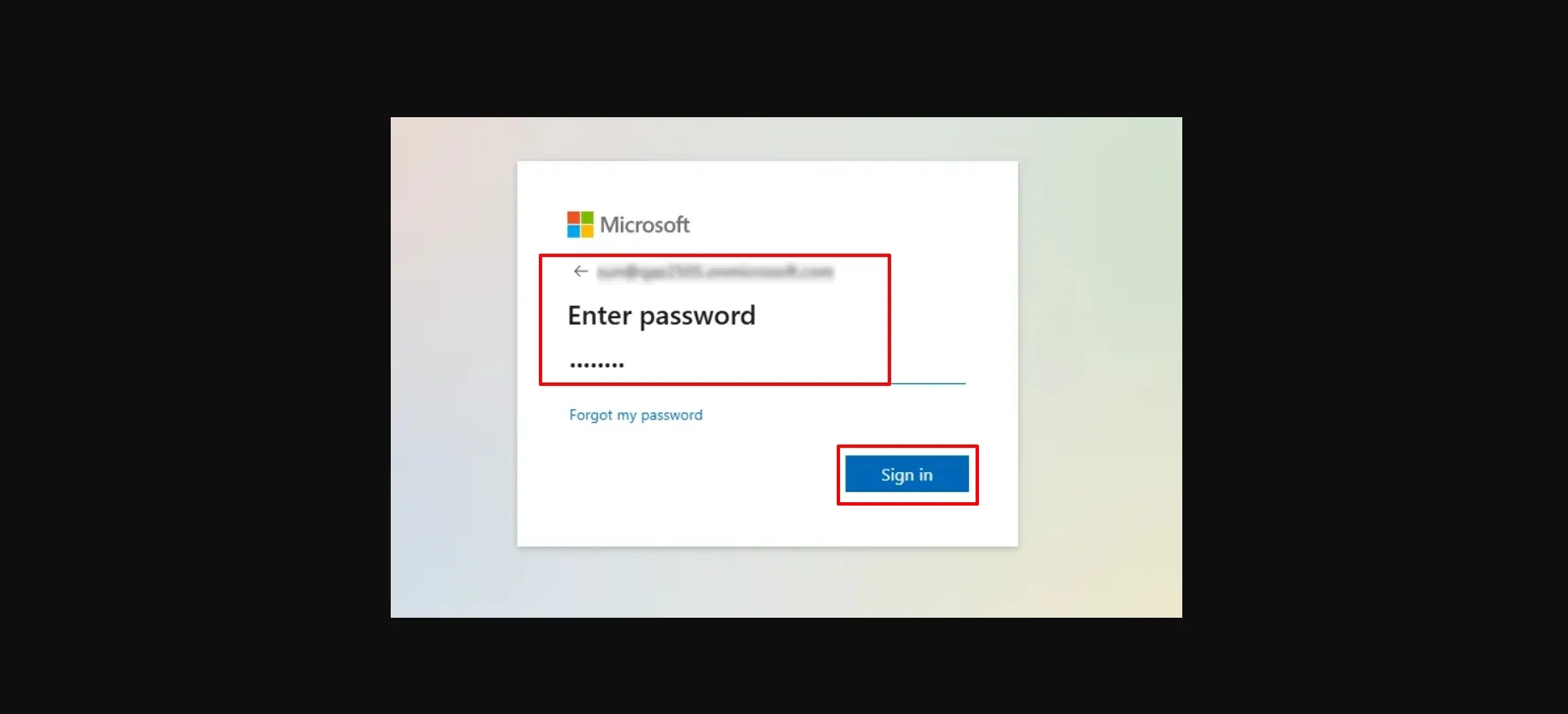
Now, enter the account credentials to sign in.
Step 3
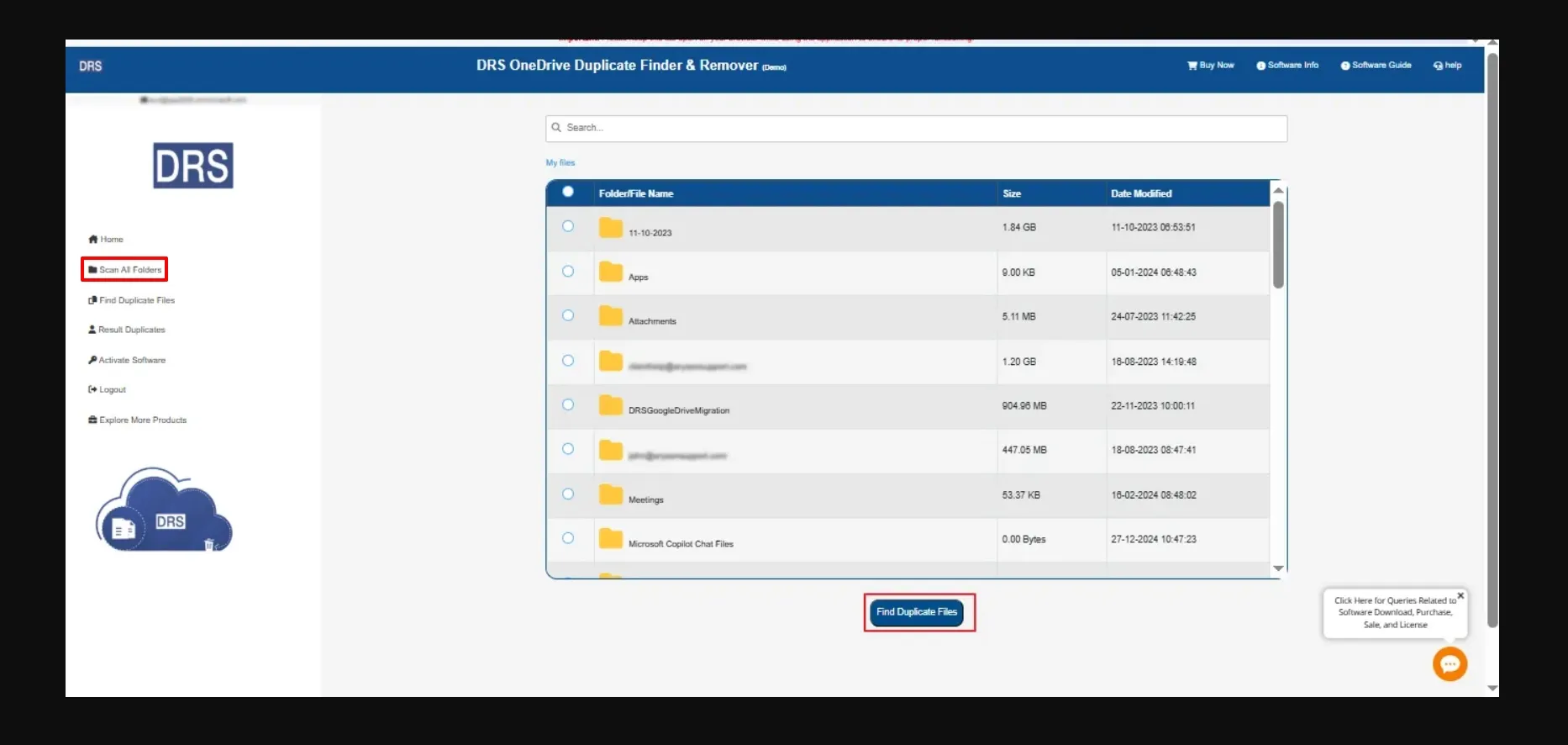
Select Scan All Folders to scan all the repeated files → Choose the scanned file → Find Duplicate Files.
Step 4
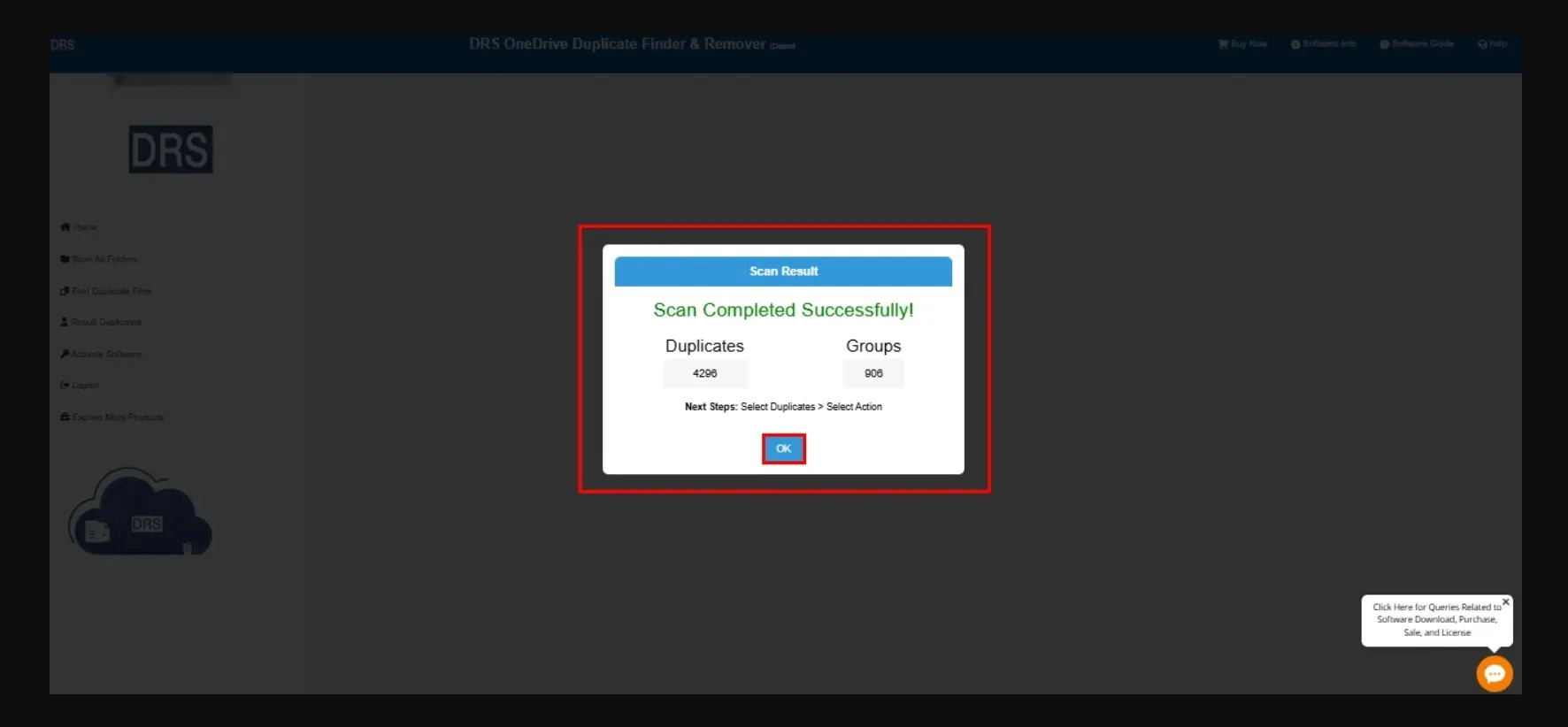
Once scanned, click OK to the pop-up notification.
Step 5
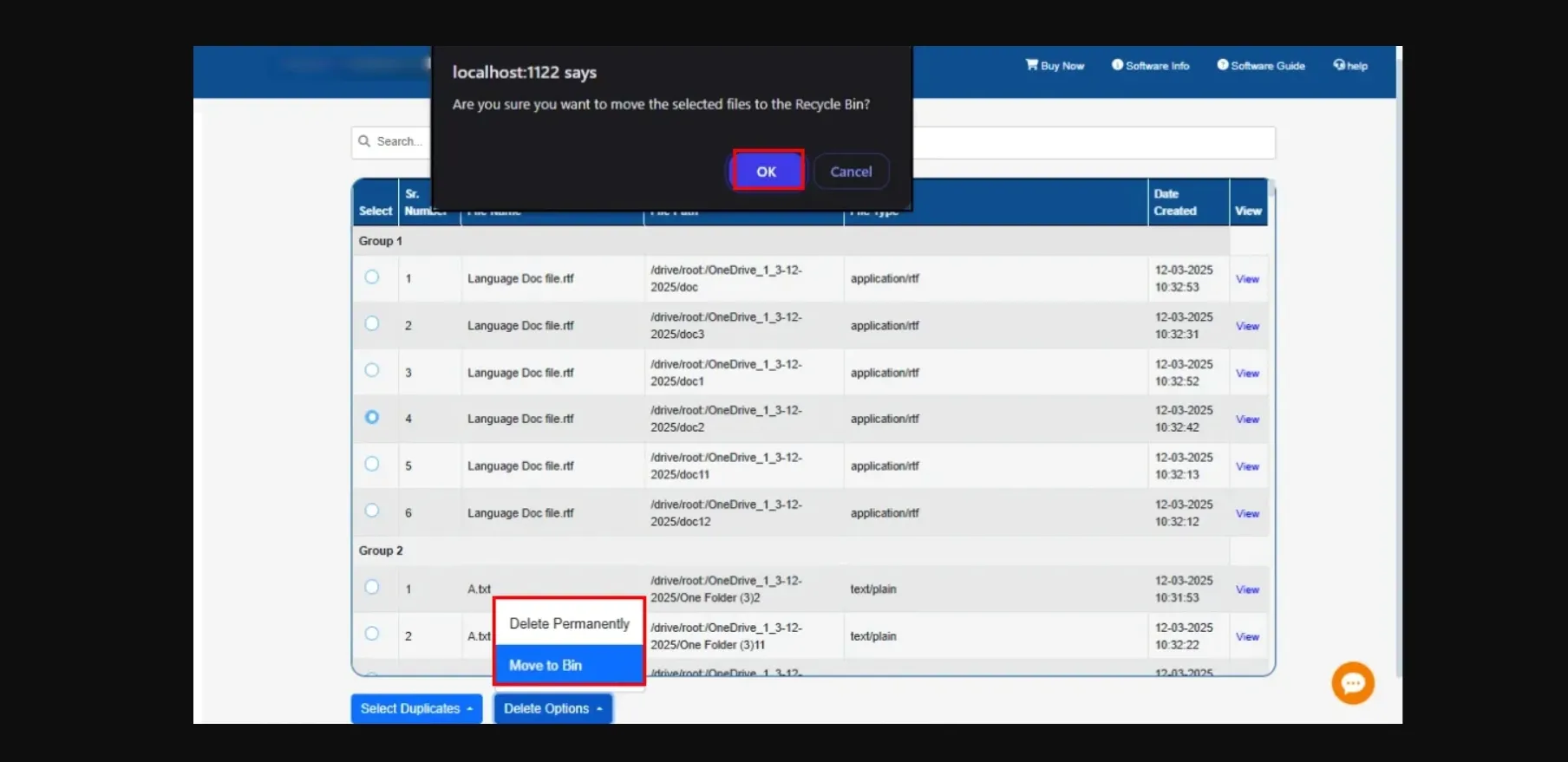
Choose the duplicate file that you want to remove → Select Move to bin from the delete options → Click OK to the confirmation message.
Step 6
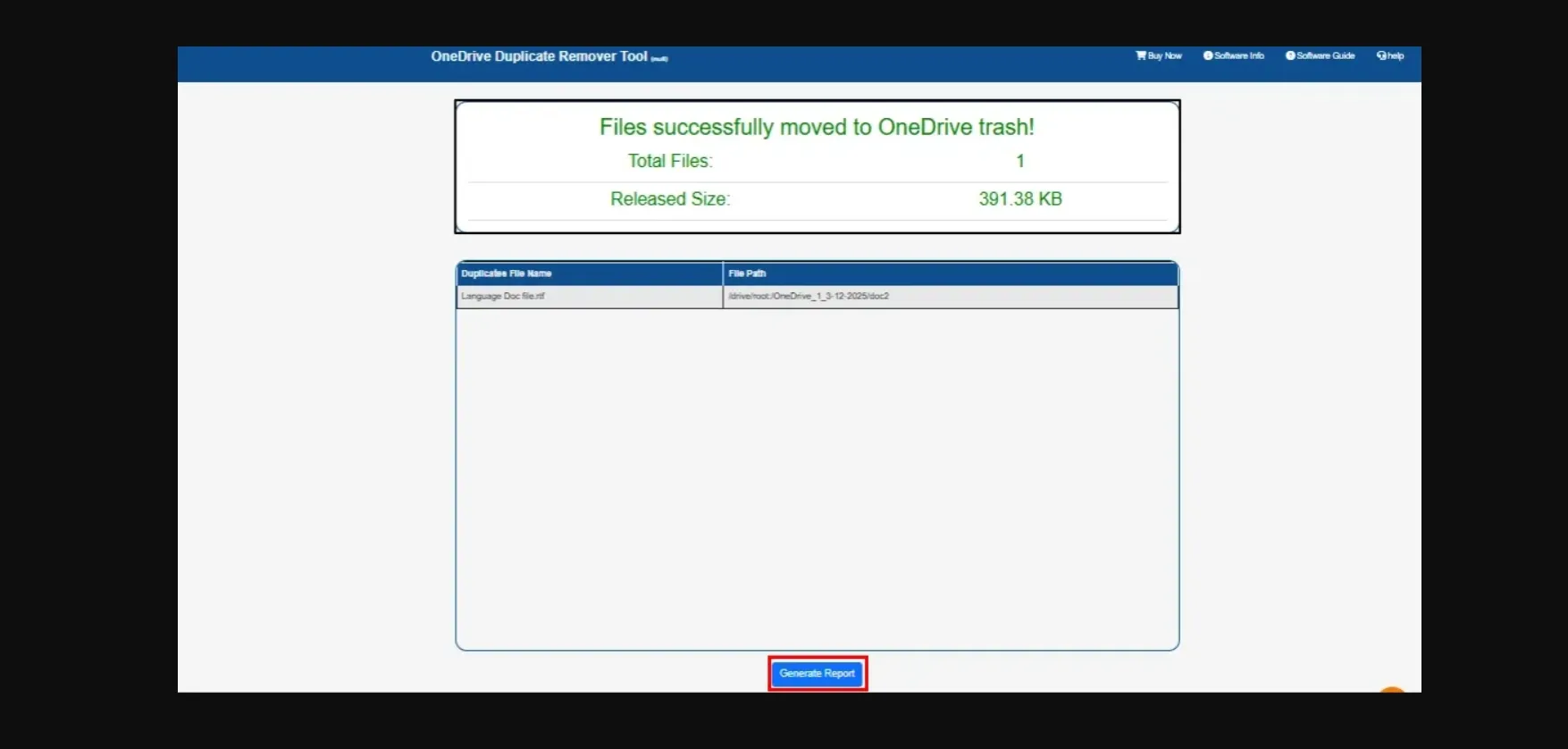
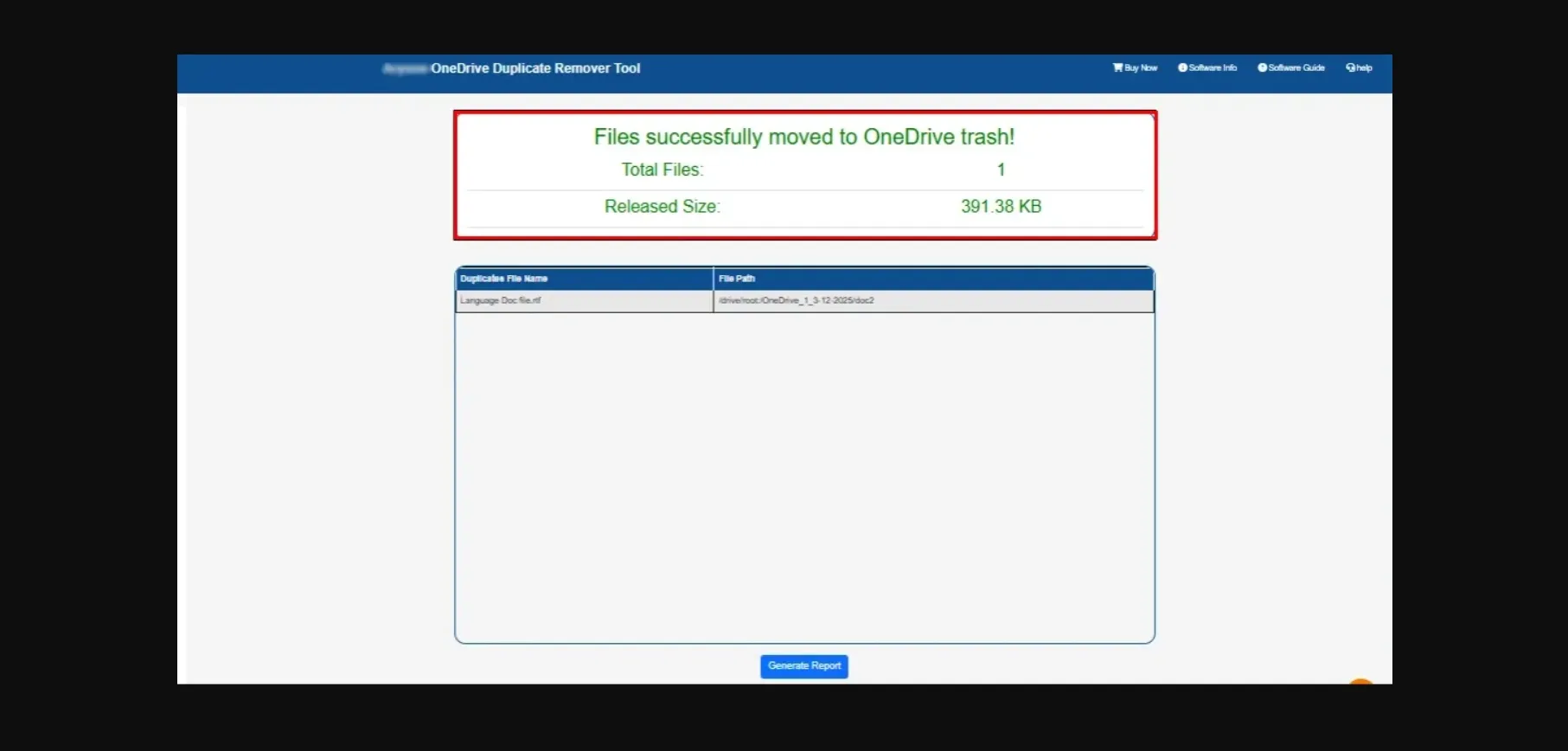
The duplicate file will be removed successfully.
Step 7
Lastly, generate the Report (if needed).