-
Written By Kiran Sharma
-
Approved By
Vikash Bajpai -
Updated on May 23rd, 2026
How to Migrate IMAP Email to a New Server Without Data Loss (2026 Guide)
User Query: “I have several JSON files containing structured data and reports. I need to convert them into Word documents for editing and sharing purposes. However, JSON files are not readable in MS Word. Is there an easy way to convert JSON file to Word without losing formatting?”
– James Carter, United States
Introduction:- An existing IMAP server serves its purpose well in the early stages, but as enterprise operations scale, organizations increasingly demand stronger security controls & improved deliverability. A modern server environment offers all of this along with greater storage capacity and seamless cross-platform accessibility. The real challenge lies in the migration process itself, where data integrity, folder hierarchy, and metadata preservation become top priorities for IT administrators. In this technical blog, we cover the most effective methods for IMAP to new server migration. We will also discuss the MigrateEmails IMAP Backup Tool that helps in secure conversion.
Transfer IMAP Email to Another Server-Benefits
- Enterprises gain greater storage capacity and improved email performance on a new server.
- Stronger security protocols protect business-critical data across enterprise environments.
- Better scalability helps enterprises accommodate growing mailbox volumes effortlessly.
- Improved uptime ensures uninterrupted email communication for enterprise teams.
- IT administrators benefit from seamless accessibility across all devices and locations.
Manual Method to Move IMAP Emails to New Server
The manual method uses Thunderbird to connect both old and new IMAP accounts simultaneously, enabling direct email transfer between them. However, it is practical only for your smaller mailboxes. To shift IMAP emails to a Microsoft cloud environment, read our detailed guide on migrate IMAP Emails to Office 365.
Easy Steps to Migrate IMAP Email to New Server:
- Launch Thunderbird on your system and click the Hamburger Menu button.
- Choose New Account and select the Email option from the list.
- Enter the login credentials of the source IMAP server being migrated from.
- Follow the same steps again to add the destination IMAP server as a second account.
- Once both server profiles appear in Thunderbird, expand their respective folder structures.
- Drag and drop folders from the source profile to the destination and wait for the IMAP sync to finish.
Limitations of the Manual Method:
- This approach is not ideal for enterprise-level migrations that handle extensive email volumes and numerous mailboxes.
- Your folder hierarchy and metadata may not remain intact after the IMAP sync.
- Requires stable internet connectivity throughout, which makes it unreliable for bulk transfers.
- Any sync interruption may result in incomplete or missing data on the new server
Simplified Approach to Migrate IMAP Email to New Server
MigrateEmails IMAP Backup Tool is a professional-grade solution designed for enterprise teams that need to migrate IMAP emails to a new server with complete security. It supports both Single and Batch Mode, allowing IT administrators to process multiple IMAP accounts simultaneously through the CSV import feature.
Moreover, the free demo version permits migrating up to 50 emails per folder. To transfer IMAP emails directly to the Zoho platform, check our step-by-step guide on migrate emails from IMAP to Zoho Mail.
Easy Steps to Migrate Emails from One IMAP Server to Another:
- To initiate, you need to download and launch the IMAP Backup Tool on your system.
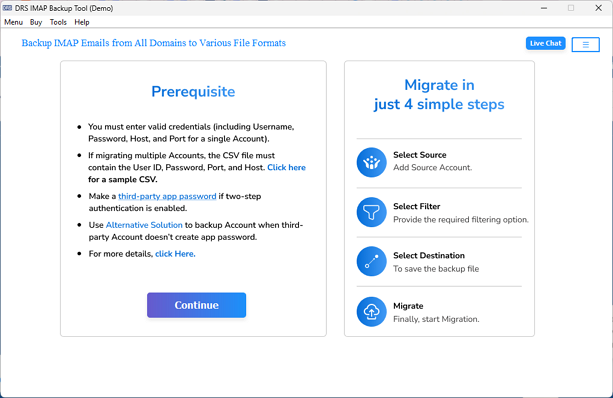
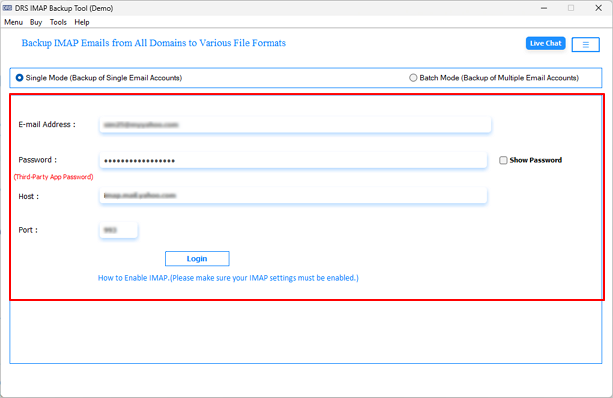
- Choose Single Mode or Batch Mode and enter the source IMAP account credentials.
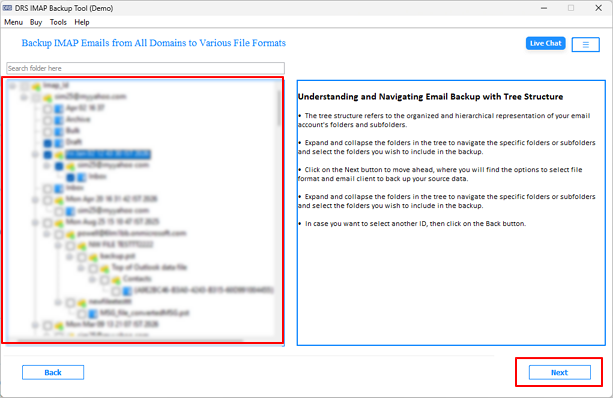
- Review the mailbox folder structure, select the required folders, and proceed by clicking Next.
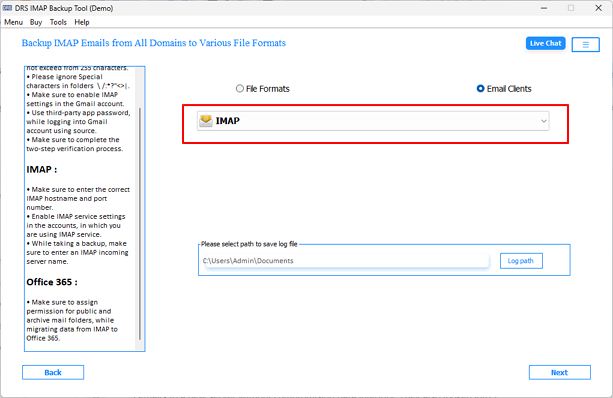
- Now, you simply need to pick IMAP from the email client drop-down list & press Next.
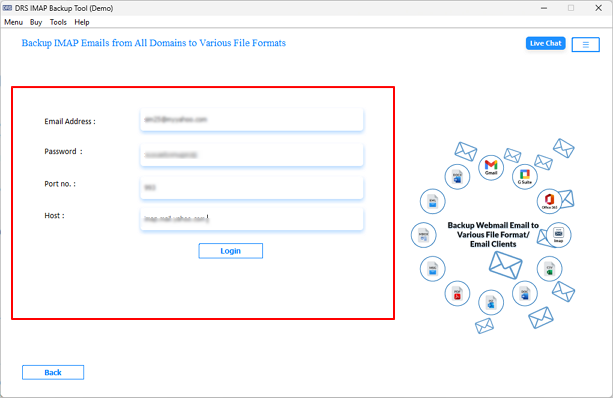
- You need to enter the new IMAP server credentials to establish the connection.
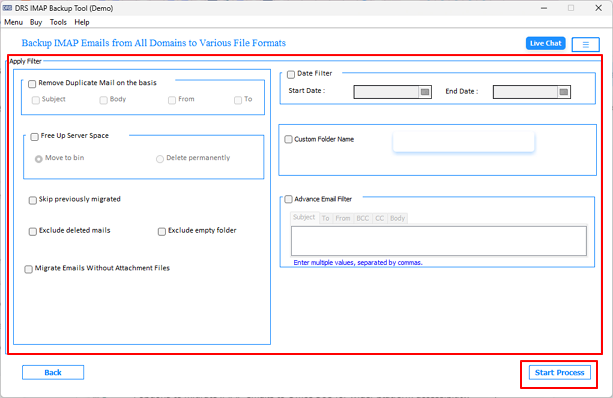
- Finally, you need to configure filters and click Start Process to transfer emails between IMAP servers.
Case Study: Migrate IMAP Email to New Server
Client Background
An enterprise IT team required a dependable solution to shift thousands of IMAP emails to a new server without compromising data integrity. They also looked into options to migrate IMAP emails to Office 365 for wider platform accessibility.
Challenges Faced
- High volume of emails made the manual migration process unworkable
- Folder hierarchy and metadata were at risk of getting disrupted during the transfer.
- Duplicate emails threatened to create disorganization on the destination server
- No consistent way to track and skip already transferred email data
Solution Provided
Used the MigrateEmails IMAP Backup Tool for secure and streamlined bulk migration to the new server.
Results Achieved
- Completely migrate IMAP emails without losing data.
- Folder structure and email metadata stayed fully preserved throughout.
- Duplicate emails were identified and removed without any manual intervention.
- Overall migration time was reduced considerably compared to the manual approach.
Why Do Enterprises Choose This Solution For Migration?
- Supports bulk migration of multiple IMAP accounts simultaneously via CSV import.
- You can easily convert IMAP emails to PDF, PST, MBOX, MSG, DOC & many more formats.
- The Date Range Filter allows selective migration of emails within specific time periods.
- The Skip Previously Migrated Emails option prevents redundant data transfers.
- Preserves folder hierarchy, email metadata, and attachments throughout migration.
End Note
To conclude, we have discussed reliable approaches to migrate IMAP email to new server. The manual method using Thunderbird works for smaller migrations but falls short for enterprise-level operations involving large mailbox volumes. The MigrateEmails IMAP Backup Tool offers a more effective experience, featuring advanced filters, bulk processing capabilities & ensuring complete data integrity throughout the process. For organizations handling critical email infrastructure, the automated solution is clearly the appropriate choice.
Frequently Asked Questions
Q1. Can I migrate emails without losing data?
Ans. Yes, the MigrateEmails IMAP Backup Tool is designed to ensure secure email migration with complete data integrity. It preserves emails, attachments, metadata, and folder hierarchy throughout the entire migration process.
Q2. How long does IMAP email migration take?
Ans. Migration time depends on factors such as mailbox size, number of accounts, and internet speed. However, the tool’s batch processing capability significantly reduces the overall migration time for enterprise-level transfers.
Q3. Will my emails and folders stay organized after migration?
Ans. Yes, the tool maintains the original mailbox folder structure during migration, ensuring that emails remain properly organized on the destination server without manual rearrangement.
Q4. Can I migrate emails from Gmail to another server?
Ans. Yes, since Gmail supports IMAP connectivity, the tool can securely migrate Gmail emails to another IMAP-enabled server or supported email platform without complications.
Q5. Do I need technical knowledge to migrate IMAP emails?
Ans. No, the software provides a simple step-by-step interface, allowing both technical and non-technical users to perform IMAP migration without requiring advanced expertise.
Q6. Will contacts and calendars also migrate?
Ans. The IMAP protocol primarily handles email data only. Contacts, calendars, and other mailbox items generally require separate migration methods or dedicated tools for transfer.
Q7. Can I access my emails during migration?
Ans. Yes, since the migration process works on server synchronization, users can usually continue accessing their emails during migration with minimal interruption to daily communication.
Q8. Can you migrate thousands of mailboxes simultaneously?
Ans. Yes, the Batch Mode with CSV import allows IT administrators to migrate multiple IMAP accounts simultaneously, making it ideal for enterprise-scale mailbox migrations.
Q9. Is zero-data-loss migration possible?
Ans. Yes, with a professional solution like the MigrateEmails IMAP Backup Tool, organizations can achieve near zero-data-loss migration by preserving all mailbox components throughout the transfer.
Q10. Can IMAP migration support hybrid email environments?
Ans. Yes, the tool supports migration between different IMAP-supported platforms, making it suitable for hybrid email environments involving on-premise servers and cloud-based email services.
About The Author:

I am Kiran Sharma, a Technical Expert in Content writing. I have technical expertise in the field of Email Backup, Data Recovery, and Email Migration, and resolve technical queries related to Cloud Backup or Email Migration for individuals and businesses.
Related Post