-
Written By Neeru Kuchhal
-
Approved By
Vikash Bajpai -
Updated on May 19th, 2026
Migrate IMAP Calendar to Office 365 Without Data Loss[2026 Guide]
Daniel’s Query:“I’ve been using an IMAP-supported email service for years, and all my important meetings, reminders, and schedules are stored in its calendar. Recently, my company moved to Microsoft 365, and now I need to transfer everything safely. What’s the best way to migrate IMAP calendar to Office 365 without losing events or recurring reminders?”
Introduction:- IMAP-supported email platforms are commonly used for simple calendar scheduling, but Microsoft 365 has become a preferred option for collaboration and centralized management. As business operations expand, users usually need secure migration methods that prevent issues with existing meetings, reminders, and calendar events while transferring data between different platforms safely. In this guide, we will explain secure methods to migrate IMAP calendar to Office 365 without data loss. Along with that, we will also introduce the MigrateEmails IMAP Backup Tool that simplifies the complete migration process.
Reasons to Transfer IMAP Calendar to Office 365
There are several important reasons why users prefer to import IMAP calendars to Microsoft 365 for better calendar management and collaboration.
- All calendars in Office 365 are kept together for easy access.
- You can use them from any device without issues.
- It works with Teams, Outlook, and SharePoint to keep everything in sync.
- Meetings and reminders stay updated without manual effort.
- Sharing schedules with others becomes simple and quick.
- It helps reduce confusion in team planning and booking.
- Calendar sync keeps everything the same across all devices.
- Your data stays saved in the cloud, so backup is always there.
?
Can I migrate IMAP calendar to Office 365 directly?
Yes, you can migrate an IMAP calendar to Office 365, but not directly in most cases. IMAP doesn’t fully support calendar migration. Usually, you need to export the calendar in ICS format and import it into Outlook for Office 365. For a faster and safer option, many users prefer to use the professional MigrateEmails IMAP Backup Tool to transfer calendars with zero data loss, no missing events, & minimal manual effort.
Method 01: Native Method to Import IMAP Calendar to Microsoft 365
In this method, users first export calendar data from their IMAP-supported email account in ICS format and then manually import it into Office 365 through Outlook. This approach is suitable for users handling limited calendar data and basic migration requirements.
Steps to Migrate Calendar from IMAP to Office 365:
- First, log in to your IMAP-supported email account and open the Calendar section.
- After that, export the required calendar data as an ICS file.
- Now, open Microsoft Outlook linked with the Office 365 account.
- Thereafter, navigate to File >> Open & Export >> Import/Export option.
- Choose Import an iCalendar (.ics) or vCalendar file (.vcs) and press Next.
- Browse and select the exported ICS file from your system.
- Lastly, choose Import to transfer the calendar into your Microsoft 365 account.
Limitations: Move IMAP calendar to Office 365 Manually
- The process becomes lengthy for bulk IMAP calendar migration.
- Users need to repeat the process separately for multiple calendars.
- Manual importing increases the chances of duplicate calendar entries.
- Recurring events and reminders don’t always sync the right way.
- Setup can feel a bit confusing for user who aren’t technical.
- Large calendar files can slow down the import process a lot.
Method 02: Automated Solution to Migrate IMAP Calendar to Office 365
The IMAP Backup Tool helps simplify IMAP calendar migration to Office 365 without technical steps. It transfers calendars directly to Microsoft 365 while keeping folders, events, reminders, recurring schedules, and attachments intact. It also supports bulk migration for businesses, along with filters, duplicate removal, and selective transfer options. For more details, you can also refer to Migrate IMAP to Google Workspace for related migration guidance.
Quick Guide to Bulk IMAP Calendar Migration:
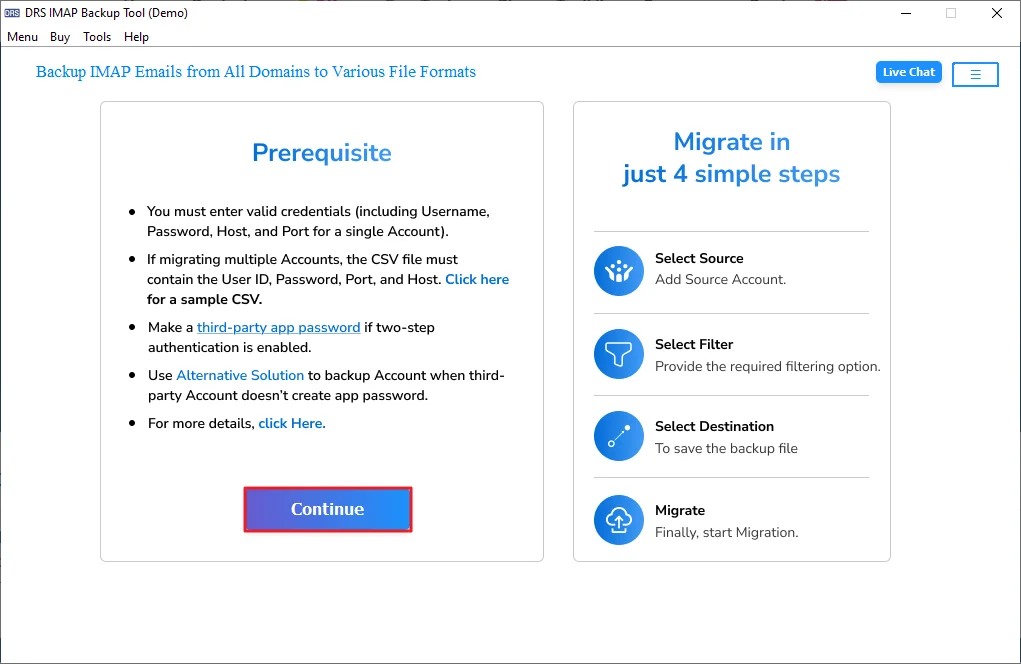
- Firstly, install and open the IMAP Backup Tool and press Continue.
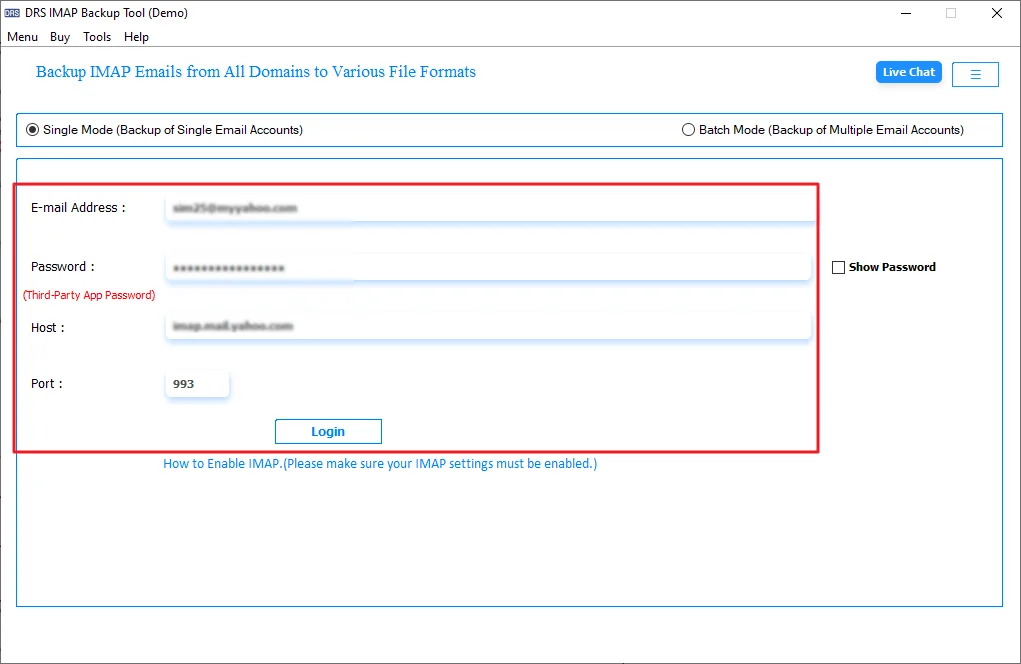
- After that, provide your IMAP credentials and log in.
- Then, preview and select the mailbox you want and click Next.
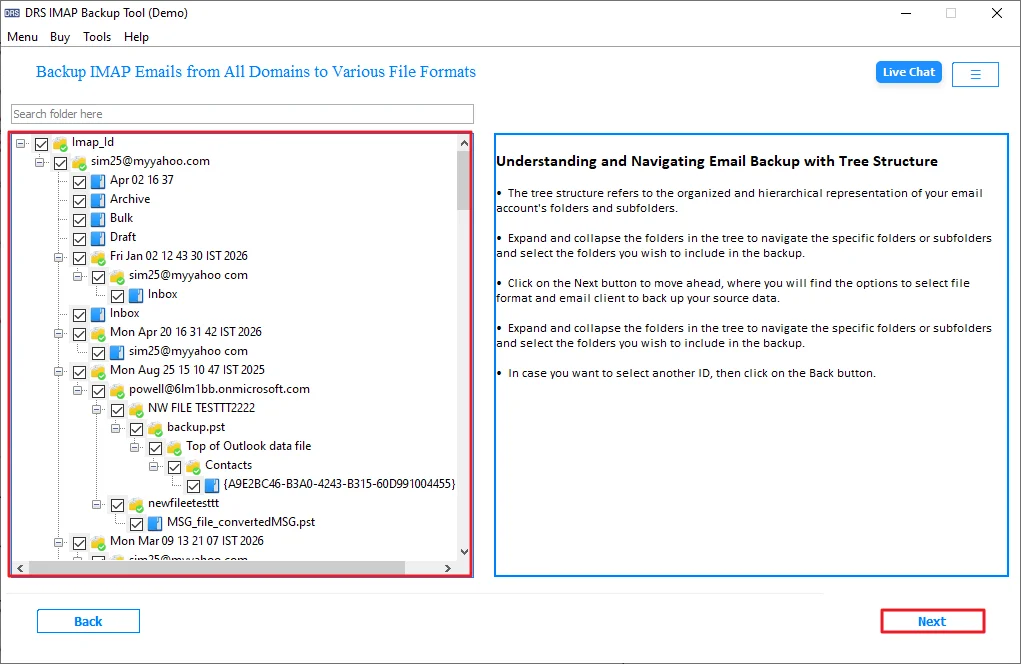
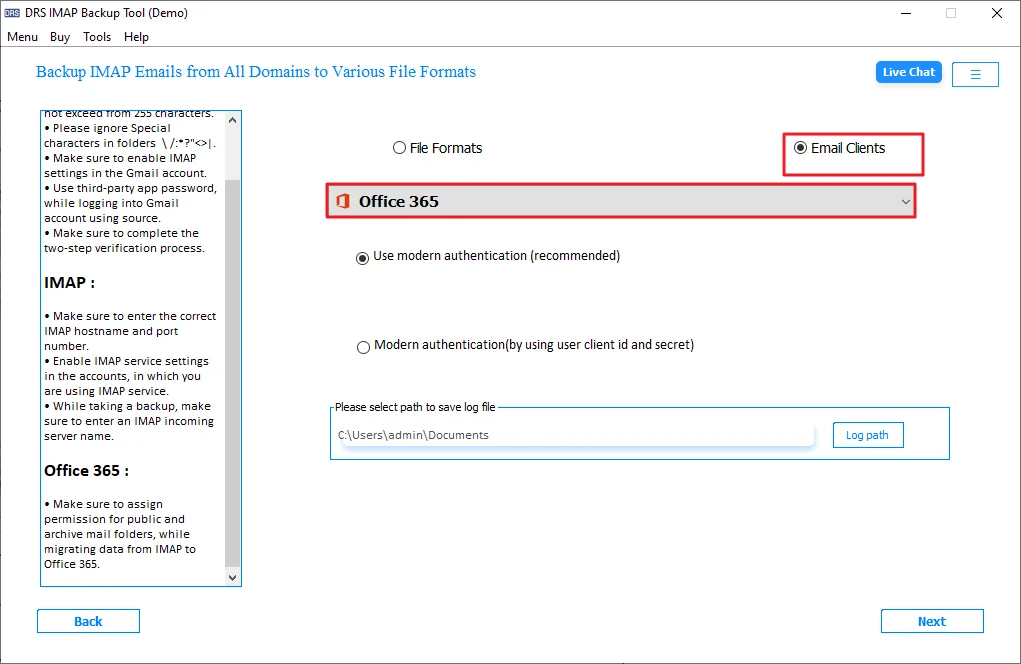
- Now, select Office 365 as the email client. Click Next.
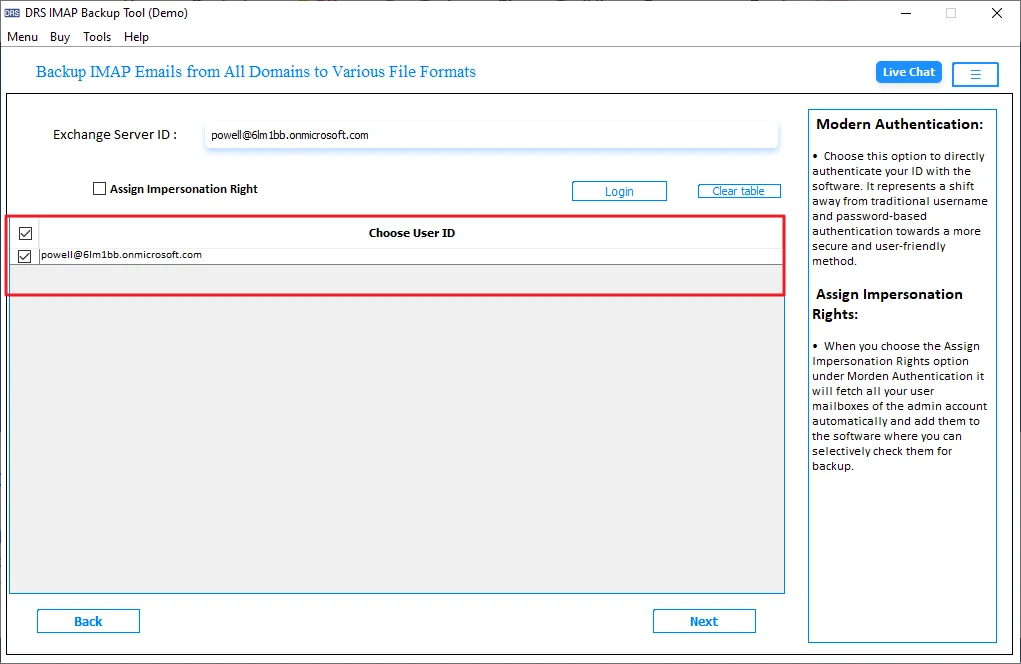
- Thereafter, sign in and select the required User ID.
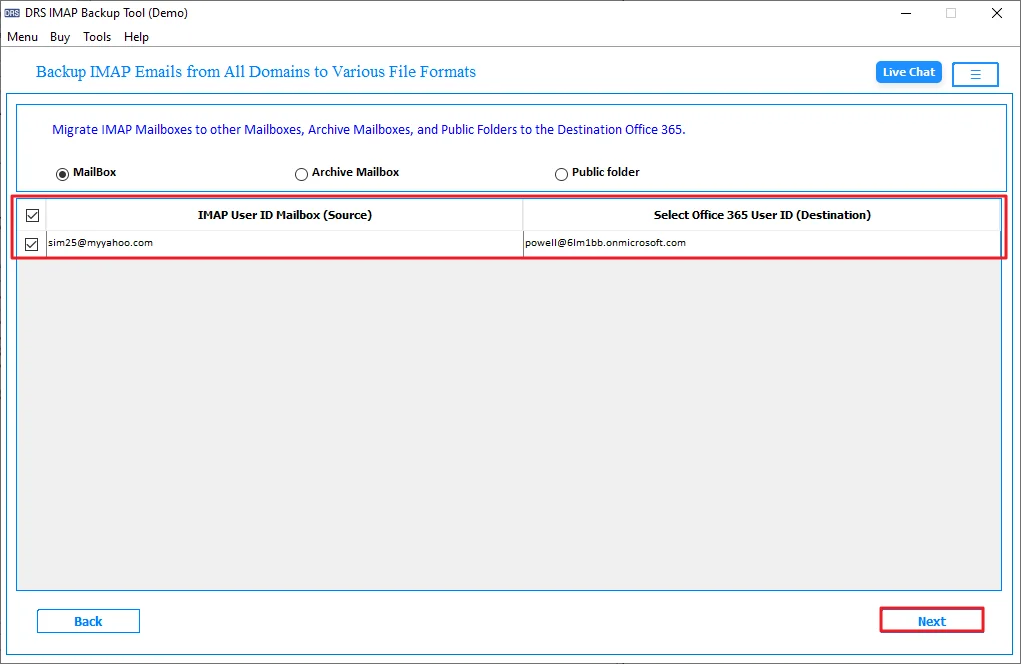
- Further, select the required mailbox and click on Next.
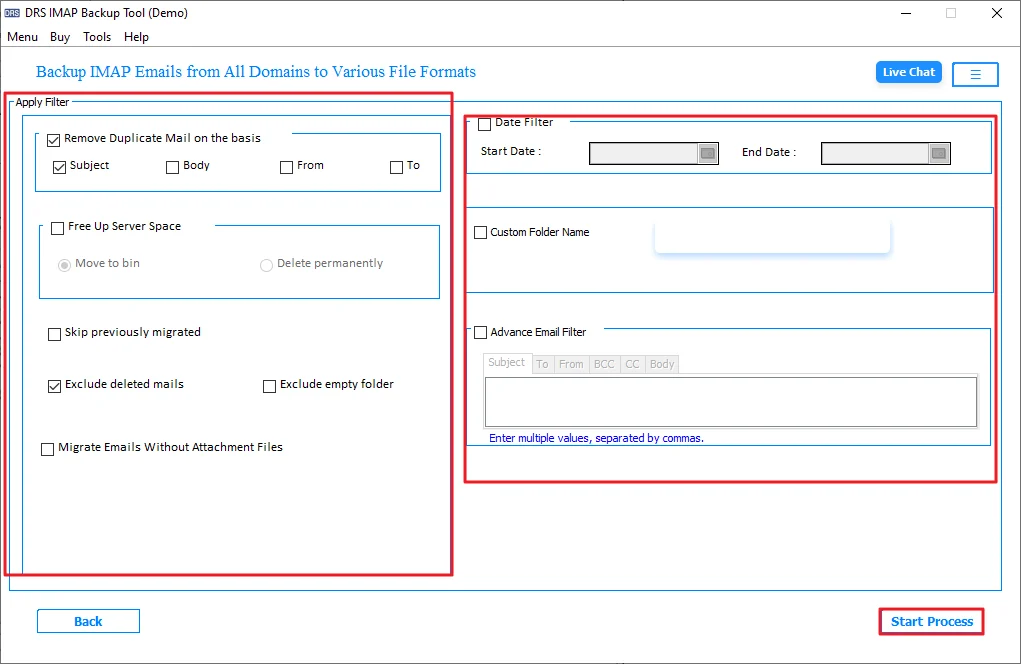
- Lastly, apply filters/features and click Start Process
Real-Life Scenario
Michael is an operations manager in New York. He had been managing client appointments through IMAP calendars for years. After switching to Microsoft 365, he wanted to transfer multiple IMAP calendars without missing meetings or reminders.
Manual import was slow since he had many calendars. Later, he used the IMAP Backup Tool, which moved everything into Office 365 cleanly. The process finished without disrupting his work. For related guidance, you can also refer to Import IMAP Email to Gmail.
Why Enterprises Prefer This Automated Solution?
- Supports bulk IMAP email migration.
- Allows users to convert IMAP to MSG and other formats.
- Directly migrates emails to Office 365 and Gmail.
- Includes date filter options for selective migration.
- Removes duplicate emails during transfer.
- Supports migration with attachments.
Conclusion
To conclude, this blog explained different ways to migrate IMAP calendar to Office 365 safely. You can pick the method based on your calendar size and migration needs. Still, every step should be followed properly to avoid missing events or sync problems. Manual methods may become difficult for large migrations. To make the process easier and more reliable, many users prefer using a professional IMAP backup tool.
Frequently Asked Questions
Q1. Can an IT administrator migrate IMAP calendars from multiple employee accounts to Office 365 simultaneously?
Ans. Yes, IT administrators can migrate multiple employee calendars together using the MigrateEmails IMAP Backup Tool. It supports bulk migration and simplifies enterprise-level calendar transfers efficiently.
Q2. Does the IMAP calendar migration tool preserve recurring events, reminders, and time zone settings during transfer to Office 365?
Ans. The MigrateEmails IMAP Backup Tool keeps recurring events, reminders, and time zone settings intact during migration, helping users maintain complete calendar accuracy after transfer.
Q3. Is it possible to migrate only specific date ranges of IMAP calendar events to Office 365 for quarterly or project-based reporting?
Ans. Users can migrate selected calendar events by applying date-range filters in the MigrateEmails IMAP Backup Tool, making project-based or quarterly calendar migration easier.
Q4. How does the IMAP to Office 365 calendar migration handle shared calendars used by multiple team members?
Ans. Shared calendars are migrated with their event structure and scheduling details. The MigrateEmails IMAP Backup Tool helps maintain calendar accessibility for team collaboration purposes.
Q5. Can IMAP calendar migration to Office 365 be performed without disrupting active employee workflows or requiring downtime?
Ans. Businesses can migrate calendars without major workflow interruptions. The MigrateEmails IMAP Backup Tool performs the process smoothly while employees continue regular scheduling activities.
Q6. Can the tool migrate IMAP calendar data from non-Gmail IMAP providers like Roundcube, Horde, cPanel, or custom corporate IMAP servers?
Ans. The MigrateEmails IMAP Backup Tool supports migration from several IMAP-based platforms, including Roundcube, Horde, cPanel, and custom corporate IMAP email servers.
Q7. How can enterprise teams verify that all IMAP calendar events have been successfully migrated to Office 365 without data loss?
Ans. Enterprise teams can compare migrated calendar entries after completion. The MigrateEmails IMAP Backup Tool helps transfer events accurately while reducing the chances of missing calendar data.
Q8. Is there a file size or event count limitation when migrating large enterprise IMAP calendars to Office 365?
Ans. Large enterprise calendars can also be migrated using the MigrateEmails IMAP Backup Tool. The software is designed to handle high-volume calendar migration tasks efficiently.
About The Author:

I am Neeru Kuchhal, a Technical Content Writer who focuses on turning complex ideas into clear, engaging, and impactful content. I combine creativity with strategy to write blogs, web content, and technical articles that connect with the right audience and support brand goals. I believe great content is not just written. It is thoughtfully created to inform, build trust, and drive action.
Related Post