-
Written By Neeru Kuchhal
-
Approved By
Vikash Bajpai -
Updated on May 27th, 2026
Move Thunderbird to New Computer Without Losing Emails
User Query: “Our team is migrating to new computers and requires the full Thunderbird mailbox data to be moved securely. It includes moving 8 years of email archives and account configurations to the new systems with complete data integrity. Is there a reliable enterprise-grade solution to move Thunderbird to new computer?”
– Jessica Miller, Texas
Introduction:- Thunderbird stores its entire mailbox data, account configurations, filters, and add-ons within a local profile folder, making it deeply tied to the host machine. Organizations and IT teams managing extensive email archives should implement a structured migration approach before moving to new systems. Without a structured approach, critical mailbox data and account settings may not transfer accurately to the destination system. In this technical blog, we cover the most effective methods to move Thunderbird to a new computer while ensuring complete profile integrity. We will also introduce the MigrateEmails MBOX Migrator Tool with zero downtime.
Native Approach to Move Thunderbird to New Computer
This process involves duplicating the complete Thunderbird profile directory from the old workstation and placing it on the new machine. To transfer Thunderbird data to the Apple ecosystem, read the guide on migrate Thunderbird to Apple Mail.
Step 01: Back Up Thunderbird Data from the Source Computer
- To initiate, you need to simply launch Mozilla Thunderbird >> Menu button in the top right corner.
- Navigate to Help >> More Troubleshooting Information from the system options.
- Locate the Profile Folder within the Troubleshooting panel and click Open Folder.
- Now, traverse three directory levels up to access the AppData storage location.
- Right-click the Thunderbird profile directory and duplicate the entire folder structure.
- Terminate Thunderbird completely to ensure zero process interference during extraction.
- Move the duplicated profile directory to an External Drive or OneDrive for enterprise-grade secure storage.
Step 02: Deploy Thunderbird Profile on Destination Workstation
- Install Mozilla Thunderbird on the new computer before starting the data transfer process.
- Start Mozilla Thunderbird on the new system and close the account setup wizard without configuring a new profile.
- Thereafter, you need to access the Menu >> Help >> More Troubleshooting Information.
- Click Open Folder and traverse three directory levels up to the AppData location.
- Paste the extracted Thunderbird profile directory from the external drive into the AppData location on the destination workstation.
Limitations of the Manual Method:
- Not suitable for enterprise-level migrations with large Thunderbird profiles.
- Risk of configuration inconsistencies and broken account settings.
- Add-ons and extensions may not function on the destination workstation.
- No built-in verification for complete and accurate profile transfer.
- Time-consuming for IT administrators who handle multiple workstation migrations.
- Transfer interruptions may cause incomplete or corrupted profile data.
- Requires manual intervention with no automated error recovery.
Efficient Solution to Move Thunderbird to New Computer
MigrateEmails MBOX Migrator Tool is a robust enterprise-grade solution that allows IT administrators and system engineers to securely relocate complete Thunderbird mailbox data to a new workstation with absolute precision and zero configuration loss. It supports multiple Thunderbird profile selections from the source machine, providing enterprise teams with granular control over the overall migration scope.
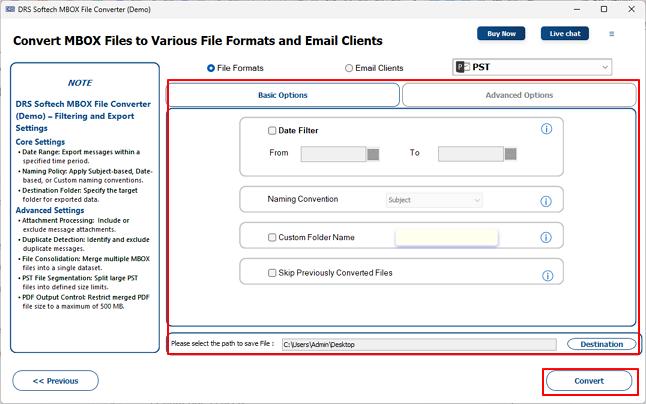
Moreover, the tool has a Date Range Filter for selective email migration, a Remove Duplicate Emails capability based on To, From, Subject, BCC, and Body parameters for efficient data transfer. It additionally facilitates direct migration to enterprise-grade platforms, which include Office 365, Gmail, Hotmail & many more.
Steps to Transfer Thunderbird to New PC:
- Install and open the above-shared MBOX Data Migration Tool on your computer.
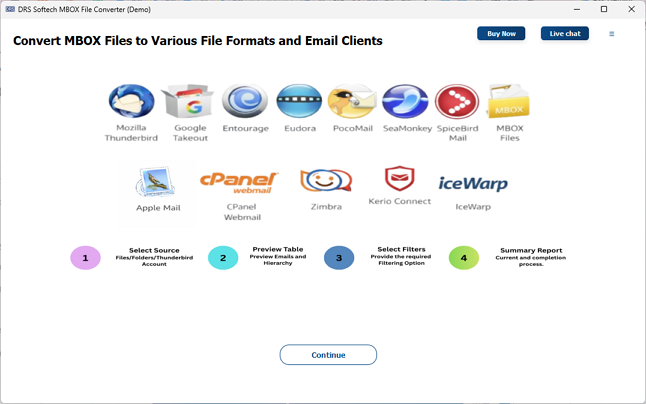
- Select the desired Thunderbird profile and proceed to the next step.
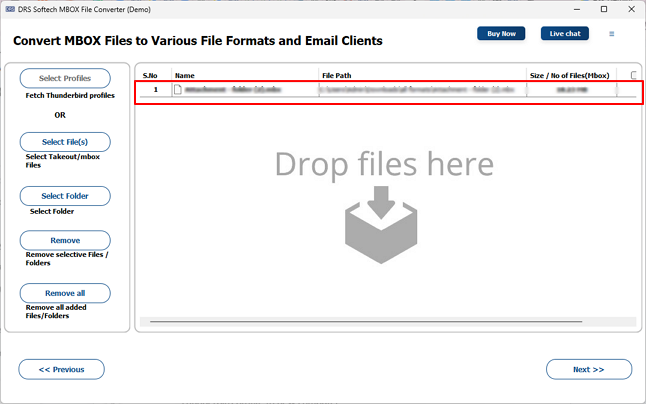
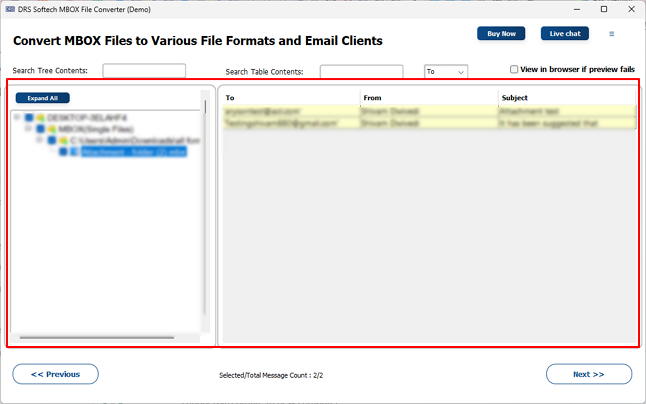
- Now, simply pick the folders to include in the backup process.
- Choose the required saving format from the available output options.
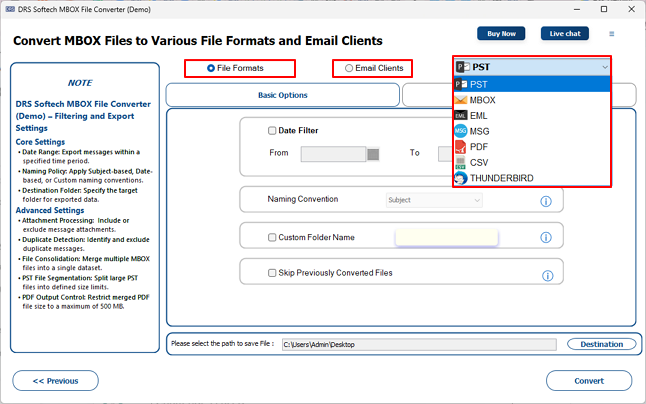
- Set the preferred advanced settings and filters >> Convert to move Thunderbird profile to new computer.
Case Study
Client Background
A mid-sized enterprise IT team needed a dependable solution to migrate complete Thunderbird mailbox data across multiple workstations to new systems without any configuration loss. To move Thunderbird emails to a web-based platform, visit our guide on migrate Thunderbird Emails to Yahoo Mail.
Challenges Faced
- A large volume of mailbox data across multiple workstations made manual migration impractical.
- Risk of folder hierarchy disruption and email metadata loss during the transfer process.
- Duplicate emails across multiple accounts threatened data organization on the new workstations.
- No reliable way to track and skip previously migrated mailbox data during the process.
Solution Provided
Used the MigrateEmails MBOX Migrator Tool for secure and efficient bulk migration of complete Thunderbird mailbox data to new workstations.
Results Achieved
- Complete Thunderbird mailbox data migrated successfully with zero configuration or data loss.
- Folder hierarchy and email metadata remained fully intact throughout the migration workflow.
- Duplicate emails were identified and eliminated without any manual intervention from the IT team.
- Overall migration time was reduced considerably compared to the traditional manual transfer approach.
Why Do Enterprise Teams Prefer This MBOX Converter Tool?
- Supports multiple Thunderbird account selection for complete control over migration scope.
- Date Range Filter enables targeted migration of emails within specific time periods.
- Removes duplicate emails based on To, From, Subject, BCC, and Body parameters.
- Split Resultant PST feature manages oversized output files within enterprise storage.
- Preserves complete folder hierarchy and email metadata throughout migration.
Manual vs Automated Solution: A Quick Comparison
| Basis | Manual Method | MBOX Export Tool |
| Technical Expertise | Requires considerable technical knowledge | No technical expertise needed |
| Bulk Migration | Not suitable for bulk workstation migration | Handles bulk migration efficiently |
| Data Integrity | Risk of data loss and configuration gaps | Ensures 100% data integrity throughout |
| Folder Hierarchy | May not remain intact after transfer | Fully preserved during migration |
| Date Range Filter | No selective date-based migration option | Built-in Date Range Filter available |
| Platform Support | Limited to local workstation transfer | Supports Office 365, Gmail, Zoho, iCloud |
| Error Recovery | No automated error recovery mechanism | Built-in safeguards ensure smooth migration |
| Demo Version | No trial option available | Free demo version with 50 emails per folder |
End Note
In the above technical blog, we have covered the two best approaches to move Thunderbird to new computer. The manual method serves individual users well for basic profile transfers. While enterprise IT administrators managing large-scale workstation migrations benefit far more from an automated approach. The MigrateEmails MBOX Migrator Tool delivers a dependable and efficient migration experience with advanced filters, duplicate removal, and complete data integrity throughout the entire process. For enterprise teams handling business-critical mailbox data, the automated solution stands out as the most reliable choice.
Frequently Asked Questions
Q1. Why do users move Thunderbird to a new computer?
Ans. Users move Thunderbird to a new computer when upgrading systems or changing workstations while keeping emails, settings, add-ons, and account configurations intact.
Q2. How can I move Thunderbird to a new computer safely?
Ans. You can manually copy the Thunderbird profile folder or use the MigrateEmails
MBOX Migrator Tool for a secure and complete transfer without configuration lo
Q3. Why is my Thunderbird profile not working on the new computer?
Ans. This usually happens due to incomplete profile transfer, incorrect folder placement, or compatibility issues during migration.
Q4. Can administrators transfer multiple Thunderbird profiles to new PCs simultaneously?
Ans. Yes, the MigrateEmails MBOX Migrator Tool supports bulk migration of multiple Thunderbird profiles at once.
Q5. What is the best method to move Thunderbird to a new computer?
Ans. Using the above-discussed MBOX Data Migration Tool is the best method, as it ensures complete and accurate migration with minimal effort.
Q6. Does the enterprise edition support bulk Thunderbird migration?
Ans. Yes, the enterprise edition supports bulk Thunderbird migration with advanced filters and zero data loss.
About The Author:

I am Neeru Kuchhal, a Technical Content Writer who focuses on turning complex ideas into clear, engaging, and impactful content. I combine creativity with strategy to write blogs, web content, and technical articles that connect with the right audience and support brand goals. I believe great content is not just written. It is thoughtfully created to inform, build trust, and drive action.
Related Post