-
Written By Neeru Kuchhal
-
Approved By
Vikash Bajpai -
Updated on June 23rd, 2026
Migrate eM Client to Office 365: Recommended Methods for 2026
User Query: “I need to migrate eM Client to Office 365 for our organization. We have over 25,000 emails with attachments & contacts spread across 12 user accounts. What is the most reliable method for migration while preserving folder structure & metadata?”
— Daniel Harper, IT Administrator, Seattle
Introduction: eM Client is a feature-rich desktop mail application widely deployed across small and mid-sized enterprises for centralized management of emails & task repositories within a unified interface. On the other hand, Microsoft Office 365 is a cloud-based enterprise communication platform adopted globally for scalable & collaborative productivity workflows. This technical blog covers the most effective approaches to migrate eM Client to Office 365 with ease. We will also discuss the MigrateEmails IMAP Backup Tool that provides secure migration with less downtime.
Comparing eM Client and Office 365
|
Parameter |
eM Client |
Microsoft Office 365 |
|
Platform Type |
Desktop-based email client application |
Cloud-based enterprise communication platform |
|
Primary Use |
Manages emails, contacts, calendars, and tasks locally |
Hosts enterprise mailboxes and collaborative workflows |
|
Scalability |
Suitable for small and mid-sized enterprise environments |
Engineered for large-scale enterprise-grade deployments |
|
Collaboration Support |
Limited to individual desktop-level communication |
Supports Teams, SharePoint, and OneDrive integration |
|
Security Framework |
Basic local encryption and password protection |
Advanced threat protection and multi-factor authentication |
|
Mailbox Access |
Accessible only on the provisioned desktop system |
Accessible across all devices and geographic locations |
|
Backup and Recovery |
Manual local backup is required for data protection |
Built-in cloud-based backup and recovery capabilities |
How to Manually Migrate eM Client to Office 365?
Migrating an eM Client mailbox to Office 365 manually involves exporting mailbox data from eM Client and importing it into an Outlook profile connected to Microsoft 365. Before proceeding, ensure your Microsoft 365 account is properly configured and review Microsoft’s migration preparation recommendations.
Step 01: Export Emails from eM Client
Before transferring your mailbox to Office 365, export the required email data from eM Client.
- Launch eM Client on your system.
- Navigate to the File menu and select Export.
- Choose the mailbox data you want to export, such as emails.
- Select EML as the export file format.
- Browse and specify a destination folder to save the exported files.
- Click Finish and wait for the export process to complete.
Step 02: Configure Your Office 365 Account in Outlook
To upload the exported emails, first connect your Microsoft 365 account to Outlook.
- Open Microsoft Outlook on your computer.
- Click File and select Add Account.
- Enter your Office 365 email address and click Connect.
- Provide the account credentials and complete the sign-in process.
- Allow Outlook to synchronize your Office 365 mailbox completely.
Step 03: Import eM Client Emails into Office 365
After configuring Outlook, you can manually transfer your exported EML files.
- Open the folder containing the exported EML files.
- In Outlook, create a new folder if required to organize the imported emails.
- Select the desired EML files and drag them into the appropriate Outlook folder.
- Wait while Outlook uploads the emails to the connected Office 365 mailbox.
- Repeat the process for additional folders if necessary.
Alternatively, if you want to simplify the migration process, you can use the MigrateEmails EML Converter to import the exported EML files directly into Office 365. However, if you prefer a manual approach, continue with the following steps.
Step 04: Verify the Migration
After the import process is complete, verify that the migration was successful.
- Open Outlook or sign in to your Office 365 mailbox through the web.
- Check the mailbox folders & confirm that all emails have been uploaded.
- Verify email content, attachments, and folder structure.
- Ensure that the mailbox synchronization has completed without errors.
Limitations of the Manual Method
|
Professional Method to Migrate eM Client to Office 365
The MigrateEmails IMAP Backup Tool is an enterprise-grade utility that helps to transfer IMAP-enabled mailboxes, including eM Client accounts, directly into Office 365 tenants and other cloud-based email platforms. The tool handles your multiple IMAP accounts within a single batch operation, which maintains complete email metadata.
The tool processes multiple IMAP accounts in a single batch operation across Single and Batch Mode, guaranteeing 100% email metadata integrity, original folder hierarchy & attachment structure throughout the migration. It deploys across all Windows OS versions and Mac OS without any prior email client installation requirement. Moreover, the free demo version provides up to 50 emails per folder. Organizations planning email migration can benefit from our detailed guide on how to export IMAP Emails to EML while preserving mailbox integrity.
Easy Steps to Export eM Client to Office 365:
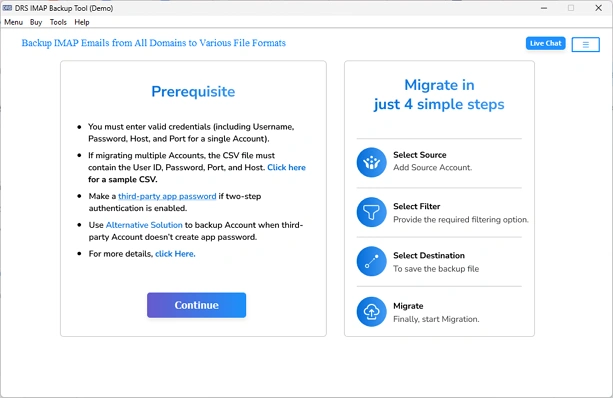
- To initiate, launch the above-discussed IMAP Migration Tool on your desired system and press Continue.
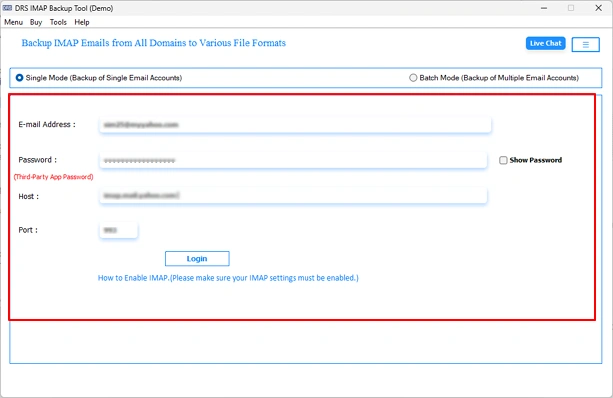
- Enter your eM Client IMAP server credentials to authenticate the source account.
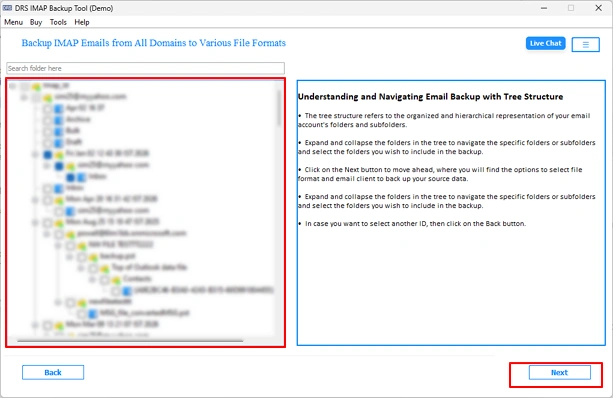
- Access the mailbox preview panel and select the required folders for migration >> Next.
- Choose Office 365 as the target platform from the Email Clients & press Next.
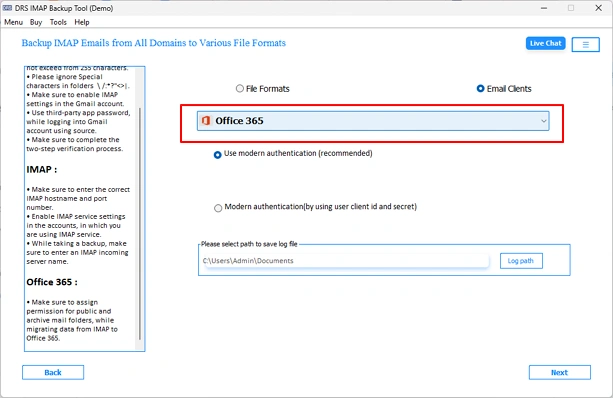
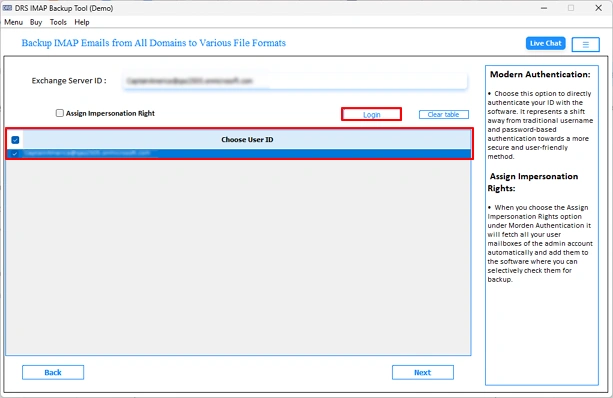
- Use Modern Authentication or Client ID & Secret ID to Log In.
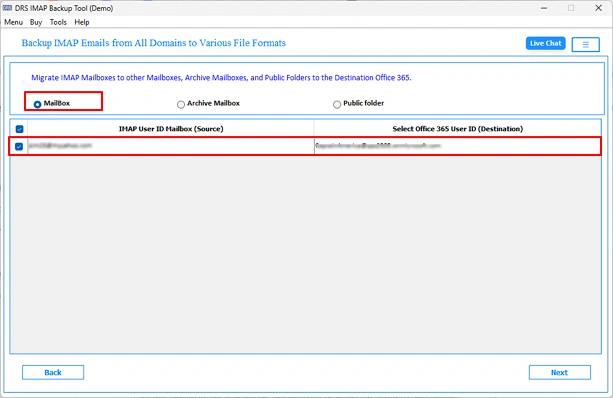
- Choose the Source Data Type, such as Mailbox, Archive Mailbox, or Public Folder, to migrate. Also, select the Source and Destination ID.
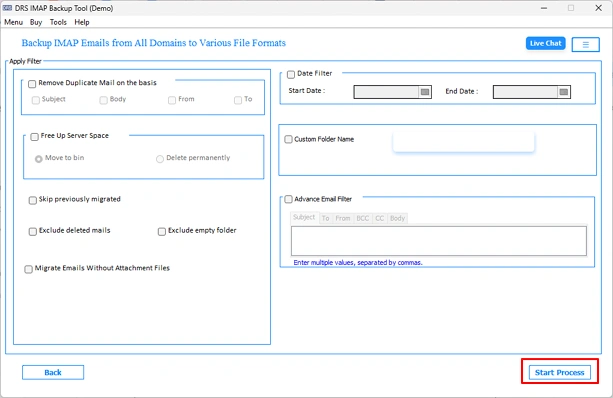
- Apply advanced features, like Remove Duplicates, Free up server space, Date Filter, and more.
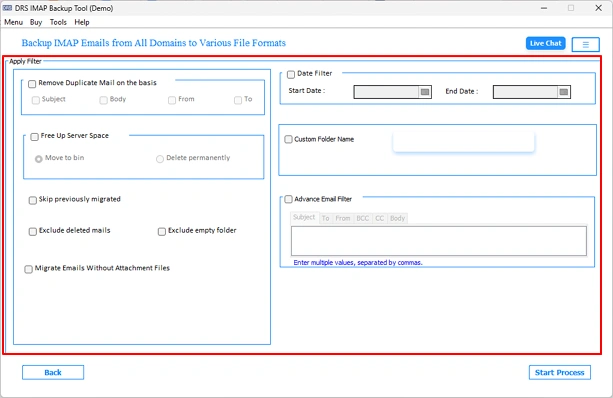
- Finally, click Start Process to switch from eM Client to Microsoft 365.
Enterprise Benefits of Using This IMAP Email Backup Tool
- Migrates eM Client IMAP mailboxes directly to Office 365 tenants.
- Single & Batch Mode support both individual and bulk migration.
- CSV import processes multiple IMAP accounts in a single operation.
- Date range filter enables time-bound, selective Office 365 migration.
- Duplicate removal filters records based on sender, subject, and body.
- Skip Previously Migrated option avoids reprocessing of 100% transferred records.
- Attachment control enables selective inclusion or exclusion during migration.
- Free Up Server Space removes source emails after a successful migration.
Industry Use Cases: Why Do Different Sectors Transfer eM Client Files to Office 365?
Different industries have unique communication and data management requirements. Here are some common reasons organizations across various sectors migrate to Office 365:
1. Healthcare
- Secure email communication for medical staff.
- Centralized management of administrative correspondence.
- Easy access to mailboxes across multiple devices.
- Enhanced data protection and backup capabilities.
2. Legal Firms
- Efficient handling of client and case-related emails.
- Organized mailbox structure for legal documentation.
- Secure sharing of sensitive information.
- Improved collaboration among legal teams.
3. Educational Institutions
- Simplified communication between faculty, staff, and students.
- Shared calendars for academic scheduling.
- Cloud-based access to emails and resources.
- Better support for remote and hybrid learning.
4. Financial Services
- Secure management of client communications.
- Reliable storage for financial correspondence.
- Better mailbox organization and accessibility.
- Enhanced protection against data loss.
5. IT Companies
- Simplified management of multiple business accounts.
- Efficient collaboration among distributed teams.
- Centralized email administration.
- Integration with cloud-based business workflows.
Conclusion
To conclude, we have discussed effective approaches to migrate eM Client to Office 365. While manual techniques are helpful for limited individual migration requirements. For large-scale data migration, use the professional tool. It supports batch conversion with 100% accurate result. Moreover, you can download the demo version of this tool to understand its features and functions.
Frequently Asked Questions
Q1. How can I migrate eM Client to Office 365?
Ans. You can migrate eM Client to Office 365 manually by exporting emails as EML files & importing them into an Outlook profile connected to Microsoft 365. For bulk and enterprise-grade migrations, the MigrateEmails IMAP Backup Tool offers direct migration with advanced filtering and batch processing features.
Q2. How are eM Client folders mapped in Office 365?
Ans. During migration, standard mailbox folders such as Inbox, Sent Items, Drafts, and custom folders can be retained. A professional migration tool preserves the original folder hierarchy to simplify post-migration mailbox management.
Q3. Can I transfer eM Client Files to Office 365 without Outlook installed?
Ans. Yes. While the manual method requires Microsoft Outlook for importing EML files, the MigrateEmails IMAP Backup Utility can transfer IMAP-enabled eM Client mailboxes directly to Office 365 without requiring Outlook installation.
Q4. Can I migrate eM Client data directly to a Microsoft 365 shared mailbox?
Ans. Yes. If the shared mailbox is properly configured and appropriate access permissions are available, the above-discussed migration tool can transfer mailbox data directly to the designated Microsoft 365 shared mailbox.
Q5. Can I perform incremental migration from eM Client to Office 365?
Ans. Yes. Incremental migration is possible using reliable migration software. Features such as Skip Previously Migrated help transfer only new mailbox items, reducing duplication and migration time.
Q6. Is Microsoft 365 authentication supported during migration?
Ans. Yes. Microsoft 365 authentication is supported through secure login mechanisms, allowing users to establish a protected connection between the source eM Client account and the target Office 365 mailbox.
Q7. Can technicians migrate eM Client mailboxes for multiple users?
Ans. Yes, technicians can easily migrate eM Client mailboxes for multiple users using the MigrateEmails IMAP Transfer Solution. This tool supports Single and Batch Mode operations, enabling IT administrators and technicians to migrate multiple eM Client mailboxes simultaneously using CSV-based account management.
About The Author:

I am Neeru Kuchhal, a Technical Content Writer who focuses on turning complex ideas into clear, engaging, and impactful content. I combine creativity with strategy to write blogs, web content, and technical articles that connect with the right audience and support brand goals. I believe great content is not just written. It is thoughtfully created to inform, build trust, and drive action.
Related Post