-
Written By Neeru Kuchhal
-
Approved By
Vikash Bajpai -
Updated on June 24th, 2026
Export Office 365 Emails to MSG: Enterprise Methods in 2026
“I manage around 6,200 emails across 14 shared Office 365 mailboxes in our legal firm. We recently got a request from compliance to export all client correspondence in MSG format for court submission. I have been looking for a reliable way to export Office 365 emails to MSG without losing metadata. Can anyone guide me on how to do this correctly?”
— Robert Klein, Legal IT Administrator, Texas
Microsoft Office 365 is a cloud-based email platform trusted by over 345 million paid users worldwide for business communication & data management. Organizations that store thousands of critical emails in Office 365 mailboxes, but when it comes to offline access or migration tasks, users need these emails in MSG format. MSG is a proprietary Microsoft Outlook format that preserves your complete email data, which includes attachments & formatting. This blog covers reliable methods to export Office 365 emails to MSG format efficiently. We will also cover how the MigrateEmails Office 365 Migration Tool helps in secure migration.
Quick Answer: How to Convert Office 365 Emails to MSG?
You can convert your Office 365 emails to MSG using Microsoft Outlook or a professional Office 365 backup tool. Outlook supports saving individual emails as MSG files, making it suitable for small exports. For bulk mailbox data, an automated solution can export multiple Office 365 emails to MSG while preserving attachments & essential email properties.
Common Scenarios for Office 365 to MSG Export
- Legal teams export MSG files for court submissions & eDiscovery.
- IT admins save mailbox data as MSG before account decommissioning.
- Organizations export MSG files during migration to on-premises Exchange.
- Remote employees use MSG files for offline email access.
- Forensic teams extract MSG files to preserve metadata and headers.
Manual Methods to Export Office 365 Emails to MSG
Microsoft Office 365 does not provide a native bulk export feature that directly exports to MSG files. However, users can leverage Microsoft Outlook to save individual or multiple email messages in MSG format. These manual techniques are suitable for small-scale exports but may become impractical for large mailboxes.
Prerequisites Before Manual Process
- You have an active Office 365 account with mailbox access.
- Microsoft Outlook for Windows is installed and configured.
- The Office 365 mailbox is fully synchronized with Outlook.
- You have sufficient local storage for the exported MSG files.
- You possess the necessary permissions to access the mailbox.
Method 01: Export Microsoft 365 to MSG Using the Save As Feature
The Save As option in Microsoft Outlook allows users to store their individual email messages as MSG files. You can simply follow the given steps of conversion.
Steps to Export Emails as MSG:
- Open Microsoft Outlook and verify that your Office 365 mailbox is synchronized.
- Browse to the mailbox folder containing the email you want to export.
- Select the desired email and click the File tab.
- Choose the Save As option from the menu.
- Select the destination folder for the exported file.
- From the Save as type menu, choose Outlook Message Format Unicode (*.msg).
- Enter a suitable file name and click Save to complete the export.
Limitations:
- Saves one email at a time.
- Requires Microsoft Outlook.
- No batch export capability.
- Time-consuming for large mailboxes.
Method 2: Export Office 365 Emails to MSG Using Drag and Drop
Microsoft Outlook also allows users to create their MSG files by dragging email messages directly to a local folder. Here are the easy steps for the migration process.
Steps to Export Emails Using Drag and Drop:
- Open Microsoft Outlook and ensure the mailbox has finished syncing.
- Create or open a folder on your computer where the MSG files will be stored.
- Navigate to the mailbox folder containing the required emails.
- Select one or multiple email messages using Ctrl or Shift, then drag them to a local Windows folder.
- Drag the selected emails from Outlook and drop them into the destination folder.
- Outlook creates separate MSG files for each selected email.
- Open a few exported files to verify the email content and attachments.
Limitations
- Suitable only for small batches of emails.
- Requires manual email selection.
- Does not maintain mailbox folder hierarchy.
- Not practical for enterprise-scale exports.
Professional Solution to Export Office 365 Emails to MSG
MigrateEmails Office 365 Migration Tool is a reliable solution for users dealing with large-scale Office 365 mailbox export requirements. It supports several output formats, which makes it suitable for diverse enterprise needs. Moreover, the software handles mailboxes, public folders, and archive folders from both admin & user accounts without any data loss. The free demo version allows up to 50 mailbox items per folder to be exported at no cost, giving users a risk-free evaluation.
Easy Steps to Save Office 365 Emails to Outlook MSG:
- Install the above-discussed Microsoft 365 Backup Tool & simply choose the Backup from the options.
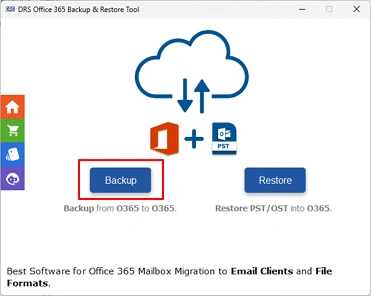
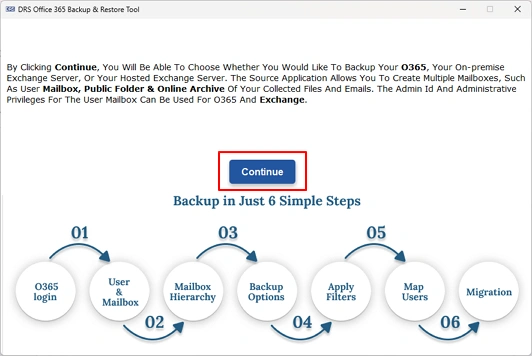
- After that, you need to press Continue to proceed further.
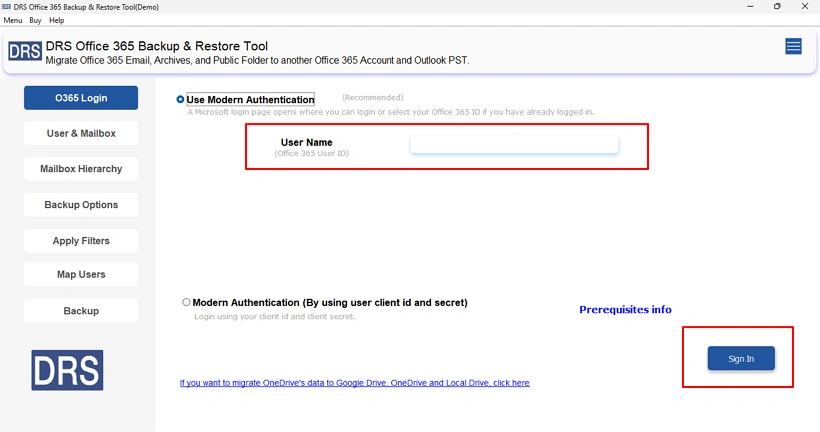
- Authenticate your Office 365 account using valid admin or user credentials.
- Simply select the target mailbox, public folder, or archive folder for export.
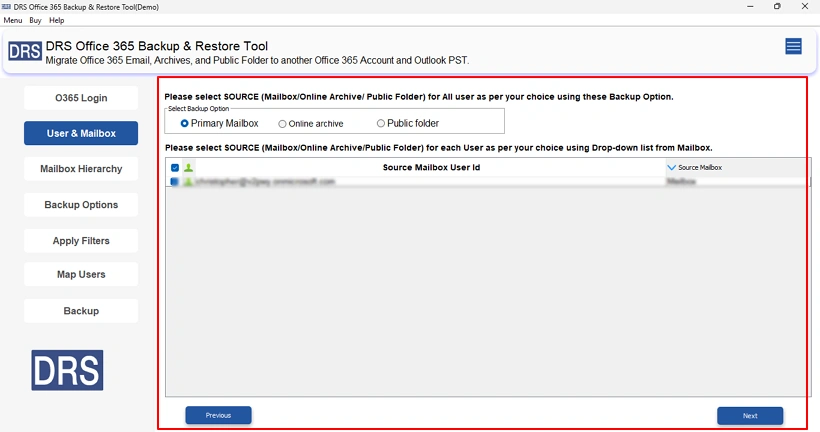
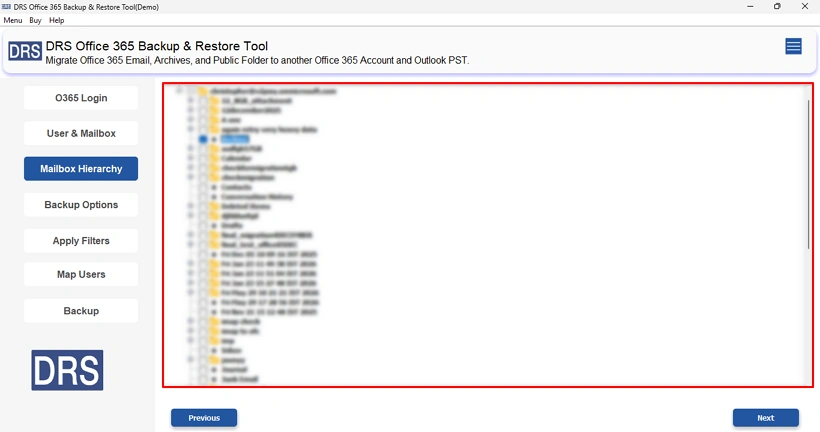
- You have to preview & select the mailbox or mailbox folders that you want to export.
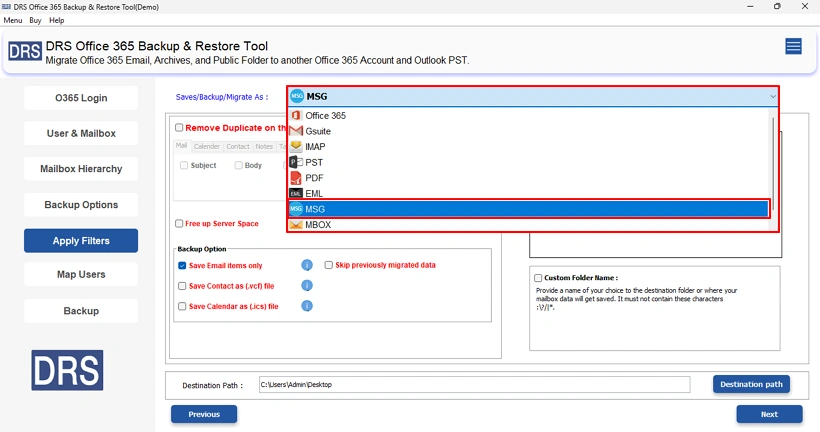
- Choose MSG as the desired output format from the available options.
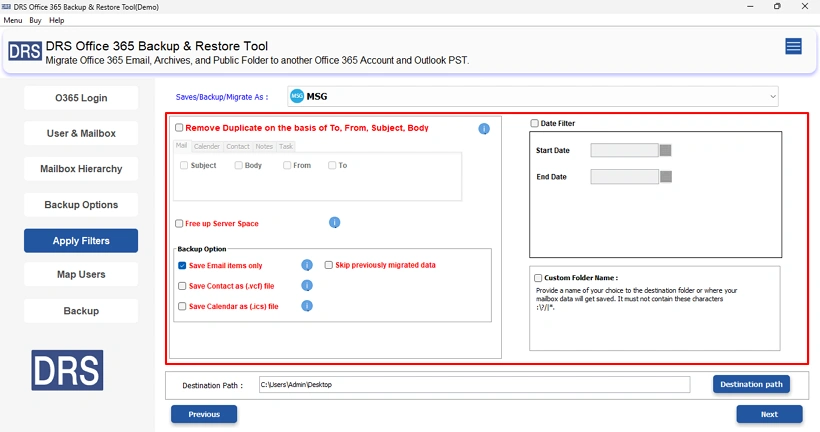
- Apply optional settings such as Date Range Filter, Remove Duplicates, or other filters accordingly.
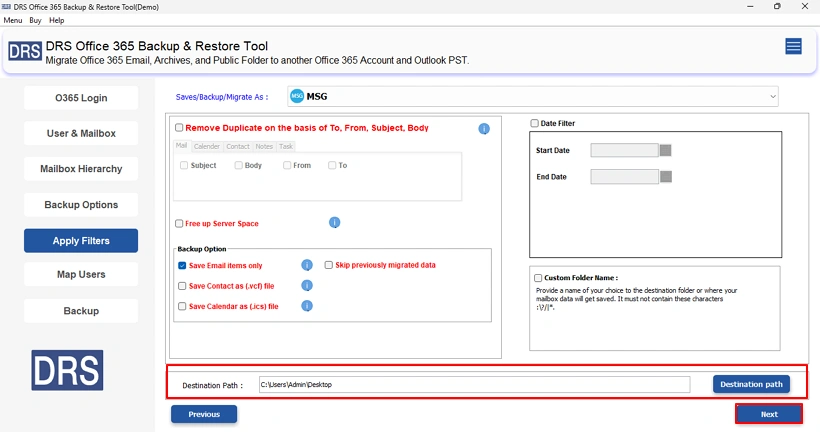
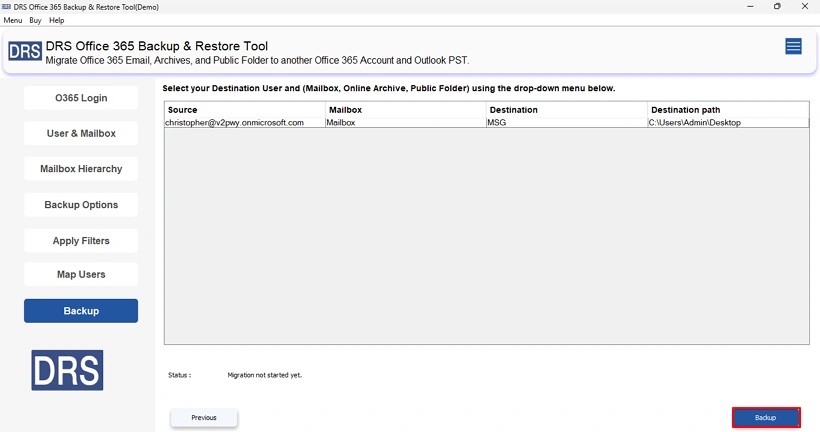
- Thereafter, you have to set the destination folder path & press Next.
- Finally, you need to click Backup to begin the MSG export process.
Why Do IT Teams Prefer This Utility?
- Assign Impersonation Rights processes multiple mailboxes under one admin account.
- Date Range Filter exports emails within a defined start and end date.
- Removes duplicate emails based on To, From, Subject, Body, and BCC.
- Preserve complete folder hierarchy and data integrity during export.
- Custom Folder Name allows users to rename or specify a custom name for the destination folder.
- Exports emails with or without attachments as per the user’s need.
- Built-in preview feature to verify emails before starting export.
- Supports public folders and archive folders alongside regular mailboxes.
- Backup Options section offers the following selective export controls:
- Save Email Items Only to export mailbox emails exclusively.
- Skip Previously Migrated to avoid re-exporting already processed emails.
- Save Contacts as VCF Only to extract contact data in VCF format.
- Save Calendar as ICS File to export calendar entries as ICS files.
Real-Life Scenario
A legal firm in Chicago needed to export 12,000+ client emails from 9 Office 365 mailboxes to MSG format for court submission. Manual methods failed to meet the volume and deadline.
The IT team switched to MigrateEmails Office 365 Migration Tool, connected all 9 mailboxes using the Assign Impersonation Rights feature, and applied a Date Range Filter to target relevant emails only. All emails were exported as individual MSG files while preserving email metadata & organizing them according to their original mailbox folders, meeting the compliance deadline without any data loss.
Conclusion
In the above technical blog, we have discussed effective approaches to export Office 365 emails to MSG format. The manual methods are suitable for saving a limited number of emails, whereas they can become time-consuming for large mailboxes. For organizations & users who manage bulk Office 365 emails, the MigrateEmails Office 365 Migration Tool provides a more efficient way with advanced export capabilities. Moreover, you can choose the method that best aligns with your data volume & business requirements.
Q1. How do I Export Office 365 Emails to MSG format?
Ans: You can export your Office 365 emails to MSG by using Microsoft Outlook’s Save As or Drag and Drop feature for individual emails. For bulk mailbox exports, a dedicated Office 365 migration tool offers a more efficient solution.
Q2. Does exporting Office 365 emails to MSG preserve attachments?
Ans: Yes. MSG is a native Outlook format that retains email content, attachments, sender and recipient details, subject lines, and other essential email properties during export.
Q3. Why would organizations save Office 365 emails as MSG files?
Ans: Organizations commonly export emails to MSG for legal documentation, compliance audits, employee offboarding, email archiving, and sharing individual messages while preserving their original format.
Q4. Does MSG export preserve read/unread email status?
Ans: The MSG format can store message properties, including the read status. A professional export utility is designed to maintain such email attributes during the export process.
Q5. How can I save Office 365 Emails to Outlook MSG based on a date range?
Ans: Manual Outlook methods do not provide date-based MSG exports. On the other hand, the MigrateEmails Microsoft 365 Migration Tool offers Date Range Filter options to export emails from a specific time period.
Q6. How do IT admins bulk Export Office 365 Emails to MSG in 2026?
Ans: IT administrators typically rely on the above-discussed Microsoft 365 Backup Solution that supports multiple mailboxes, public folders, archive mailboxes, and batch processing for large-scale MSG exports.
Q7. How are duplicate emails handled during Office 365 to MSG export?
Ans: Manual methods do not detect duplicate emails. MigrateEmails Office 365 Email Migration Utility can identify and remove duplicate messages based on various email properties before export.
Q8. Can administrators export Office 365 emails from inactive mailboxes to MSG?
Ans: Yes. With the required administrative permissions, inactive Office 365 mailboxes can be exported to MSG format using a professional Office 365 backup tool while preserving essential email properties.
Q9. Which is the best tool to Export Office 365 emails to MSG?
Ans: The MigrateEmails Office 365 Migration Tool is a suitable option for exporting Office 365 emails to MSG because it supports bulk mailbox processing, advanced filters, duplicate removal, and multiple Office 365 mailbox types through a simplified interface.
About The Author:

I am Neeru Kuchhal, a Technical Content Writer who focuses on turning complex ideas into clear, engaging, and impactful content. I combine creativity with strategy to write blogs, web content, and technical articles that connect with the right audience and support brand goals. I believe great content is not just written. It is thoughtfully created to inform, build trust, and drive action.
Related Post