-
Written By Kiran Sharma
-
Approved By
Vikash Bajpai -
Updated on March 31st, 2026
How to Convert OneNote to BMP Image in Bulk? 2026 Guide
David’s Query:-
“I have important notes and other information in OneNote. I need to convert them into PNG images for presentations and sharing. What is the easiest way to convert OneNote to PNG without losing formatting or quality?”
“I have important notes and other information in OneNote. I need to convert them into PNG images for presentations and sharing. What is the easiest way to convert OneNote to PNG without losing formatting or quality?”
Introduction:- In 2026, OneNote is the only easy-to-use tool for taking notes. But its .one and .onepkg formats can be controlled when you need to share content across non-Microsoft platforms. Converting OneNote pages into a Bitmap is a common requirement. However, OneNote doesn’t support BMP for bulk conversions. But no need to worry. This guide includes powerful methods to export OneNote to BMP, along with the MigrateEmails OneNote Converter Software.
OneNote vs. BMP Image: A Comparative Overview
| Important Factors | Microsoft OneNote (.one) | BMP Image (.bmp) |
| Type | Dynamic Notebook/Structured Data | Uncompressed Raster Image |
| Editability | Fully editable text, ink, and objects | Static; requires image editors to modify |
| Compatibility | Requires OneNote or OneDrive | Universal (Windows, Linux, macOS, Web) |
| Scaling | Vector-based ink (No quality loss) | Pixel-based (Fixed resolution) |
| Searchability | Built-in OCR for handwritten notes | Requires external OCR tools |
| Data Size | Compressed database format | Large (due to lack of compression) |
What is The Purpose of Converting OneNote into BMP?
The users choose to convert OneNote to BMP for many reasons:
| Zero Compression BMP keeps every detail of your OneNote data exactly as it is, without the modifications you often see in JPEG images. | Legacy Software Integration Some older or specialized business applications require simple, uncompressed bitmap files to work properly. |
| Forensic & Legal Documentation Since BMP files aren’t compressed, they’re often preferred in legal situations where you need to prove that the original note hasn’t been altered. | Offline Presentation Images are easier to add to presentations or reports, especially when the person viewing them doesn’t have access to Microsoft 365. |
Free Manual Techniques to Convert OneNote File to BMP
If you only have one or two pages, you might consider these manual workarounds. But don’t forget to note that this method has several disadvantages.
Method 1: The “Save As” Loop (OneNote Desktop)
- Firstly, open your OneNote Desktop app.
- Now, go to File and then Export.
- Select Page and then choose PDF (OneNote doesn’t export to BMP directly).
- Lastly, open the PDF in an image editor (like MS Paint or Photoshop) and Save As BMP.
Method 2: The Screenshot Hack
- Firstly, navigate to the OneNote page.
- After that, use Win + Shift + S to capture the screen.
- Further, paste into Paint and save as BMP.
Disadvantages of This Method to Convert OneNote to BMP Manually
- Resolution Loss: The image quality depends on your screen resolution, so it may not always be clear or consistent.
- No Bulk Support: If you have hundreds of pages, you’ll need to repeat the same steps again and again.
- Inconsistent Sizing: Each image can end up with different sizes, which isn’t ideal for professional reports.
- Time-Consuming: This method becomes very time-consuming and impractical for large-scale or business use.
Powerful Technique to Export OneNote to Image BMP File
To handle bulk conversions together, using the MigrateEmails OneNote Converter Tool is the most efficient approach. It completes the process directly without losing any data. This tool convert OneNote to HTML and other formats. Also, it has a user-friendly interface that can be easily accessed by every user. Furthermore, it comes with a one-time conversion advantage as well.
One-Time Conversion Option:-
In case you don’t want to handle the migration yourself, you can directly complete the process by using this one-time option. You just have to get in touch with our support team. They will convert OneNote to BMP accurately with zero data loss. Also, it preserves the whole content securely. This solution is perfect for long-term storage.
Step-by-Step Procedure to Complete This Task
- Firstly, start getting the MigrateEmails OneNote Converter Tool.
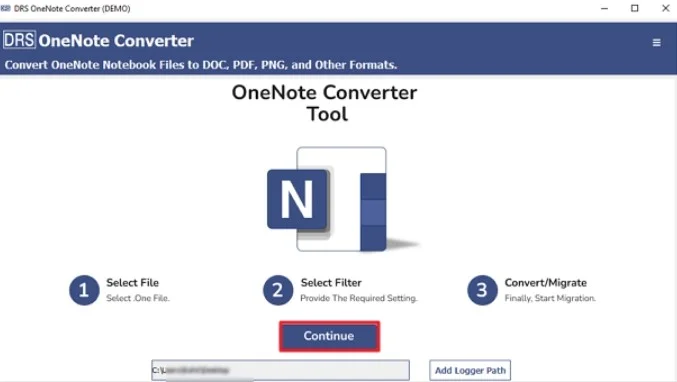
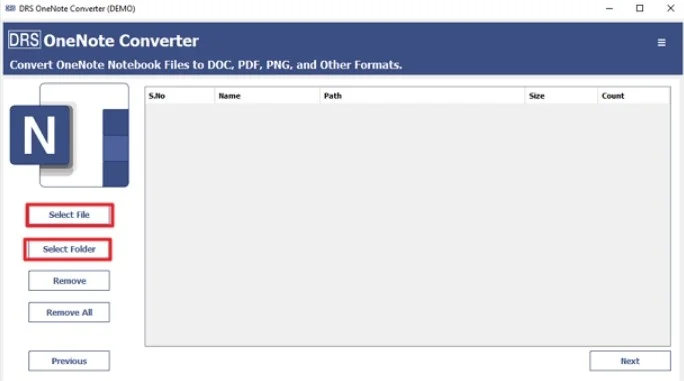
- Now, Select Files or Folders to add to the OneNote file, and click Next.
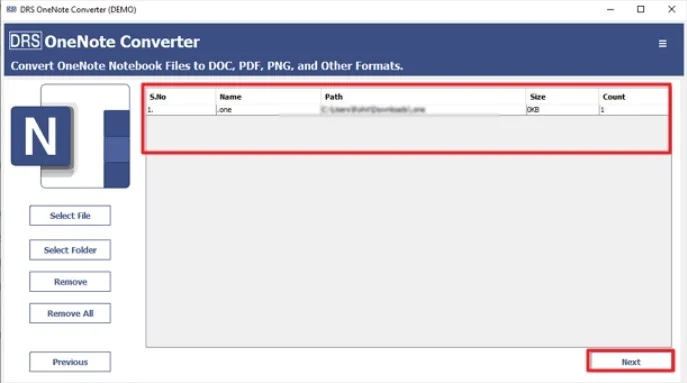
- Further, upload the file that you want to convert, and click Next.
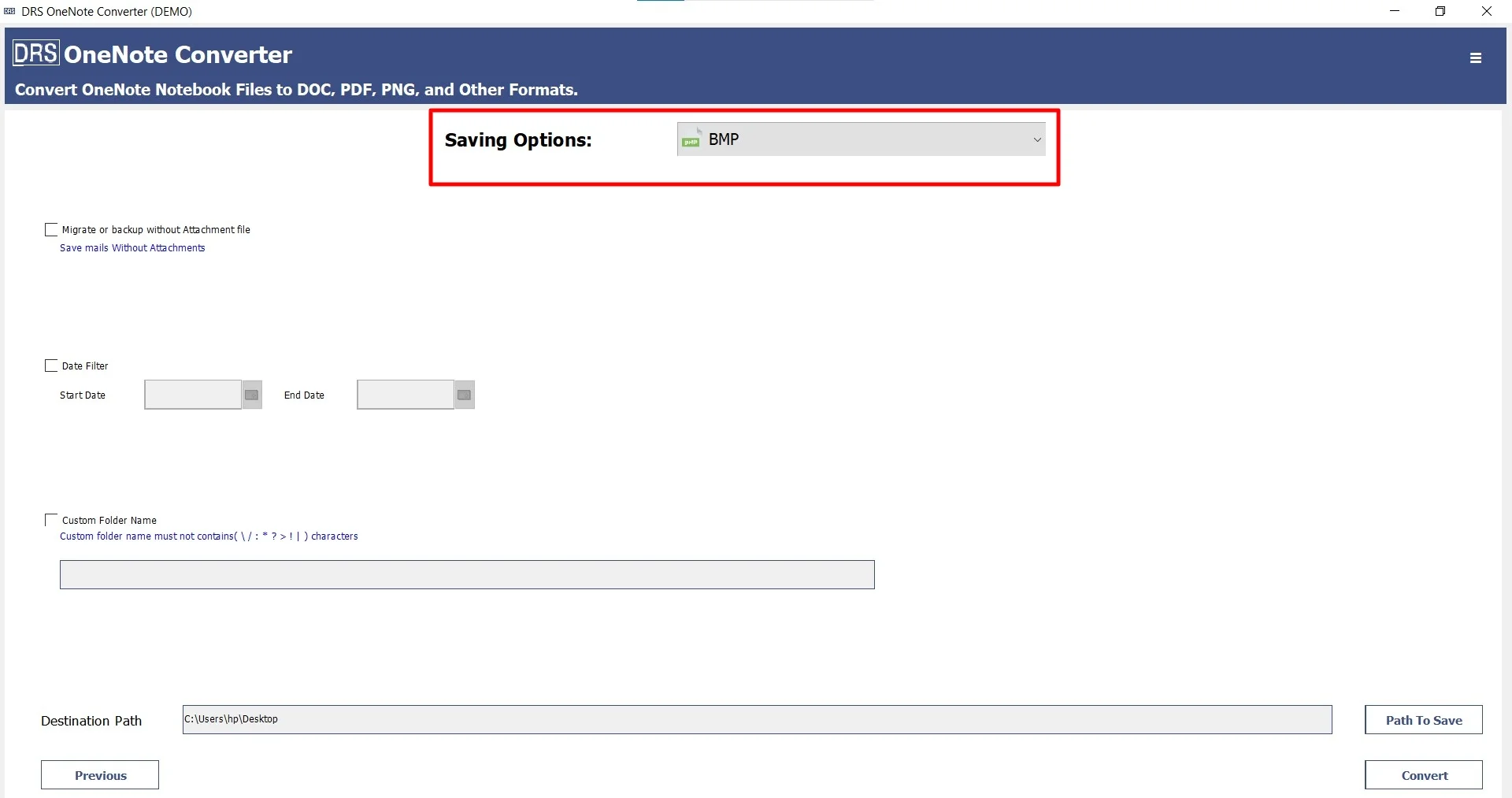
- Afterwards, choose the BMP as the saving file format.
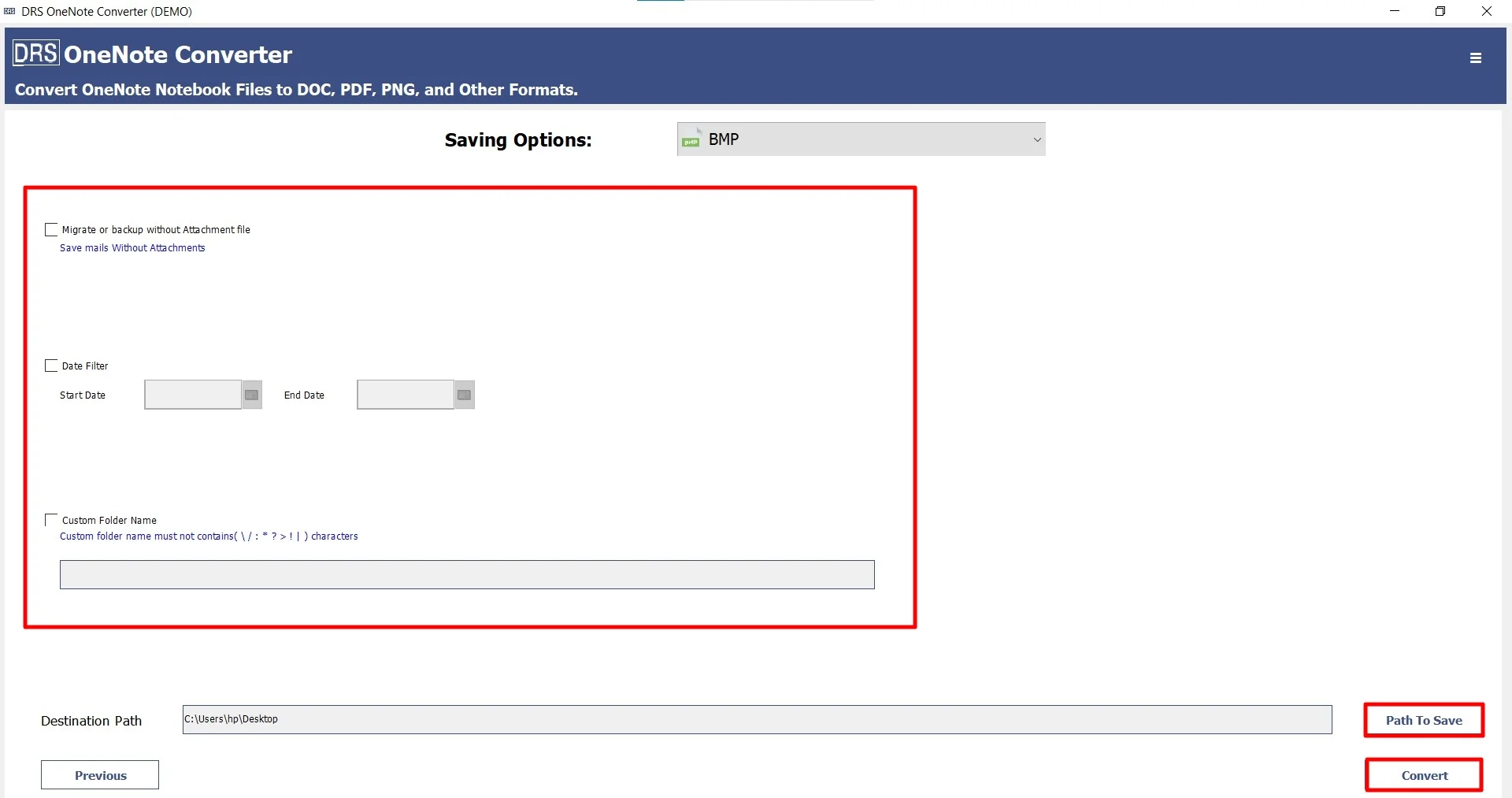
- Finally, set filters and path accordingly, and click Convert to start the process.
Advantages of the MigrateEmails Tool to Convert OneNote to BMP
- Bulk Conversion: Convert entire notebooks, sections, or individual pages in one go.
- High DPI Retention: Ensures that handwritten notes and fine lines remain sharp and readable.
- No OneNote Installation Required: The tool can read orphaned .one files even if you don’t have MS Office installed.
- Folder Mapping: Automatically creates a folder structure that matches your OneNote sections.
Explore More: Convert OneNote to PNG effortlessly.
A Real-Life Case Study:-
The Client: A global landscape architecture firm.
Problem: They had 10 years’ worth of design sketches saved in OneNote. Now, they were moving to a new project management system that required all files to be in BMP format for high-quality printing and archiving. There were over 3,000 pages of notes spread across 50 different notebooks, making manual conversion difficult.
Solution: The IT team used the MigrateEmails OneNote Converter Tool to convert all the data in bulk overnight.
Result: Every page was neatly converted into labeled BMP files, organized by project year and client name. This not only saved around 120 hours of manual work but also maintained the original scale and quality of each design.
Note: You may also convert OneNote to TIFF and other formats.
Conclusion
In short, converting OneNote to BMP in 2026 shouldn’t be a complicated task. While the manual methods are fine for a quick “one-off,” enterprise-level needs require a robust, automated solution. The OneNote converter tool provides the speed and accuracy needed to convert OneNote to BMP without any loss. Moreover, if you face any difficulty, try connecting with our support team asap.
Ready to digitize your archives? Download the trial version of the MigrateEmails OneNote Converter and transform your notes into high-quality BMP images today.
Frequently Asked Questions
Q1. Can I directly convert OneNote files to BMP format?
Ans. No, Microsoft OneNote does not feature a built-in “Export to BMP” option. The application typically supports exporting to PDF, XPS, or Word formats. To obtain a BMP file directly from your .one or .onepkg files, you must use a specialized conversion utility.
Q2. Is there any tool to convert OneNote to BMP?
Ans. Yes, the MigrateEmails OneNote Converter Tool is specifically designed for this purpose. It allows you to select OneNote notebooks and directly export every page into high-quality BMP image files without needing to go through intermediary formats like PDF.
Q3. Will the free trial version convert my OneNote files to BMP without restrictions?
Ans. The OneNote converter tool, including MigrateEmails, offers a free demo version that allows you to test the software’s compatibility and performance. While it will convert your files to BMP, the trial version typically includes a limit on the number of pages or adds a watermark to the output to allow for evaluation before purchasing the full license.
Q4. Why Do Users Need to Convert OneNote to BMP?
Ans. Users often require BMP format because it is an uncompressed “raw” image format. It is essential for legacy industrial software, high-fidelity archival storage, legal documentation where image integrity is paramount, and as a source for high-accuracy OCR (Optical Character Recognition) engines.
Q5. Will image quality be preserved during conversion?
Ans. Yes. Unlike JPEG, which compresses data and can create “artifacts” around text and ink strokes, BMP is a lossless format. Using a professional OneNote converter ensures that every pixel of your original OneNote drawings, diagrams, and handwriting is preserved at its original resolution.
Q6. Can I convert multiple OneNote pages to BMP at once?
Ans. OneNote’s native interface requires you to export pages one by one. However, using the OneNote Converter, you can perform bulk conversion. You can select an entire folder of notebooks and convert hundreds of pages into individual BMP images in a single automated process.
Q7. Does converting OneNote to BMP affect formatting?
Ans. When using an automated OneNote converter tool, the layout and formatting are “frozen” exactly as they appear in OneNote. All text, images, and digital ink are rendered into a static bitmap image, ensuring the visual structure remains 100% identical to the original note.
About The Author:

I am Kiran Sharma, a Technical Expert in Content writing. I have technical expertise in the field of Email Backup, Data Recovery, and Email Migration, and resolve technical queries related to Cloud Backup or Email Migration for individuals and businesses.
Related Post