-
Written By Neeru Kuchhal
-
Approved By
Vikash Bajpai -
Updated on April 20th, 2026
How to Convert JSON to SVG: Step-by-Step Quick Guide
Amelia Query: “I have JSON data and want to convert it into SVG for better readability. What’s the easiest and safest way to do this without losing any data, especially for large files?”
Introduction:- Working with JSON is quite common when you’re dealing with structured data. It’s great for storing and sharing information. But when it comes to actually visually seeing that data, it doesn’t help much. That’s where SVG comes in. It’s made for graphics and scales nicely without losing quality. So, many people convert JSON to SVG to make things clearer. This blog explains the manual approach and the MigrateEmails JSON Converter Tool, both helping with accurate conversion.
Reasons to Convert JSON file to SVG
- Helps you view and understand the data more clearly.
- Turns messy JSON into something clear and readable.
- SVG looks clean, no matter how much you zoom.
- Helps when you need charts or simple visuals.
- Can be used easily on websites or apps.
- Makes your data look more organized.
- Easier to share with others.
- Saves you from reading long JSON files.
Requirements: Convert JSON to SVG
| Factor | Details |
| JSON File | A valid JSON file with proper structure |
| Basic Knowledge | Simple understanding of JSON format |
| Conversion Method | A tool or method to convert your JSON to SVG |
| Storage Space | Enough space to save the output file |
How Organizations Save JSON to SVG?
Working with JSON is fine until you need to visualize it. Raw data isn’t easy to read. Converting it to SVG makes things clearer, but using the wrong method can lead to messy or broken results. There are mainly two ways to do it:
- Manual method
- Automated solution
Way 01: Native Approach to Convert JSON to SVG
This method is quite straightforward and hands-on. You convert JSON into SVG by writing some code or using basic functions to turn data into visuals. It works fine when the data is simple.
Quick Steps: Change JSON to SVG
- Firstly, open your JSON file in your system.
- Then, use a programming language like JavaScript.
- Now, parse the JSON data carefully.
- Thereafter, map the data into SVG elements.
- Finally, save the output as an SVG file.
What Are the Limitations of the Manual Method?
- You need some coding skills to do it properly.
- It’s easy to mess things up while working with the data.
- Doesn’t work well with complex or nested JSON.
- You can’t handle multiple files together.
- You’ll have to fix things manually afterward.
Way 02: Expert Choice to Convert JSON to SVG
If you want to avoid manual work, the MigrateEmails JSON Converter Tool makes the process much simpler. It can handle both single and multiple JSON files while keeping your data clear and organized. You can also Convert JSON to JPG and other formats like HTML or CSV without losing important details. Moreover, it supports large and complex files and keeps things like timestamps and structure intact. Plus, everything runs on your system, so your data stays safe and private.
Quick Guide to Convert JSON data to SVG Image:
- Start by installing and launching the JSON Converter Tool.
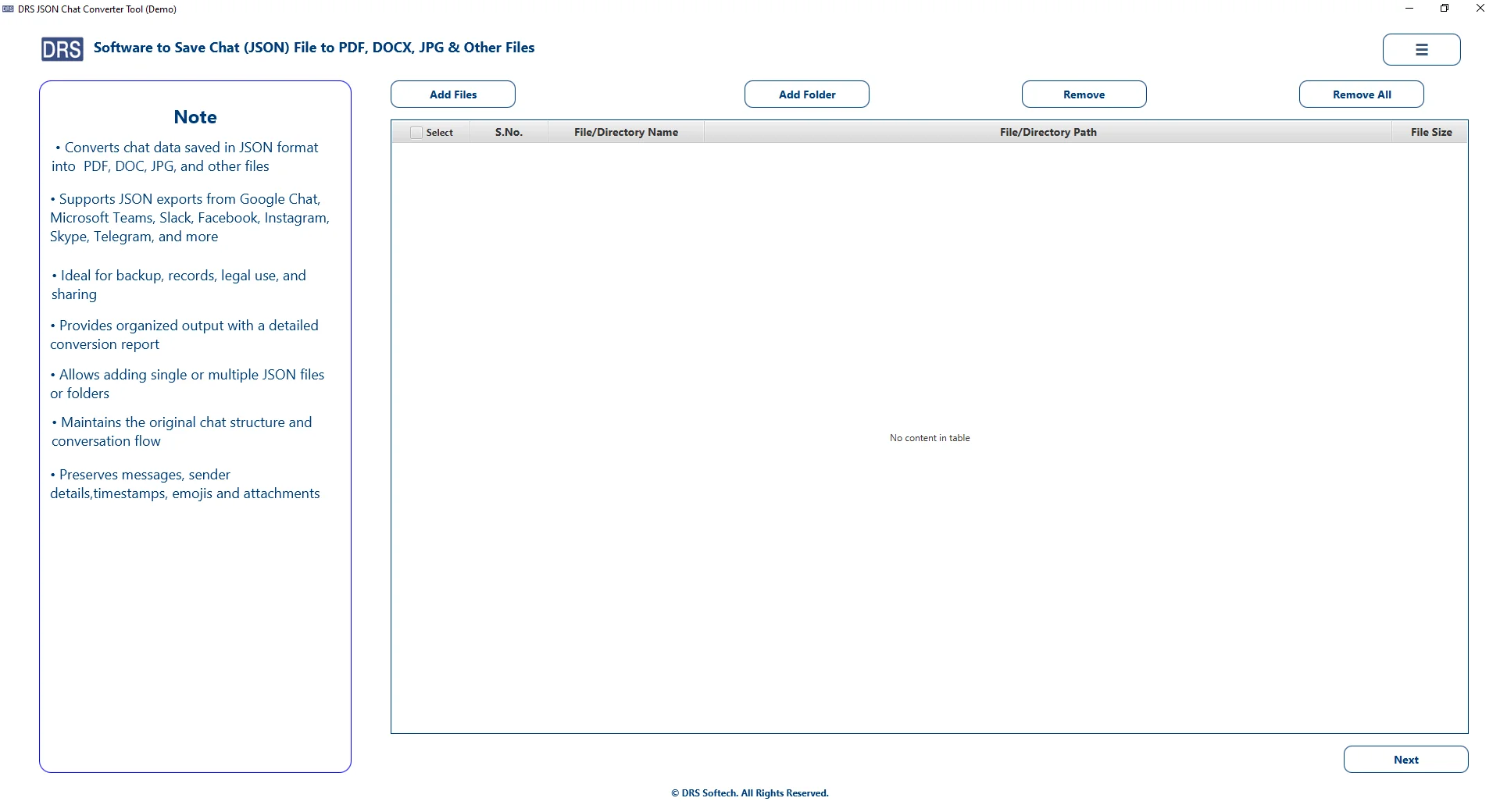
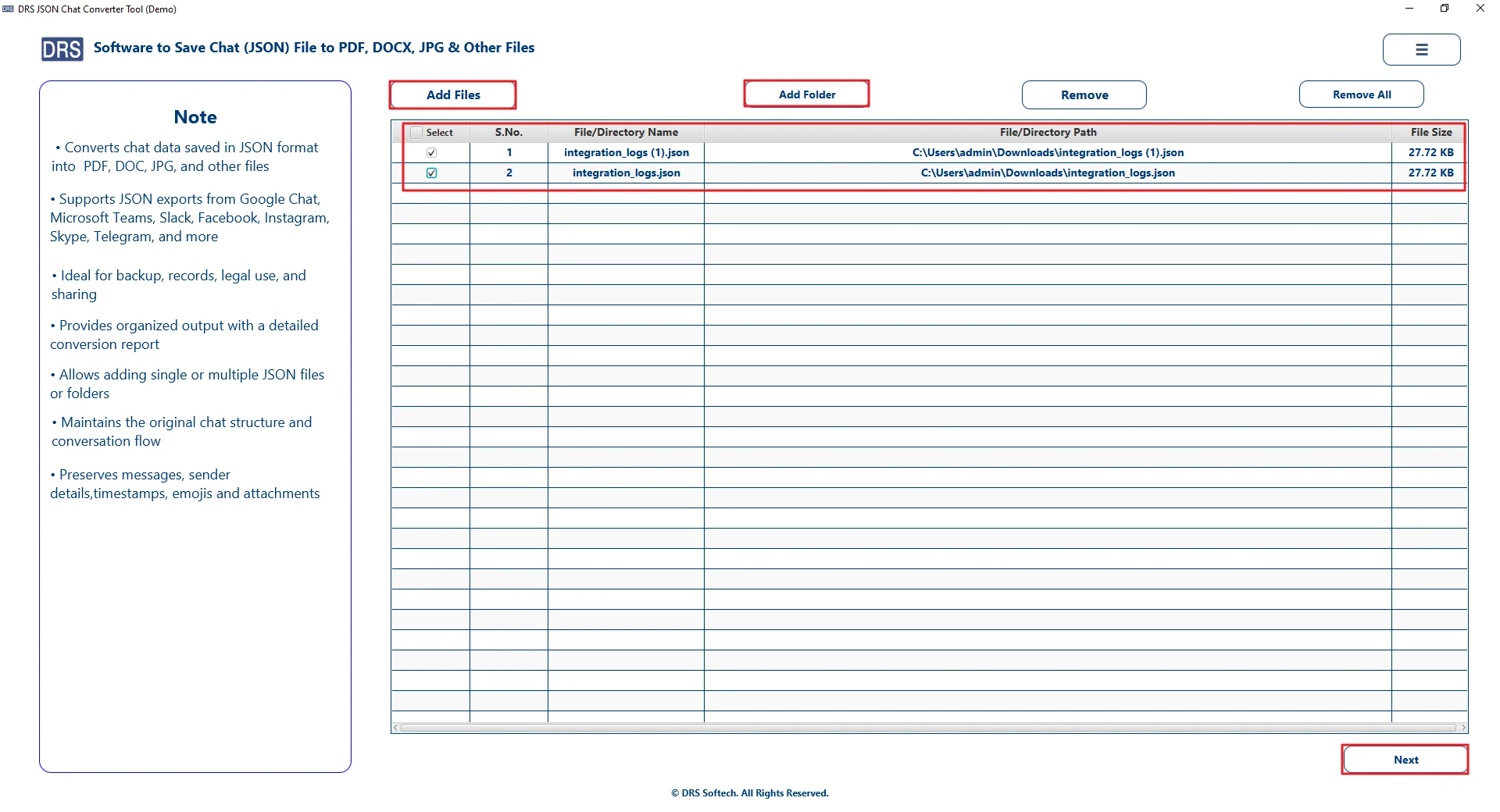
- After that, use Add File or Add Folder to import the JSON data. Click Next.
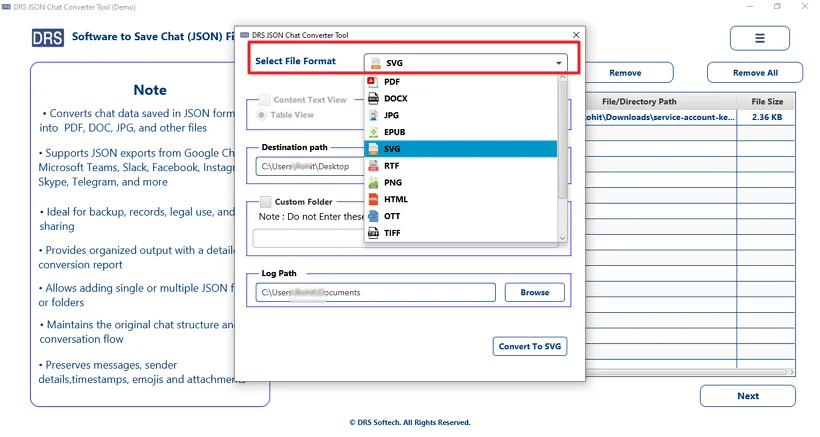
- Then, choose SVG as the file format from the given list.
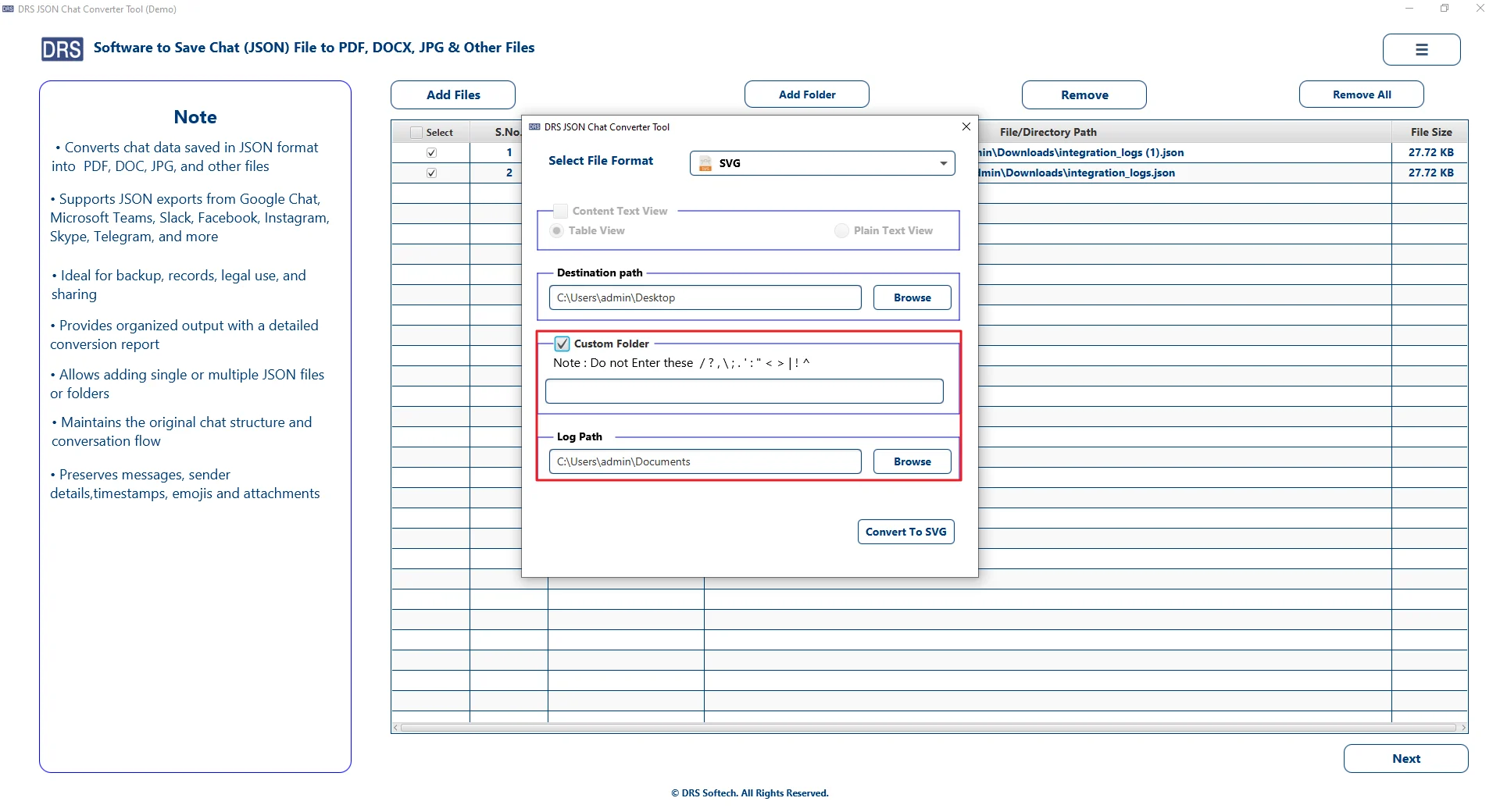
- Now, enter a name and choose the location using the Browse option.
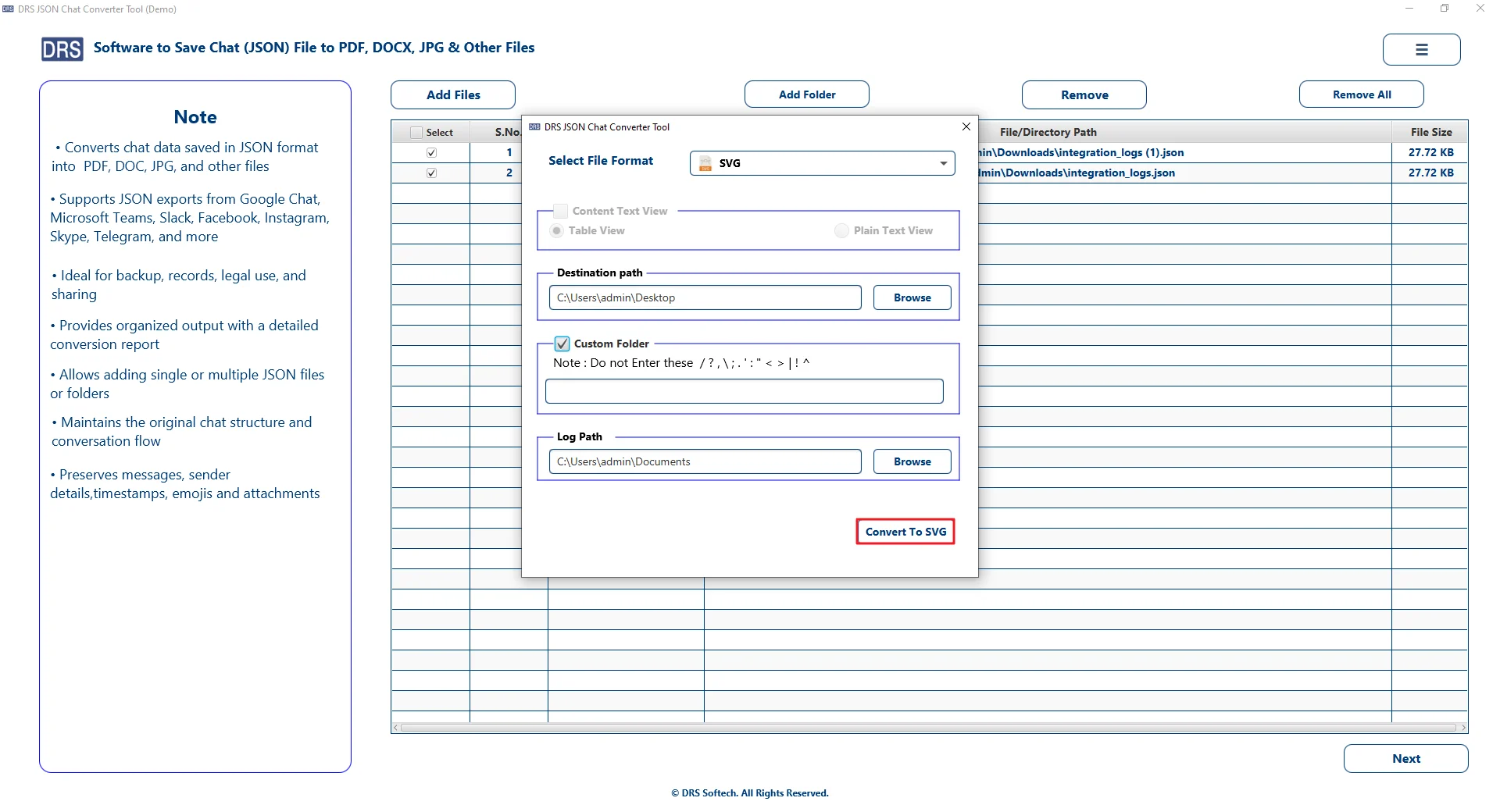
- At the end, click Convert to SVG to start the conversion.
Real-Life Scenario:
“ A user working with JSON data for charts needed a quick way to convert it into SVG for better visuals. He didn’t want to deal with coding or complex steps. The MigrateEmails JSON Converter Tool made it really simple. It converted my files smoothly, and the SVG output was clean and accurate.”
— Daniel R., Data Analyst, UK
.
Beneficial Features of JSON Converter
- Convert large JSON files to SVG without size limits.
- Convert JSON file to Word and multiple formats like SVG, PDF, and PNG.
- Run conversions offline to keep your data safe.
- Keep your original data intact with no loss.
- Simple interface that’s easy to use for anyone.
- Works on Windows, Mac, and Linux systems.
- Try the free demo to convert up to 20 key values.
Time to Wrap Up
In this blog, we looked at both the manual method and a tool-based approach to convert JSON to SVG. The manual way can work, but only for small and simple data. It takes time and can get difficult with complex files. Using a dedicated JSON Converter tool makes the process much easier. It handles large files, keeps the data structure intact, and saves a lot of effort. You can also try the demo version first to see how it works before using it fully.
Frequently Asked Questions
Q1. Is it safe to convert JSON to SVG at once?
Ans. Yes, it is safe if you use a reliable method. Manual ways can sometimes cause errors. Using the MigrateEmails JSON Converter Tool helps keep your data safe during conversion.
Q2. Can I convert JSON file to SVG on Windows and Mac?
Ans. Yes, most tools support both platforms. You don’t need a different process for each system. The MigrateEmails JSON Converter Tool works smoothly on Windows and Mac.
Q3. Are there any free tools to save JSON to SVG?
Ans. Yes, some free tools are available online. But they may have limits or fewer features. MigrateEmails JSON Converter Tool offers a more complete and reliable option.
Q4. Can large JSON files be converted into SVG efficiently?
Ans. Large files can be difficult with manual methods. They may take time or fail during processing. The MigrateEmails JSON Converter handles large files more efficiently.
Q5. What is the easiest way to convert JSON File to SVG?
Ans. The easiest way is to use a dedicated tool. It saves time and reduces manual effort. MigrateEmails JSON Converter Tool makes the whole process simple and quick.
About The Author:

I am Neeru Kuchhal, a Technical Content Writer who focuses on turning complex ideas into clear, engaging, and impactful content. I combine creativity with strategy to write blogs, web content, and technical articles that connect with the right audience and support brand goals. I believe great content is not just written. It is thoughtfully created to inform, build trust, and drive action.
Related Post