-
Written By Kiran Sharma
-
Approved By
Vikash Bajpai -
Updated on May 12th, 2026
Convert CDR File to BMP: Step-by-Step Guide For Beginners
User Query:“I have a bunch of CDR files, but I can’t open them everywhere. I just want to convert them to BMP without losing quality. Is there an easy way to do this without any issues?””
Introduction:- Working with CorelDRAW files isn’t always easy. Sometimes you just need a simple
image, but CDR files don’t open everywhere. That makes sharing or even viewing them a bit annoying. That’s why people usually convert CDR files to BMP. It’s a basic format, easy to open, and works on almost any system without extra setup. In this guide, I’ll walk you through a few simple ways to convert a CDR File to BMP. It includes the manual method for small files and the professional MigrateEmails CDR Converter Tool for bulk conversion.
image, but CDR files don’t open everywhere. That makes sharing or even viewing them a bit annoying. That’s why people usually convert CDR files to BMP. It’s a basic format, easy to open, and works on almost any system without extra setup. In this guide, I’ll walk you through a few simple ways to convert a CDR File to BMP. It includes the manual method for small files and the professional MigrateEmails CDR Converter Tool for bulk conversion.
CDR vs BMP: What’s the Difference for Enterprise Use
| Aspect | CDR File (CorelDRAW) | BMP Format |
| Usage | Used mainly in CorelDRAW for design work | Used for simple image viewing and sharing |
| Accessibility | Needs specific software to open | Opens on almost any system without extra tools |
| Team Collaboration | Not easy if the team doesn’t have CorelDRAW | Easy to share across teams and departments |
| File Handling | Better for editing and design changes | Better for viewing and quick access |
| Compatibility | Limited to design environments | Works across Windows, Mac, and other platforms |
| Enterprise Use | Suitable for designers only | Useful for wider teams like management, clients, and support |
| Ease of Use | Requires some technical knowledge | Simple and easy for anyone to use |
Reliable Ways to Convert CDR to BMP
This section covers some simple and practical methods to convert CDR files into BMP format. Basically, the approaches below are easy to follow and help you get the job done without much confusion.
- Manual Method
- Automated Method
01 Approach: Conventional Way to Convert CDR File to BMP
If you don’t want to install anything extra, you can just use CorelDRAW itself. In fact, it’s not complicated. Just a few steps, and it works fine if you only need a quick, basic conversion.
Verified Steps to Change CDR File to BMP:
- First, open CorelDRAW & load your CDR file.
- Then, go to File >> Export (or press Ctrl + E).
- After that, choose BMP (Bitmap) as the output format.
- Now, rename the file & select where you want to save it.
- Finally, click Export & adjust settings if prompted.
Loopholes to Transfer CDR file to BMP Manually:
- First of all, you need CorelDRAW installed to even get started.
- Also, it’s not great if you have a lot of files to convert.
- Plus, it can take a while when the files start adding up.
- On top of that, you don’t really get much control when working with multiple files.
02 Approach: Smart Solution to Convert CDR File to BMP
The MigrateEmails CDR Converter Tool is built to make the conversion process simple and smooth. It can handle both small and large CDR files without much effort. You can convert files directly to BMP and other formats, without depending on CorelDRAW being installed. It also comes with useful options like removing duplicate files, skipping unwanted elements, and converting only selected files. This makes it easier to manage your data without extra steps. Likewise, it can also convert CDR to JPG and other formats.
How to Convert CDR File to BMP in Bulk?
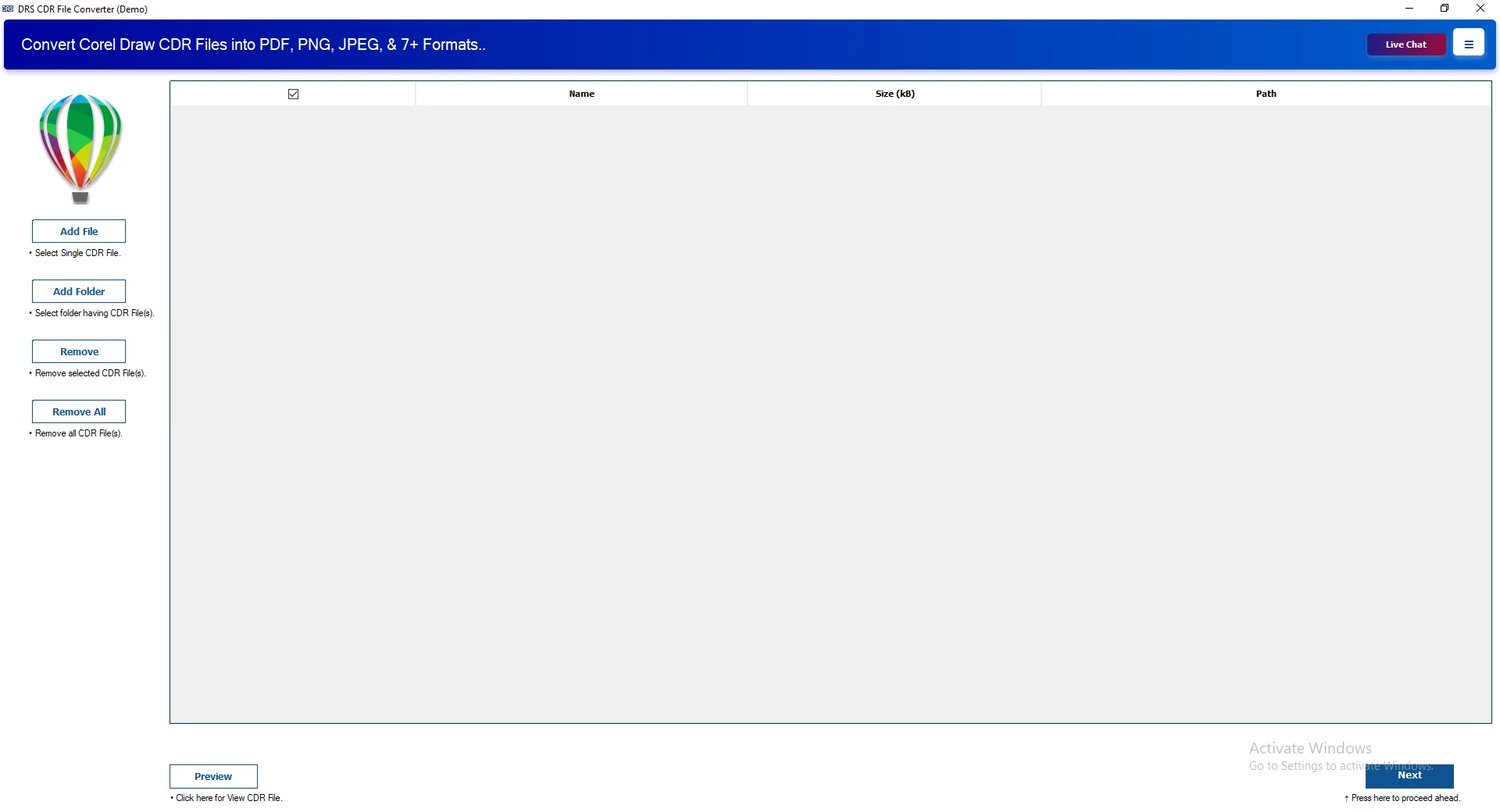
- Firstly, download, install, and open the CDR Converter tool. Press Next.
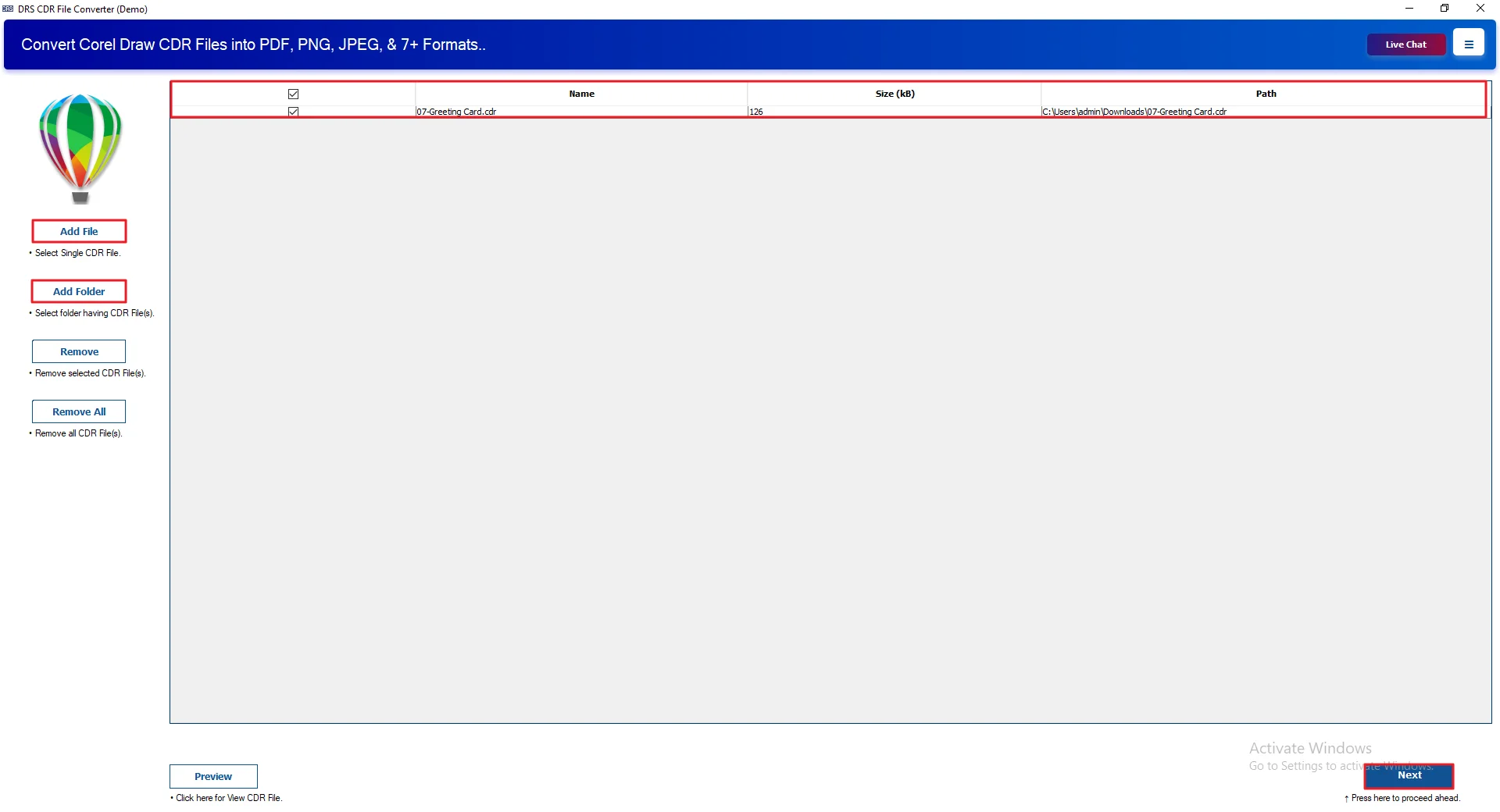
- Afterwards, you need to click Add File or Add Folder to load the CDR file. Hit Next.
- Then, select BMP as the output file format.
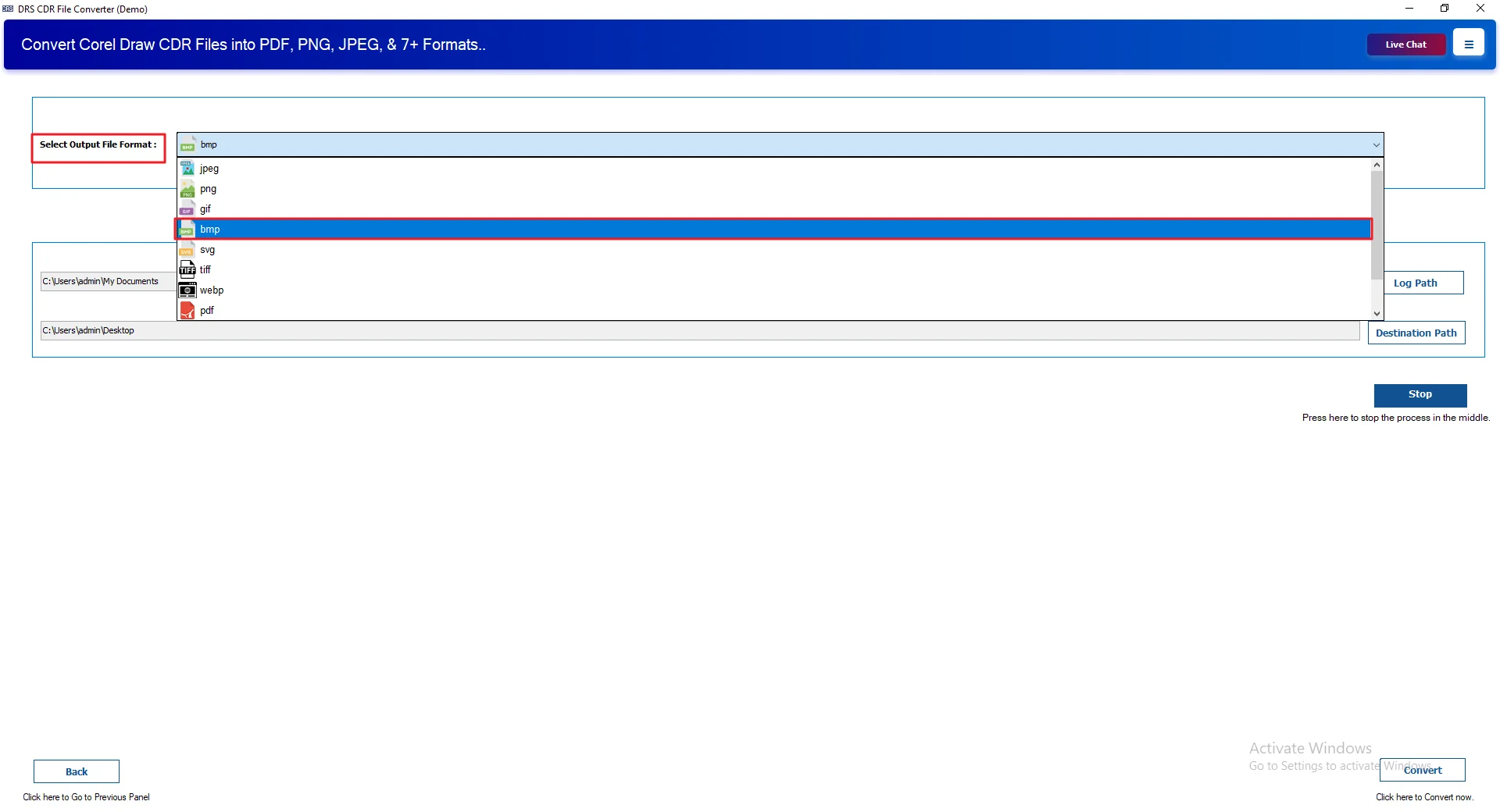
- Next, set the Log Path & choose the Destination Path to proceed.
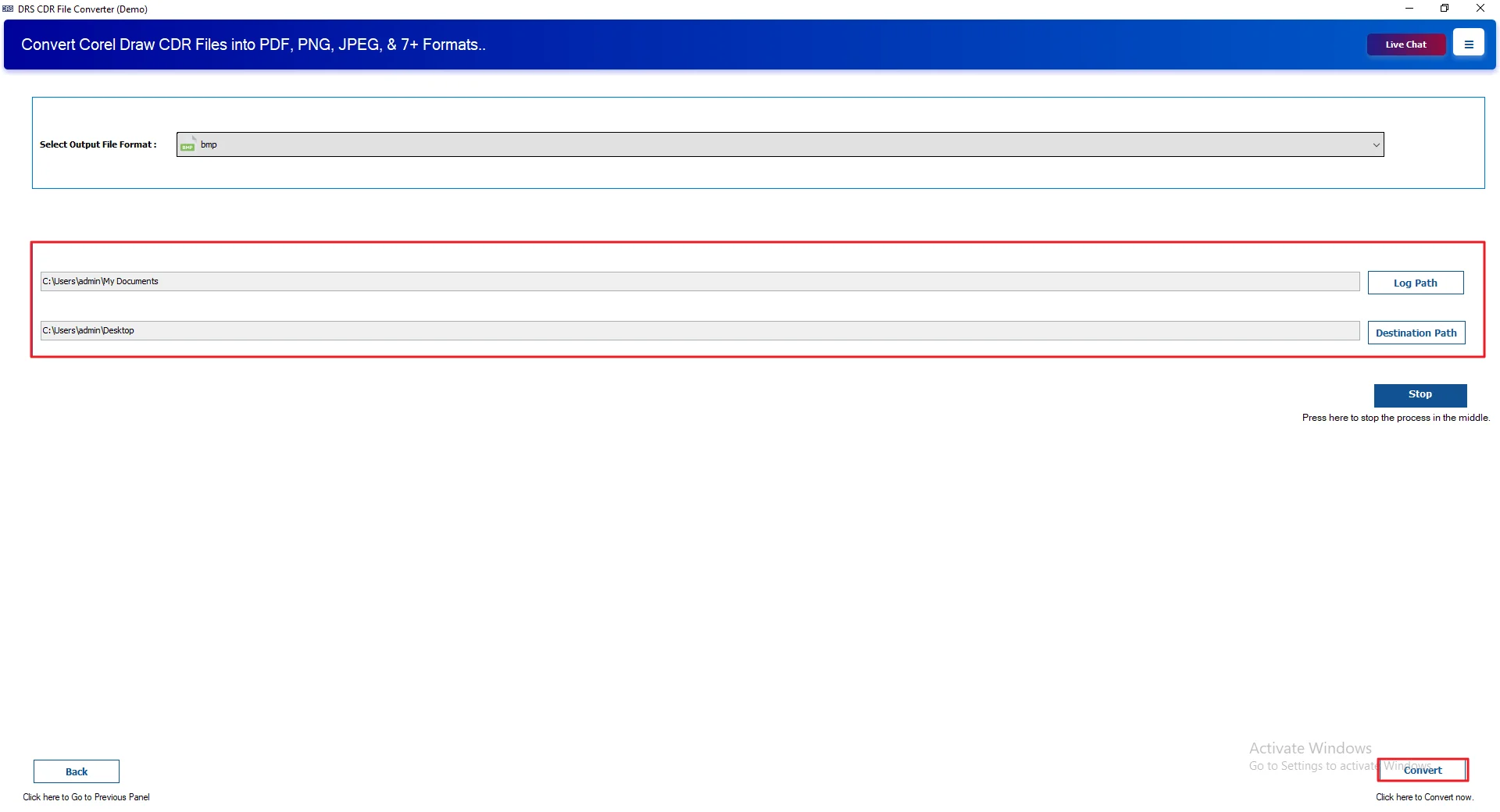
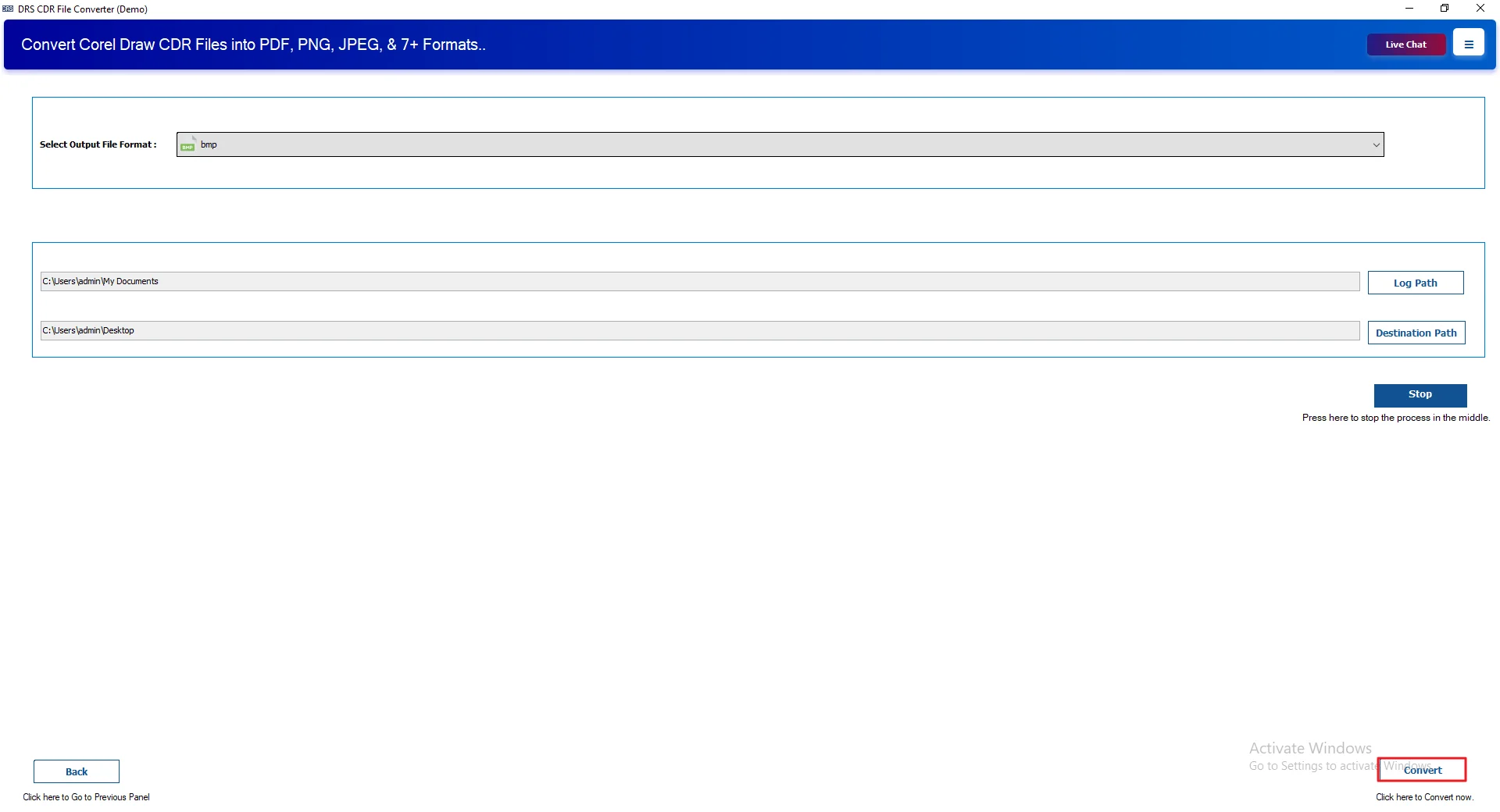
- Lastly, click the Convert button to start the process.
Real-Life Scenario:
Working as a designer in London, Emily had a collection of CDR files from CorelDRAW. The problem was that her team couldn’t open them easily. Doing it one file at a time felt slow. So she used the MigrateEmails CDR converter and switched everything to BMP. After that, her team could open the files without any trouble.
In some cases, she also used the Convert CDR to PNG option when she needed a lighter image format for sharing.
Why Enterprises Prefer This Smart Solution?
- You can convert multiple CDR files at once, which saves time.
- It also allows you to convert CDR to PDF and other file formats.
- Works with both small and large files without any issues.
- Supports CDR files from different versions of CorelDRAW.
- Your data stays the same; nothing gets changed during conversion.
- There’s a trial version, so you can try it before using it fully.
- The interface is simple and easy to understand.
- Runs smoothly on all Windows systems.
Conclusion
This guide shows a couple of easy ways to convert CDR files to BMP. The manual method may be suitable for basic needs, but it can be time-consuming and less reliable for large amounts of data. In comparison, an automated solution is a faster and more accurate process with minimal effort.
Frequently Asked Questions
Q1. Which is the Fastest Way to Convert CDR File to BMP?
Ans. The quickest way is to use a tool like the MigrateEmails CDR Converter Tool. It handles the process in a few clicks and saves you from doing everything manually.
Q2. Is it Possible to convert CDR to BMP on Windows and Mac?
Ans. Yes, you can do it on both systems. Tools such as the MigrateEmails CDR Converter Tool work smoothly on Windows and Mac without much setup.
Q3. Can I batch convert CDR to BMP?
Ans. Yes, batch conversion is possible. With the MigrateEmails CDR Converter, you can add multiple files and convert them together instead of doing it one by one.
Q4. Is CDR to BMP conversion safe?
Ans. Yes, it’s safe as long as you use a reliable tool. The MigrateEmails CDR Converter Tool keeps your files unchanged during the process.
Q5. Will converting CDR to BMP affect image quality?
Ans. No, the quality usually stays the same. A good tool like the MigrateEmails CDR Converter makes sure the image looks just like the original.
Q6. What is CDR File Converter?
Ans. A CDR File Converter is a tool that helps you change CDR files into other formats like BMP, PNG, or JPG. The MigrateEmails CDR Converter Tool is one such option that makes this process simple.
About The Author:

I am Kiran Sharma, a Technical Expert in Content writing. I have technical expertise in the field of Email Backup, Data Recovery, and Email Migration, and resolve technical queries related to Cloud Backup or Email Migration for individuals and businesses.
Related Post