-
Written By Neeru Kuchhal
-
Approved By
Vikash Bajpai -
Updated on May 12th, 2026
Convert CDR to JPG: Easy Steps for Beginners (2026)
Jonnathan Query:“So, I have a few CDR files created in CorelDRAW, but I need to use them as regular images on my system. However, I don’t have CorelDRAW installed, and I want to share these files easily. Also, I don’t want to lose image quality or layout. Therefore, I’m looking for a simple way to convert CDR file to JPG, preferably without using CorelDRAW.”
Introduction:- If you have a CDR file and want to use it as a regular image, converting it to JPG is the easiest way. These files are made in CorelDRAW, and not everyone has it. That’s why people look for simple ways to convert CDR to JPG. Here, you will learn a manual method as well as a professional MigrateEmails CDR Converter Tool. All steps are explained simply and clearly.
Which is Better: CDR or JPG Format?
| Feature | CDR File Format | JPG File Format |
| File Type | Vector graphic format | Raster (pixel-based) image format |
| Usage | Logos, illustrations, brochures, designs | Photos, web images, social media |
| Software Support | Mainly opens in CorelDRAW | Opens on almost all devices and software |
| Compatibility | Limited (needs specific software) | Very high (supported everywhere) |
| Best For | Designing and editing graphics | Sharing and viewing images |
Why Do Users Convert CDR File to JPG?
- JPG files open on almost any device. You don’t need CorelDRAW to view them.
- Easy to share. You can send them by email or upload them quickly.
- Smaller file size. They don’t take up much space.
- Works without special software. Anyone can open and see the image
- Good for everyday use. You can use them in documents, slides, or websites.
Cost-Free Method to Convert CDR to JPG
If you want to do it manually, you’ll need CorelDRAW. There’s no way around that. Once you have it, the process is quite straightforward. Just open your CDR file and export it as a JPG. It only takes a few clicks.
Verified Steps to Change CDR to JPG:
- Start by opening your CDR file in CorelDRAW.
- Then, go to File >> Export.
- Now, select JPG from the format list.
- After that, choose a save location.
- Afterwards, hit Export and set quality, resolution, and colors.
- Lastly, click OK to save the file.
Limitations of the Manual Approach:
- Users need CorelDRAW, and not everyone has it.
- Setting it up takes time, and the layout can feel confusing at first.
- You have to do each step on your own.
- Not a good option for lots of files.
- Fonts or layout can change after export.
- Quality depends on how you set it.
- Easy to mess things up if you’re new.
Expert Solution to Convert CDR to JPG
If you have a lot of CDR files to convert, doing it one by one can get tiring. A tool like MigrateEmails CDR Converter Tool can make things easier. You can convert one file or a bunch of them at once. It doesn’t take much time, and the steps are simple to follow. It also lets you convert CDR to PDF and other formats like PNG or GIF if needed. Moreover, the image quality stays the same. So you don’t have to worry about your designs getting messed up during the conversion.
Simple Steps to Export CDR to JPG:
- Firstly, download, install, and launch the CDR Converter Tool.
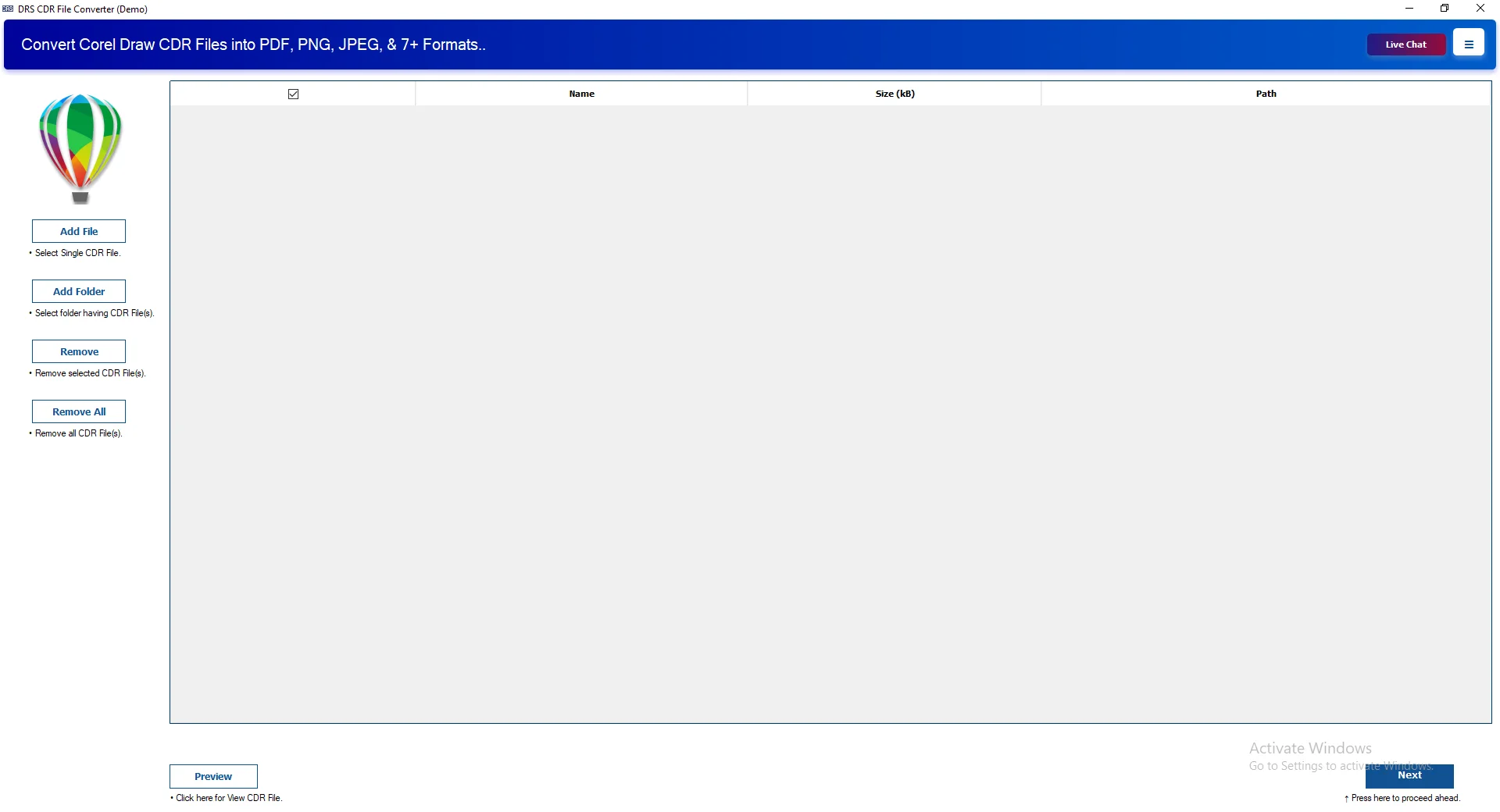
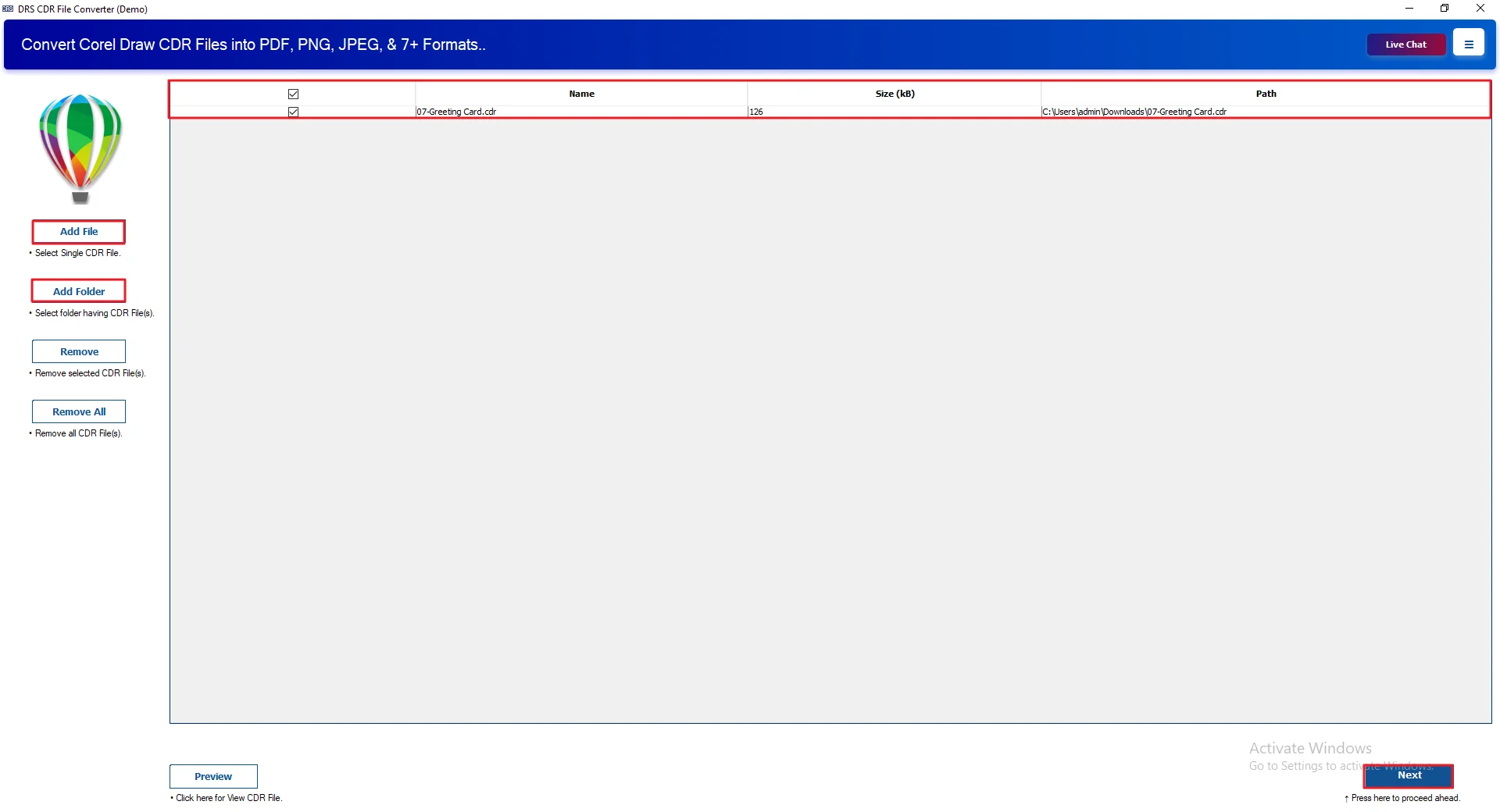
- Then, click Select File or Select Folder to add the CDR file and click Next.
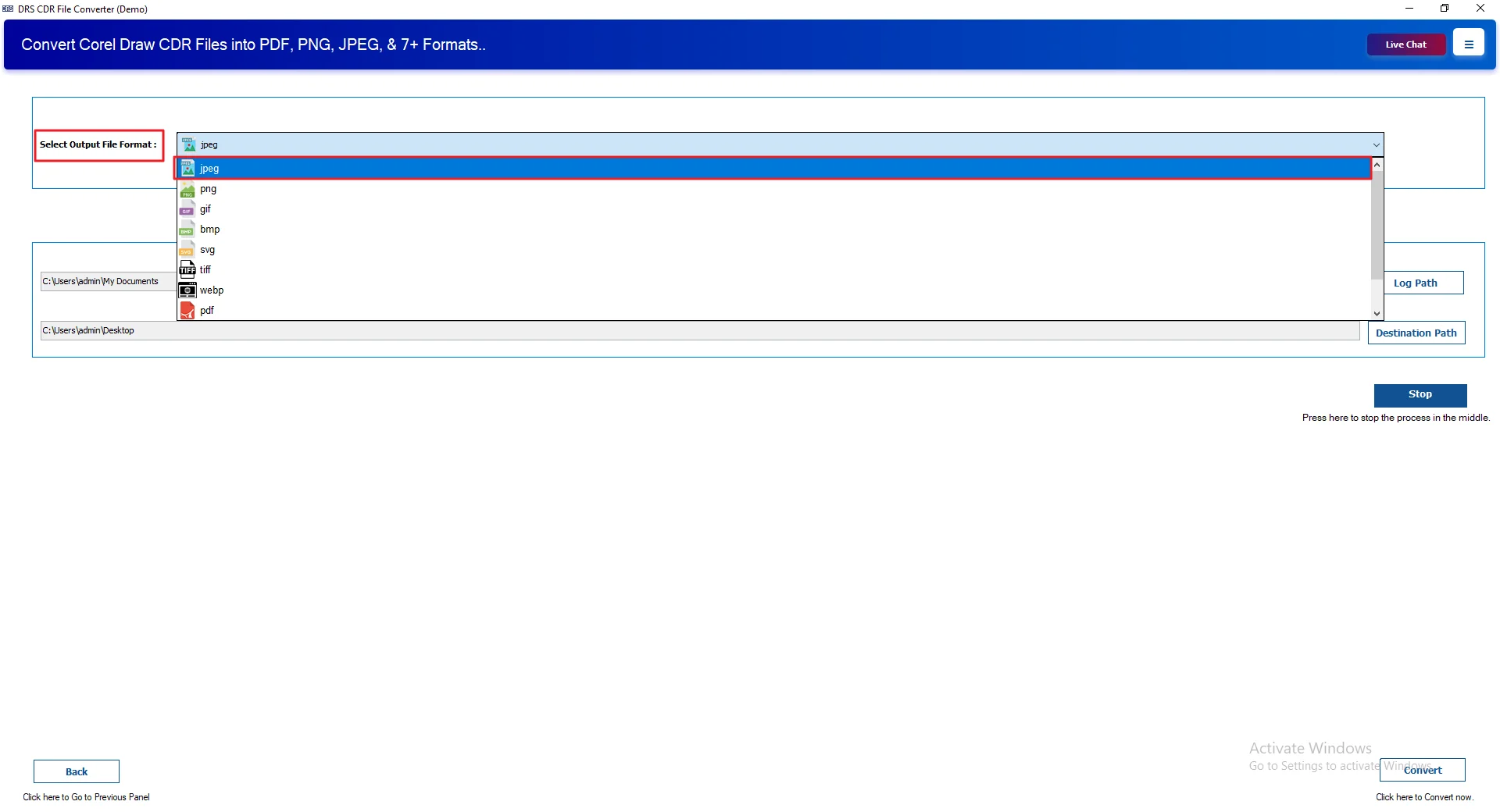
- Now, choose JPG as the output file format.
- Next, click Path to Save and browse the saving location.
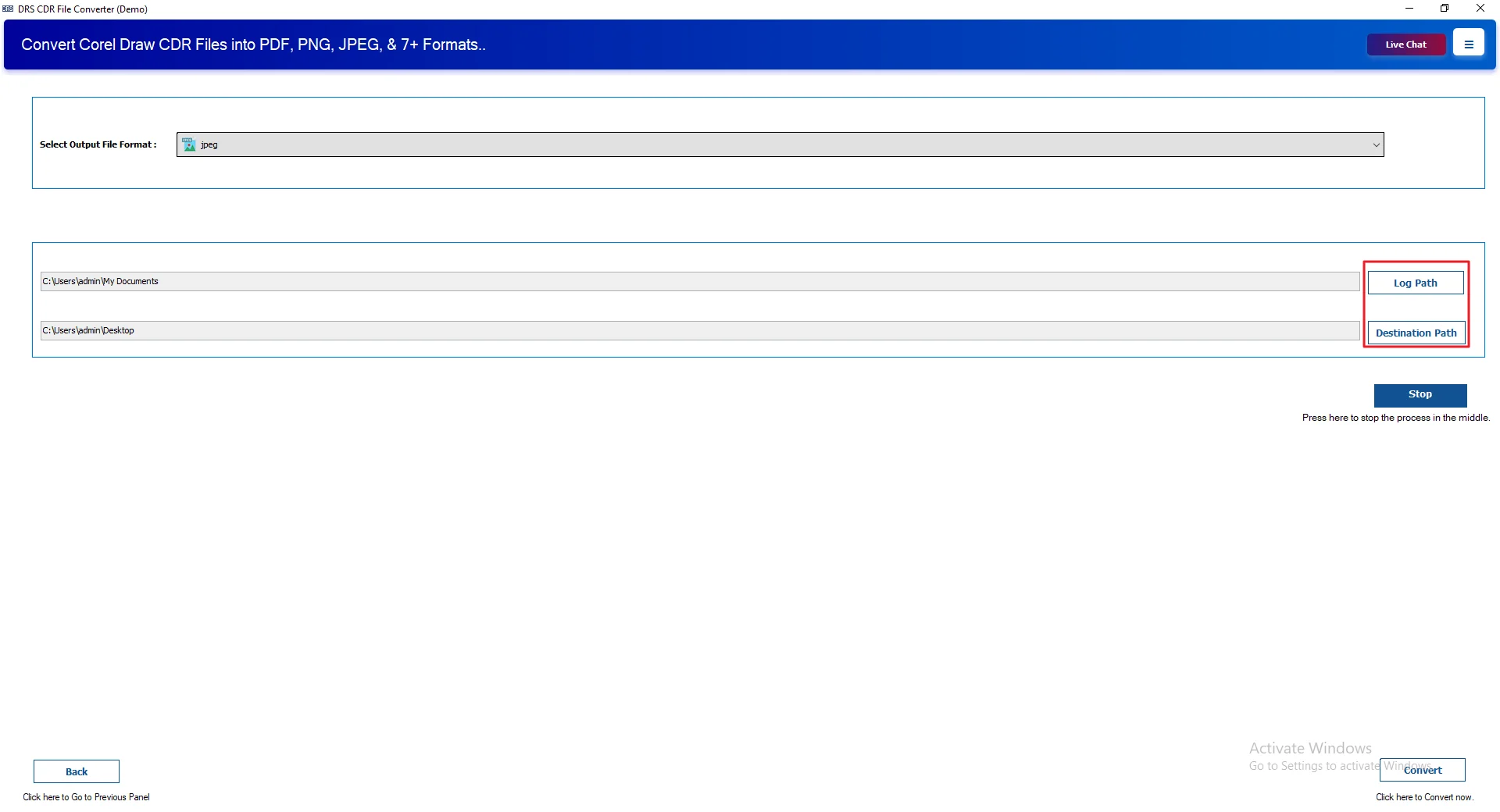
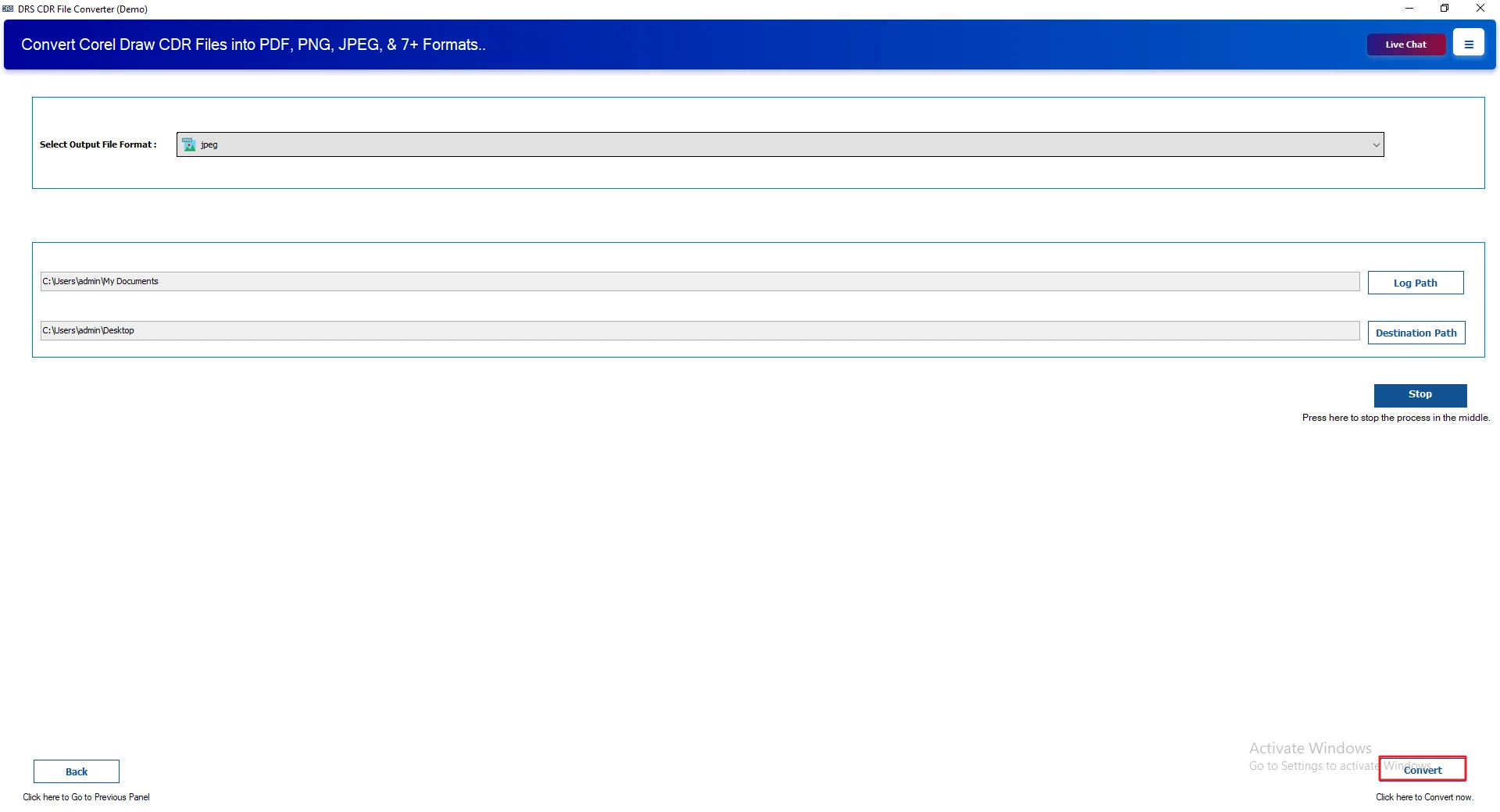
- Finally, click Convert to start the conversion.
Real-Life Scenario:
Dealing with a bunch of CDR files got annoying pretty quickly. Opening them wasn’t always simple, and sharing them was a pain without CorelDRAW. Doing it manually also took time, especially with multiple files.
I ended up trying the MigrateEmails CDR Converter Tool, and it made things easier. The files were converted to JPG without much effort. I was also able to convert a CDR file to JPG for free, even when working with multiple files at once. It saved a good amount of time and made the whole process easier.
The output looked fine. No missing parts, no weird changes. Everything stayed as expected, and the whole process felt straightforward.
Why Choose The Professional Method?
- A fast and simple tool to convert CDR files without errors.
- It allows users to convert CDR to PNG and many formats like JPG and GIF.
- Let’s you preview files before converting.
- Shows basic file details like name, size, and path.
- Can convert multiple files or full folders at once.
- Works smoothly even with large CDR files.
- Keeps the original layout and quality intact.
Time to Wrap Up
In this article, you’ll learn two simple ways to convert CDR to JPG. Although CorelDRAW allows manual conversion, it may feel slow and less flexible. The MigrateEmails CDR Converter Tool provides a faster and more convenient way to complete the task. It makes the process simple, saves time, and delivers smooth and reliable results without any complexity.
Frequently Asked Questions
Q1. Can I convert CDR to JPG without CorelDRAW?
Ans. Yes, it’s possible. If you don’t have CorelDRAW, you can use a dedicated tool like the MigrateEmails CDR Converter Tool. These options let you convert files without installing CorelDRAW, though quality and features may vary.
Q2. Is it possible to convert a CDR File to JPG at once?
Ans. Yes, but not with the manual method in CorelDRAW. It usually handles one file at a time. If you have multiple files, a tool like MigrateEmails CDR Converter Tool can convert them in bulk, which saves a lot of time.
Q3. Do I need technical skills to convert CDR to JPG?
Ans. No, you don’t need advanced skills. Basic steps in CorelDRAW are easy to follow. If you use a tool like MigrateEmails CDR Converter Tool, the process becomes even simpler with guided steps.
Q4. What is the easiest way to change CDR to JPG?
Ans. The easiest way is to use a simple conversion tool. While CorelDRAW works well, it involves a few manual steps. Tools like MigrateEmails CDR Converter Tool make it quicker with fewer clicks and less effort.
Q5. Can I use any third-party tool to convert CDR to JPG?
Ans. Yes, you can use third-party tools, but it’s better to choose a reliable one. MigrateEmails CDR Converter Tool is a good option as it is designed for smooth conversion and keeps the file structure intact.
Q6. What is the CDR Converter Tool?
Ans. A CDR Converter Tool is a program that helps you change CDR files into other formats like JPG, PNG, or PDF. For example, the MigrateEmails CDR Converter Tool lets you convert files easily without depending completely on CorelDRAW.
Q7. Best software to export CDR to JPG?
Ans. For manual conversion, CorelDRAW is the best choice because it gives full control over quality and settings. But if you want a faster and simpler option, the MigrateEmails CDR Converter Tool is a practical alternative, especially for bulk conversion.
About The Author:

I am Neeru Kuchhal, a Technical Content Writer who focuses on turning complex ideas into clear, engaging, and impactful content. I combine creativity with strategy to write blogs, web content, and technical articles that connect with the right audience and support brand goals. I believe great content is not just written. It is thoughtfully created to inform, build trust, and drive action.
Related Post