-
Written By Kiran Sharma
-
Approved By
Vikash Bajpai -
Updated on December 18th, 2025
Follow Simple Step to Migrate from Google Workspace to Gmail
User Query:-
“I want to migrate emails from G Suite to a personal Gmail account. What is the step-by-step method to migrate from Google Workspace to Gmail without losing data?”
“I want to migrate emails from G Suite to a personal Gmail account. What is the step-by-step method to migrate from Google Workspace to Gmail without losing data?”
Introduction:- Migrating from G Suite to Gmail helps users keep important emails after leaving an organization. However, G Suite does not provide a direct one-click option. Therefore, users must rely on either manual configuration or a professional solution. This guide explains simple steps to migrate Google Workspace Email to Gmail safely. Also, explains the MigrateEmails G Suite Backup Tool to do the same efficiently.
Introduction to G Suite and Gmail Structure
- Google Workspace:
It is a business and productivity suite designed for organizations. It includes a professional email with a custom domain and tools like Gmail, Google Drive, Docs, etc.
- Gmail:
It is a free personal email service for individuals. It focuses on personal email management and basic features, without business administration or custom domain support.
Why Migrate from Google Workspace to Gmail?
Users choose to move from Google Workspace to Gmail for several reasons:
- Retain emails after leaving an organization.
- Moving business emails into a personal Gmail account.
- Avoiding Workspace subscription costs.
- Maintaining long-term access to important emails.
- Consolidating multiple email accounts.
- Also, to create a personal backup of Workspace emails.
Manual Method to Transfer Google Workspace to Gmail
Google allows IMAP-based email access, which can be used to migrate emails manually. This method works for limited data but requires careful configuration.
Steps to Save G Suite to Gmail Manually
- Firstly, log in to your Google Workspace account.
- Now, enable IMAP access from Gmail settings.
- Then, sign in to your Gmail account.
- Go to Settings → Accounts & Import.
- Further, choose Import mail and contacts.
- Enter Google Workspace email credentials.
- Lastly, start the import process and wait for completion.
Limitations of the Manual Method: Migrate from Google Workspace to Gmail
- It is very time-consuming for large mailboxes.
- This process has a slow migration speed.
- There is no control over duplicate emails.
- Sometimes, the attachments may fail during import.
- The manual method does not have advanced filtering options.
- Additionally, it requires repeated sync monitoring.
Expert Tool: Transfer Emails from Google Workspace to Gmail
To avoid manual challenges, the MigrateEmails Google Workspace Backup Tool is an automated solution. It securely migrate Google Workspace to Zoho Mail while preserving metadata. This software ensures the process with complete accuracy and security. Moreover, it performs multiple conversions simultaneously without any technical expertise.
One-Time Backup Service Option:-
If you prefer professional assistance, MigrateEmails One-Time Migration Service is available. Their experts securely migrate from Google Workspace to Gmail. Also, it ensures privacy, accuracy, and zero data loss.
If you prefer professional assistance, MigrateEmails One-Time Migration Service is available. Their experts securely migrate from Google Workspace to Gmail. Also, it ensures privacy, accuracy, and zero data loss.
Simple Steps Using the Automated MigrateEmails Tool
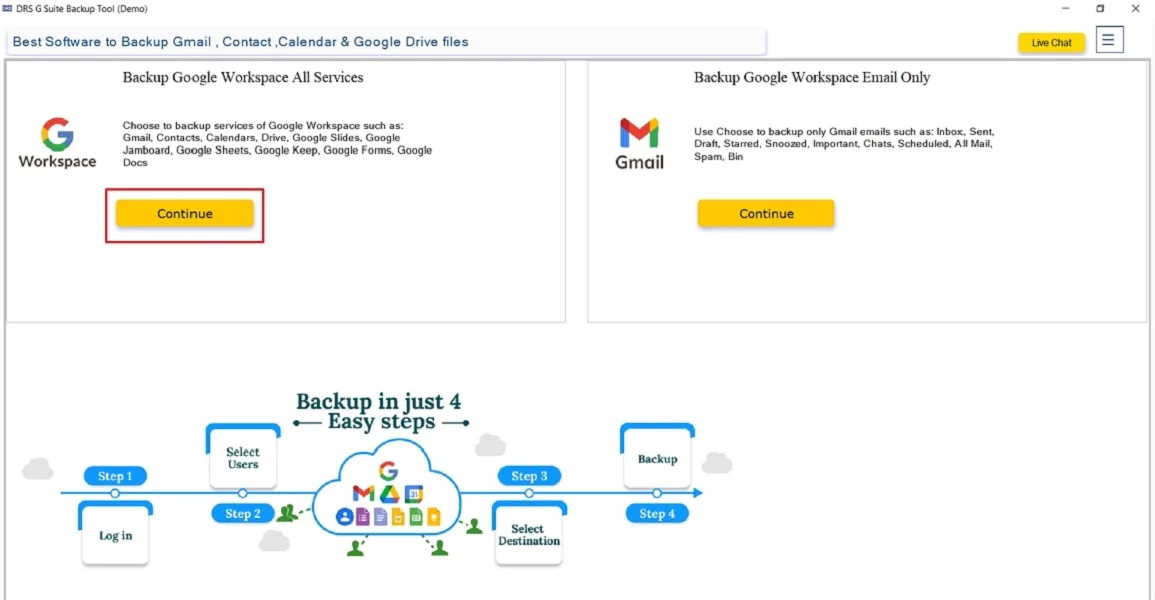
- Firstly, install the MigrateEmails Google Workspace Backup Tool → Continue.
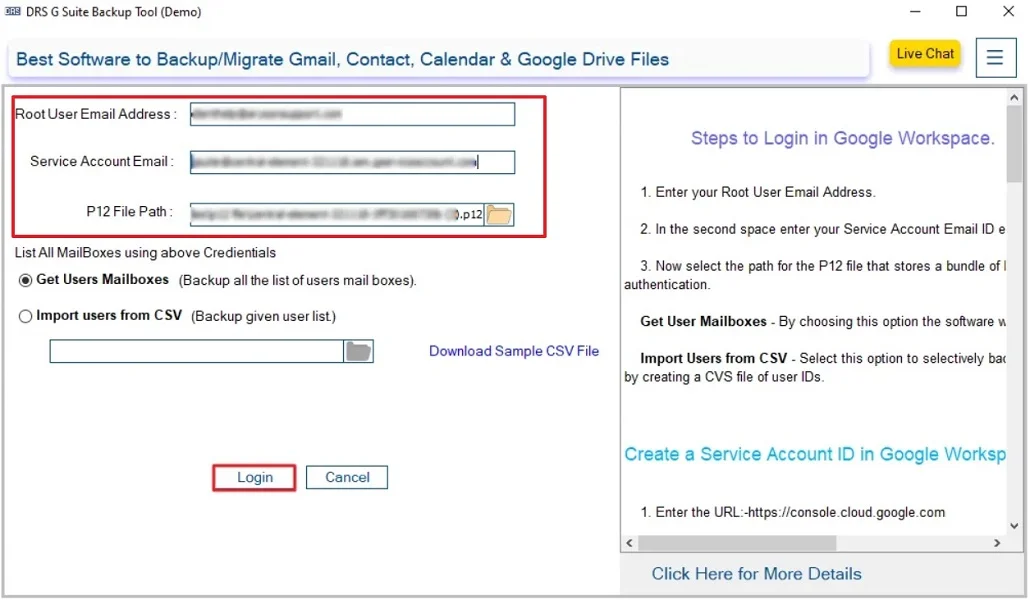
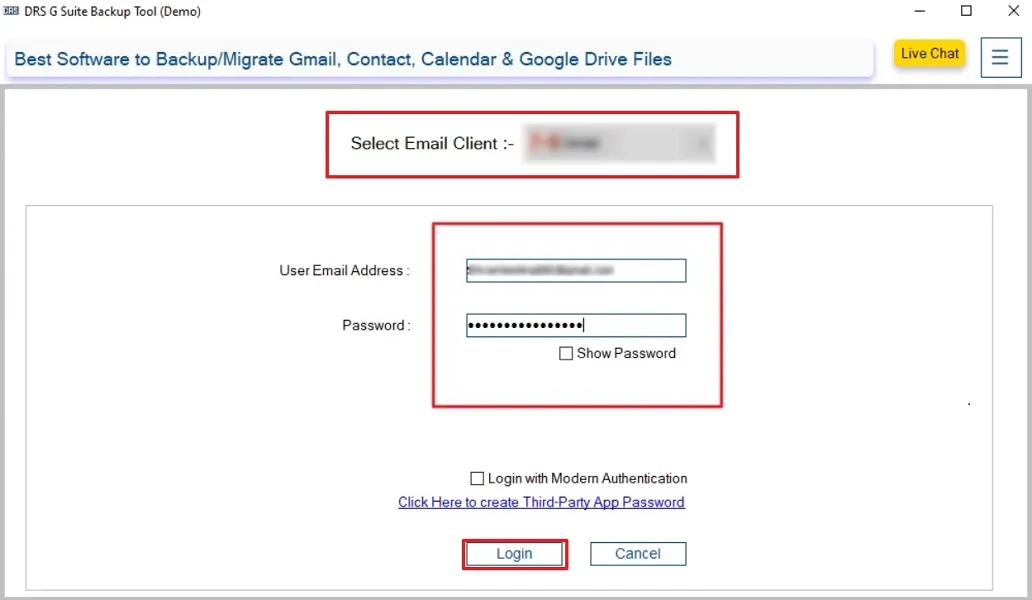
- Now, choose login with p12 file/JSON file → enter the G Suite credentials.
- Then, choose the Email Clients to back up or download multiple files.
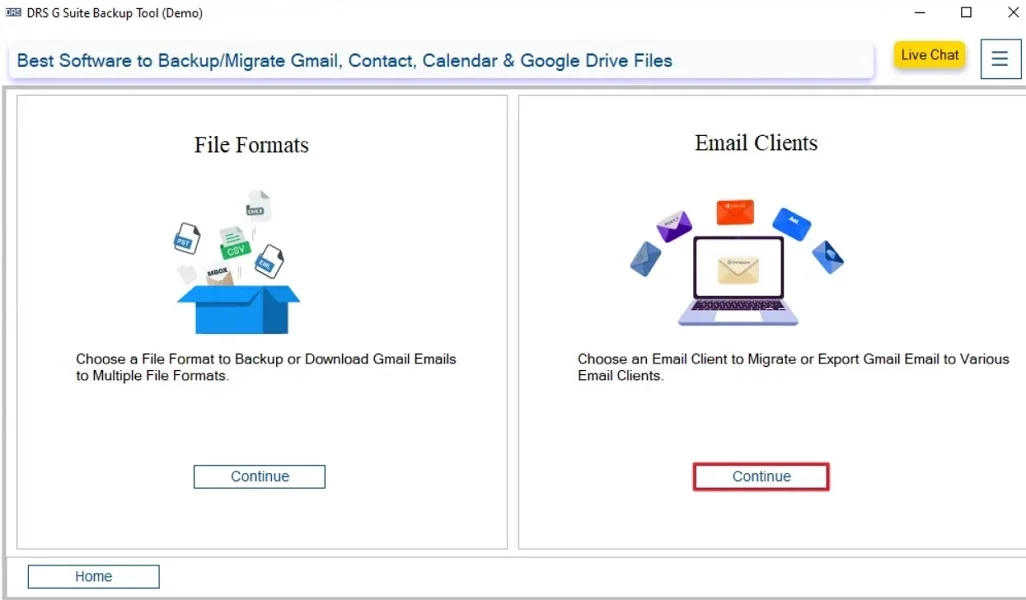
- Further, change the G Suite to the Gmail file format.
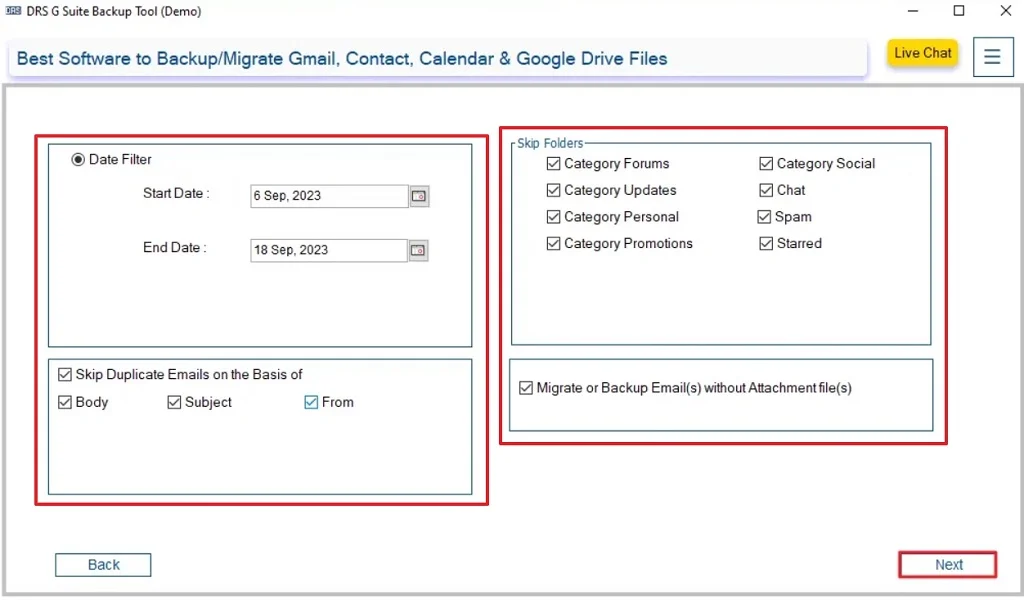
- Subsequently, apply the advanced filters if necessary → Next.
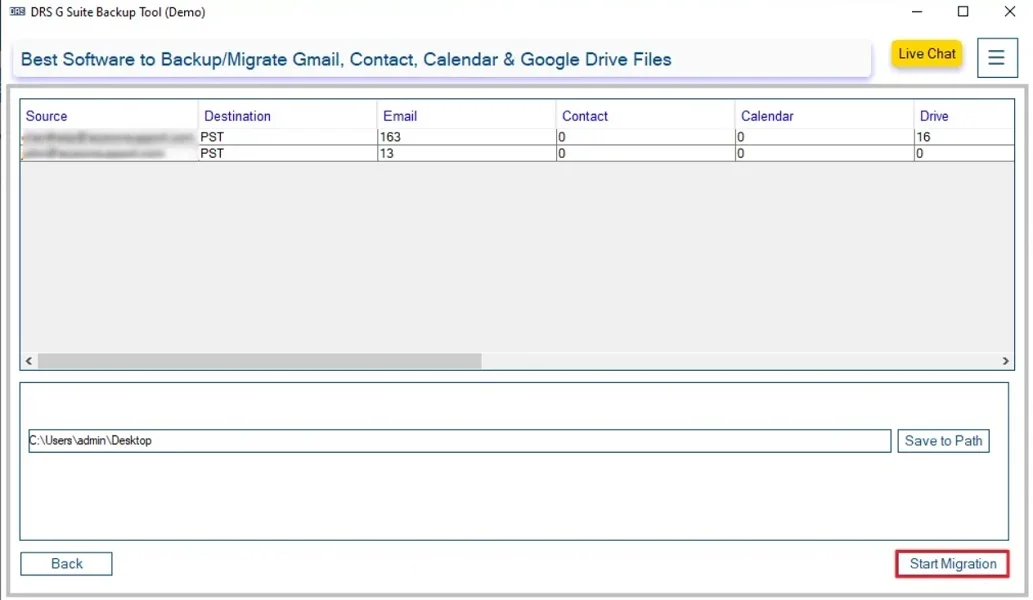
- Finally, tap Start Migration to proceed with the conversion.
Top Advantages of Using the Tool: Migrate from Google Workspace to Gmail
- Bulk migration of Google Workspace emails to Gmail.
- Preserves email labels, attachments, and headers intact.
- Supports users to transfer Google Workspace to Another Account.
- This tool works on previous and latest versions of Windows and macOS.
- Also, it is suitable for non-technical users.
Real-Life Example:-
An employee leaving a company wanted to keep years of important emails stored in Google Workspace. Using an automated solution, they successfully migrate Email from Google Workspace to Gmail without losing attachments or labels.
An employee leaving a company wanted to keep years of important emails stored in Google Workspace. Using an automated solution, they successfully migrate Email from Google Workspace to Gmail without losing attachments or labels.
Conclusion
In the end, migrating from Google Workspace to Gmail requires a reliable approach to prevent data loss. While manual IMAP methods work for small mailboxes, they are very slow. The G Suite Backup Tool provides a secure and efficient solution to migrate from Google Workspace to Gmail. For a smooth and stress-free migration, an automated method is highly recommended.
Frequently Asked Questions
Q.1 What is the easiest way to migrate from Google Workspace to Gmail?
Ans. The easiest way is to use an automated G Suite backup tool. This securely transfers Google Workspace emails to Gmail in a few simple steps without manual configuration.
Q.2 Is it safe to migrate Google Workspace emails to Gmail, and will my data stay protected during the transfer?
Ans. Yes, migration is safe when performed using a trusted MigrateEmails G Suite backup tool. This uses secure authentication and ensures emails, attachments, and metadata remain fully protected during the transfer.
Q.3 Is it free to transfer emails from Google Workspace to Gmail?
Ans. Gmail offers a basic import option for free. But it has limitations and is suitable only for small mailboxes. For bulk and accurate migration, an automated paid tool is recommended.
Q.4 Can I transfer emails from Google Workspace to Gmail without any technical skills?
Ans. Yes, the automated G Suite Backup tool is designed for non-technical users and requires only login credentials to complete the migration smoothly.
About The Author:

I am Kiran Sharma, a Technical Expert in Content writing. I have technical expertise in the field of Email Backup, Data Recovery, and Email Migration, and resolve technical queries related to Cloud Backup or Email Migration for individuals and businesses.
Related Post