-
Written By Neeru Kuchhal
-
Approved By
Vikash Bajpai -
Updated on June 22nd, 2026
Fix ScanPST Not Working on Outlook PST Files : Proven Solutions[2026]
“I have discovered that ScanPST repeatedly crashed mid-scan while attempting to repair a corrupted PST file on our enterprise Outlook setup. After multiple failed attempts, I am actively searching for a dependable scanpst not working fix to recover all critical client correspondence without any permanent data loss.”
– Emily, California
ScanPST, commonly referred to as the Inbox Repair Tool, is a native Microsoft utility built to detect & address minor structural corruptions within Outlook PST files. However, most of the enterprise users & IT administrators frequently report scenarios where ScanPST fails to execute the repair cycle, shows unexpected error prompts, or delivers incomplete recovery outcomes. This becomes a high-priority concern when the affected PST file holds sensitive business correspondence. In this technical blog, we will cover reliable approaches to fix Outlook PST corruption. We will also cover the MigrateEmails PST Recovery Tool to restore complete data integrity
Common Scanpst.exe Does Not Work Error Messages
- “An error has occurred which caused the scan to be stopped“: PST corruption exceeds ScanPST repair capacity.
- “Errors were found but could not be repaired“: Corruption detected but recovery failed.
- “The file is not a personal folders file“: ScanPST cannot recognize the PST file format.
- “Cannot start Microsoft Outlook“: PST corruption blocks Outlook initialization.
- “The operation failed“: Repair attempt interrupted during execution.
- “File path is too long“: PST directory exceeds system path limitations.
- “The file is in use and cannot be accessed“: PST file locked by an active Outlook session.
- “Out of memory or disk space“: Insufficient system resources for repair operation.
- “Unexpected error occurred“: Compatibility issue between ScanPST and Outlook version.
Symptoms of PST File Corruption
- Outlook fails to launch or crashes repeatedly during startup.
- PST file becomes inaccessible or throws access denied errors.
- Emails, contacts, and calendar data disappear unexpectedly.
- Sent and received emails fail to load or display incomplete content.
- Error prompts appear when attempting to open or search emails.
- Attachments fail to open or download from affected mailbox folders.
- Folder hierarchy appears distorted or missing within the mailbox structure.
- Outlook profile fails to sync or connect with the mail server.
Manual Approach for Scanpst Not Working Fix
IT administrators & enterprise users can attempt several native troubleshooting methods to resolve their ScanPST execution failures. We have discussed the most effective manual fixes to repair Outlook data file available within the Windows & Outlook environment.
Method 01: Locate the Correct ScanPST.exe File
Running ScanPST from an incorrect installation path is one of the primary triggers behind execution failures.
- Completely shut down Microsoft Outlook before you proceed.
- After that, open File Explorer & navigate to the Outlook installation directory.
- You need to locate ScanPST.exe using the appropriate path for your Outlook version:
- Outlook 2019/2016: C:\Program Files (x86)\Microsoft Office\root\Office16\
- Outlook 2013: C:\Program Files (x86)\Microsoft Office\Office15\
- Outlook 2010: C:\Program Files (x86)\Microsoft Office\Office14\
- Thereafter, double-click ScanPST.exe to open the repair utility.
- Finally, press Browse, select your PST file, & simply hit Start to begin the scan.
Method 02: Run ScanPST Multiple Times if Scanpst.exe Not Responding
Severely corrupted PST files may require repeated scan cycles to achieve a successful repair outcome.
- Open ScanPST.exe from the verified installation directory.
- Click Browse and select the target corrupted PST file.
- You need to hit Start to initiate the scan & allow the process to finish.
- Once the scan concludes, you have to simply press Repair in order to apply the necessary fix.
- Repeat the scan & repair cycle 3 to 5 times until the tool reports no remaining errors.
Method 03: Reduce PST File Size Before Scanning
Oversized PST files are a frequent cause of mid-scan ScanPST failures. The process to compact the file prior to scanning can eliminate this issue.
- Open Microsoft Outlook >> File >> Account Settings.
- Select the Data Files tab & simply click on the relevant PST file.
- Click Settings and choose Compact Now to initiate file size reduction.
- After compaction finishes, close Outlook and relaunch ScanPST.exe.
- Select the compacted PST file and click Start to proceed with the repair scan.
Method 04: Create a Backup Before Running ScanPST
The process to secure a backup copy of the PST file prior to any repair attempt safeguards against permanent data loss in the event of a scan failure.
- Open File Explorer & simply navigate to the PST file storage location.
- You need to right-click the PST file & select Copy.
- Paste the file into a dedicated backup folder on your local storage drive.
- Once the backup is secured, open ScanPST.exe & proceed if scanpst not responding.
Limitations of the Manual Method:
- Cannot repair severely corrupted or deep-level structural PST damage.
- No guarantee of complete data recovery after multiple scan cycles.
- Oversized PST files cause frequent mid-scan execution failures.
- Recovered files may still contain missing or inaccessible mailbox items.
- Time-consuming process for large enterprise PST deployments.
- Does not support batch repair of multiple PST files simultaneously.
Automated Solution to Fix Scanpst Not Working Fix
The MigrateEmails PST Recovery Tool is a reliable utility that helps to repair, restore, & recover corrupted Outlook PST files across all damage levels. This utility is built on an advanced algorithmic framework. The tool offers three distinct recovery modes, which include Standard, Advanced & Deep, which help IT administrators to address PST file corruption with precision. Moreover, it preserves the original folder hierarchy, mailbox structure, and associated metadata throughout the entire recovery workflow.
Steps to Fix Failure of Scanpst.exe Error:
- Install and launch the PST Recovery Tool on your computer.
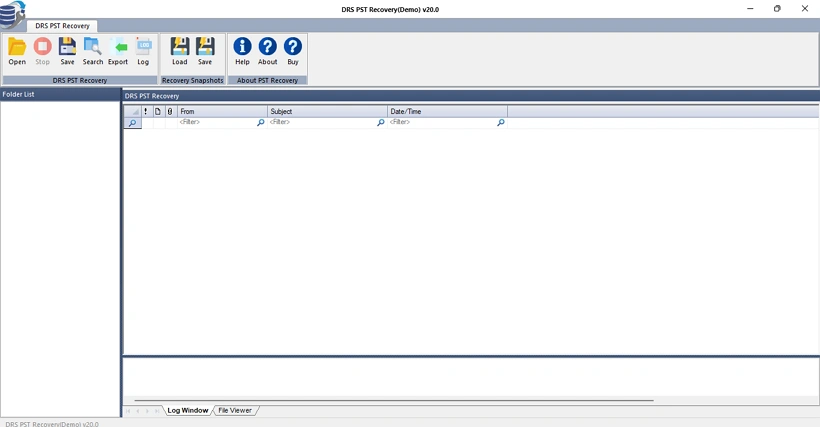
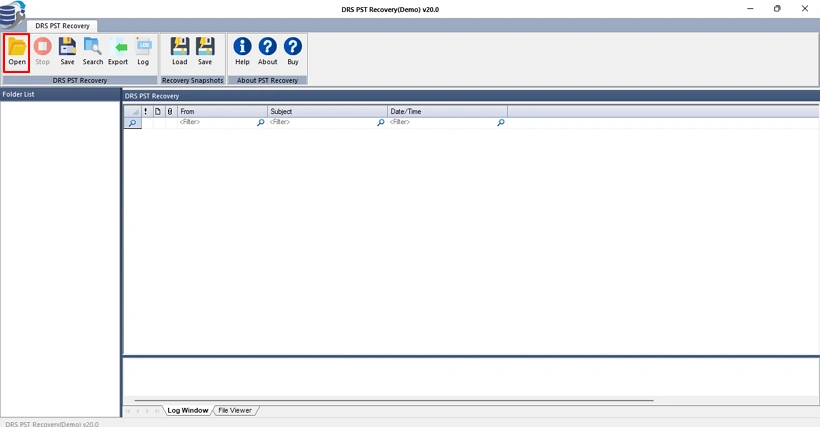
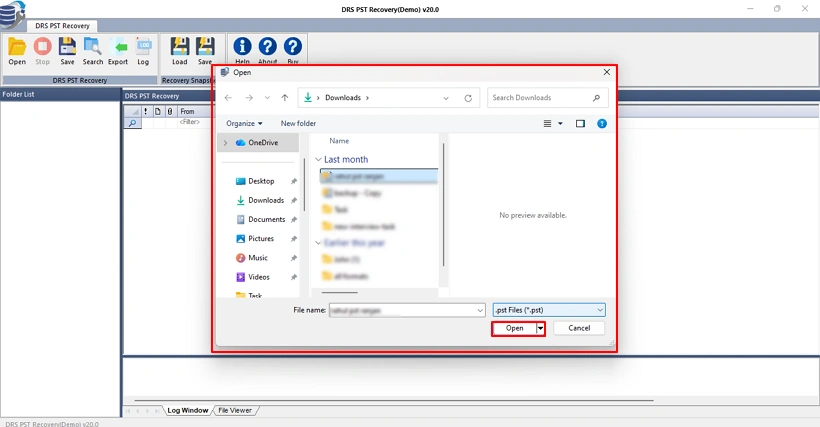
- Click the Open button to access the corrupted PST file selection window.
- Browse and select the damaged PST file, then click Open to proceed.
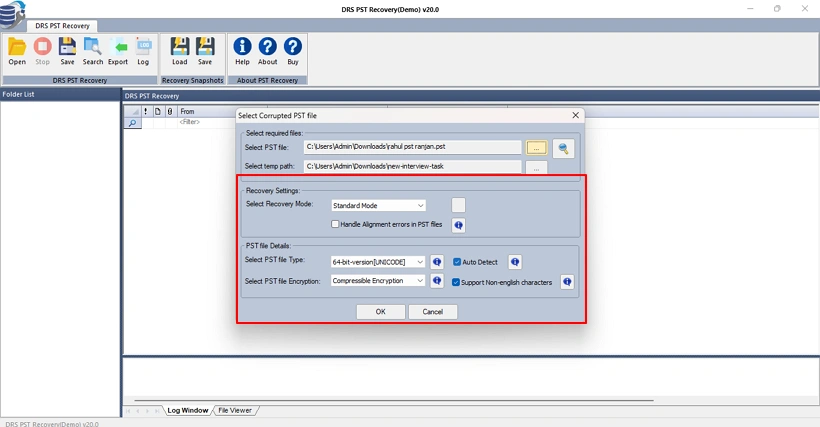
- Adjust the available recovery settings as needed and click OK.
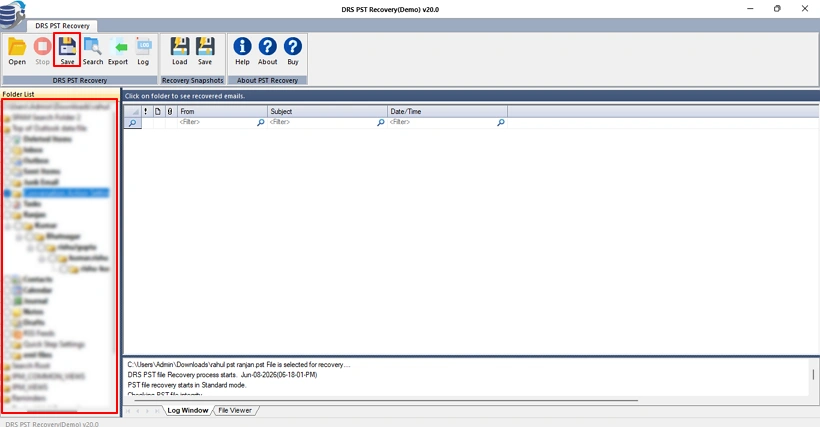
- Choose the mailbox folders you want to recover and select Save.
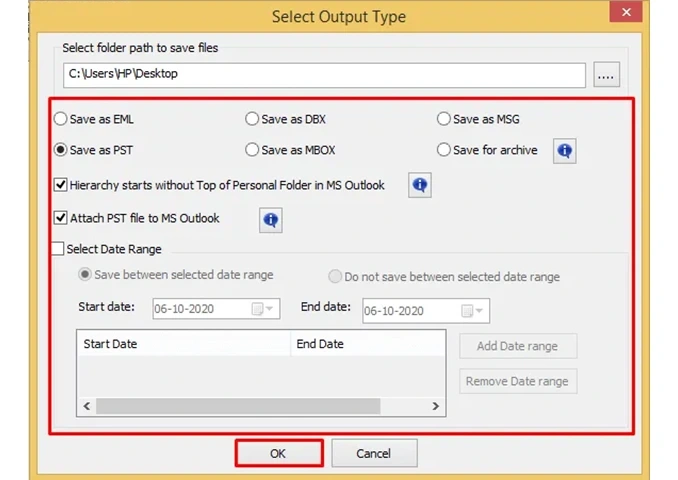
- Configure the required saving options & additional features, then click OK.
- Wait for the recovery process to finish, and click OK to close the wizard.
Explore our detailed guide on the best PST Recovery Tool to find the most suitable solution for your enterprise PST recovery needs.
Exclusive Features of Shared PST Recovery Tool:
- Three recovery modes cover all PST corruption levels.
- Built-in preview to verify recoverable items before recovery.
- Recovers emails, calendars, notes, and journals.
- Date range filter for selective mailbox data extraction.
- Snapshot feature to reload recovered data without the corrupted file.
- Supports recovery of oversized PST files beyond storage thresholds.
- A simple interface requires no specialized technical expertise.
Real-Life Scenario
A mid-sized legal firm needed to recover critically corrupted PST files across 15 departmental Outlook accounts following an unexpected system failure. The IT team initially attempted native ScanPST repair cycles, but the tool repeatedly failed to process severely damaged files and delivered incomplete recovery outcomes.
Therefore, the team deployed the MigrateEmails Outlook PST Repair Tool to execute a complete mailbox recovery across all affected accounts while maintaining the original folder hierarchy and zero data integrity loss.
Conclusion
To conclude, we have discussed reliable approaches to fix scanpst not working fix. While manual fixes handle basic corruption scenarios, they lack the technical capacity required for deep-level PST repair in enterprise Outlook environments. The MigrateEmails PST Recovery Tool provides you with a more structured & algorithmically advanced approach for restoring severely damaged PST files with zero data integrity loss. For organizations that want mailbox continuity & compliance-driven data recovery, this utility stands as a recommended solution across all PST corruption levels.
Frequently Asked Questions
Q1. Can ScanPST repair severely corrupted PST files?
Ans. No. ScanPST is designed to repair minor inconsistencies and basic structural issues within PST files. When a PST file suffers from severe corruption or deep-level damage, the tool may fail to complete the repair process or recover only partial data. In such cases, a specialized PST recovery solution is generally required.
Q2. Why does ScanPST stop responding during the repair process?
Ans. ScanPST may become unresponsive due to oversized PST files, severe corruption levels, insufficient system resources, disk space limitations, or compatibility issues with the Outlook installation. Running multiple repair cycles or reducing the PST file size may help resolve the issue.
Q3. Can ScanPST cause data loss during repair?
Ans. Although ScanPST is designed to repair PST files safely, there is always a possibility that some corrupted mailbox items may be removed if they cannot be reconstructed during the repair process. Therefore, creating a backup copy of the PST file before running ScanPST is strongly recommended.
Q4. How can administrators verify PST file integrity before running ScanPST?
Ans. Administrators can verify PST file integrity by checking for Outlook startup issues, inaccessible mailbox folders, missing emails, synchronization errors, and unusual error messages. Creating a backup and reviewing the PST file size and accessibility can also help assess its condition before initiating the repair process.
Q5. Does ScanPST repair emails, contacts, calendars, and attachments?
Ans. Yes. ScanPST can repair the internal structure of a PST file and restore access to mailbox components such as emails, contacts, calendars, notes, tasks, and attachments. However, successful recovery depends on the severity of the corruption.
Q6. Can ScanPST repair password-protected PST files?
Ans. Yes. ScanPST can scan and repair password-protected PST files provided the file is accessible and the user has the required password. However, the tool does not remove or reset PST passwords during the repair process.
Q7. Is ScanPST suitable for enterprise-scale PST recovery projects?
Ans. No. ScanPST is primarily intended for repairing individual PST files and basic corruption scenarios. It lacks advanced recovery capabilities, batch processing, centralized management, and support for large-scale enterprise recovery requirements involving multiple PST files.
Q8. Can ScanPST recover deleted emails from a damaged PST file?
Ans. ScanPST is not specifically designed to recover permanently deleted emails. Its primary function is to repair PST file structure and restore mailbox accessibility. For recovering deleted or severely damaged mailbox data, a dedicated PST recovery tool typically offers better recovery capabilities.
About The Author:

I am Neeru Kuchhal, a Technical Content Writer who focuses on turning complex ideas into clear, engaging, and impactful content. I combine creativity with strategy to write blogs, web content, and technical articles that connect with the right audience and support brand goals. I believe great content is not just written. It is thoughtfully created to inform, build trust, and drive action.
Related Post