-
Written By Neeru Kuchhal
-
Approved By
Vikash Bajpai -
Updated on May 2nd, 2026
Convert CDR to TIFF – Quick and Simple Methods in 2026
User Query:“I have several CDR files that I need to convert to TIFF for printing and sharing. The manual method is taking too much time. Is there an easier way to do this without losing quality?”
Introduction:- If users use CorelDRAW, they will eventually need a format like TIFF. It’s useful for sharing, printing, or keeping your files safe without losing sharp details. So, it’s important to have a reliable way to convert files without affecting the details. In this article, we’ll go through some simple ways to convert CDR to TIFF. We’ll also look at how the MigrateEmails CDR Converter Tool can make the process easier and save time.
Why Users Convert CDR File to TIFF?
CDR files are made for CorelDRAW. So if you don’t have that software, opening them can be a pain. On the other hand, Tiff works almost everywhere and is commonly used in design and printing.
Key Benefits of TIFF Format:
- Opens on almost any system without much trouble.
- Keeps the image clear, no drop in quality.
- Simple to send to others, no special setup needed.
- Works well if you want to keep files for later.
- Colors and details stay accurate, which helps with printing.
- Users don’t need CorelDRAW to open it.
Manual Methods To Convert CDR to TIFF
There are a few simple ways to turn a CDR file into a TIFF. Each method works a bit differently, though. So you can just go with the one that fits your setup best.
Method 01: Using CorelDRAW (Best method)
- First, open your CDR file in CorelDRAW
- Then, click on File → Export
- Next, choose TIFF (.tif) as the format
- After that, set the resolution and color if needed
- Finally, click Export and save
Method 02: Using Corel Photo-Paint
- To begin with, open the CDR file in CorelDRAW.
- Then, right-click the design & choose Edit Bitmap.
- Now, it opens in Photo-Paint.
- Afterward, go to File → Save As.
- Finally, select TIFF and save.
Limitations: Export CDR to TIFF
- You’ll need CorelDRAW installed, or it won’t work.
- Gets slow if you have a bunch of files to handle.
- No real way to convert everything at once.
- Easy to pick the wrong settings without realizing it.
- Moreover, this method is a bit tricky if you’re new to the software.
- Photo-Paint adds extra steps, which can get annoying.
- Not really practical if you do this often.
Professional Method to Convert CDR to TIFF
The CDR Converter Tool is a simple utility that helps you convert CorelDRAW files into TIFF and other formats. Additionally, it lets you set a log path to track the process & choose a destination folder to save the converted files. You can easily manage your files, control where they are saved, and keep everything organized without any confusion. Likewise, with this tool, you can convert CDR to SVG without any hassle.
Quick Steps to Transfer CDR to TIFF:
- To begin with, download and open the CDR Converter Tool.
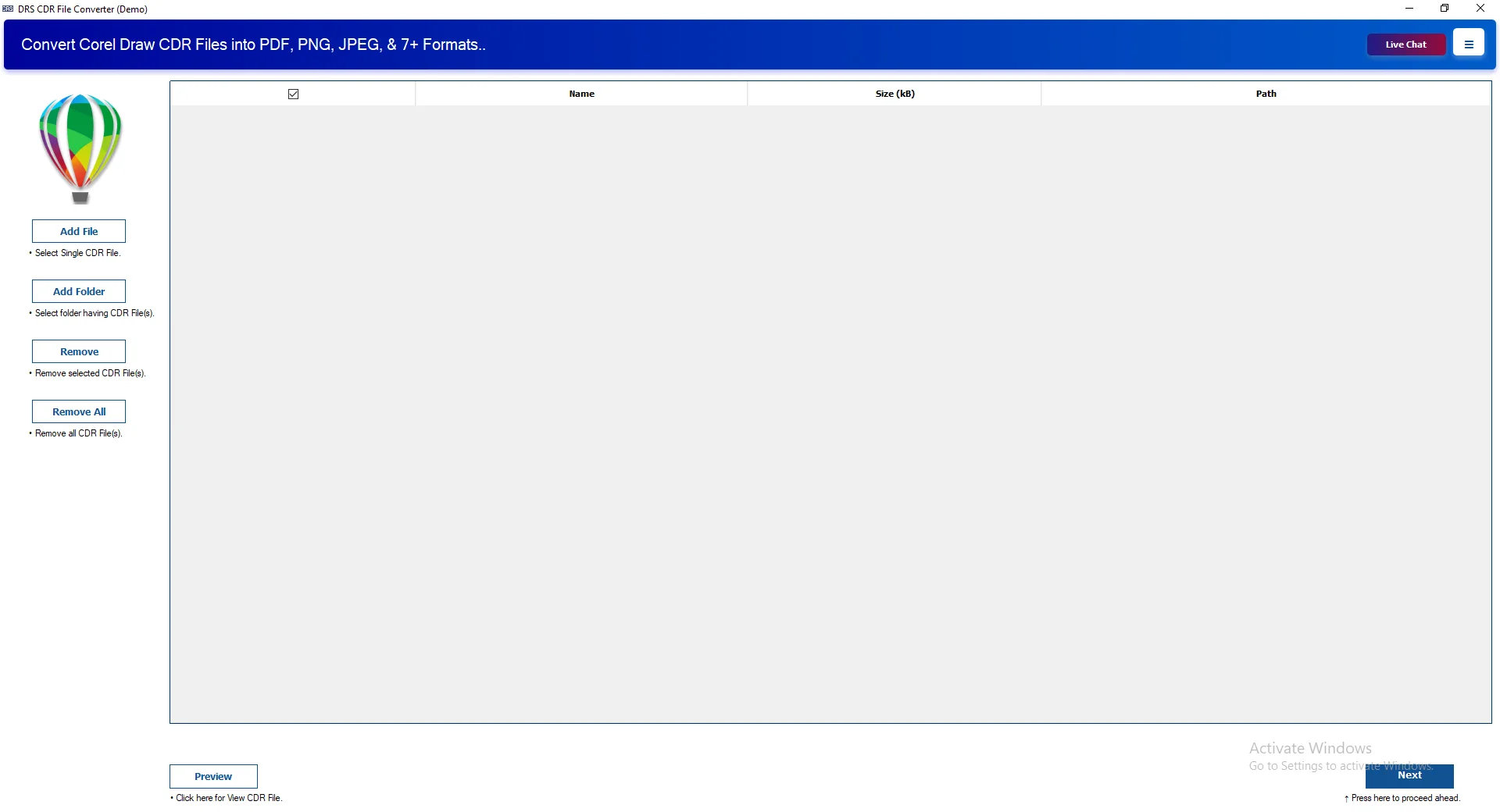
- Afterwards, you need to click Add File/Add Folder to load the CDR files. Hit Next.
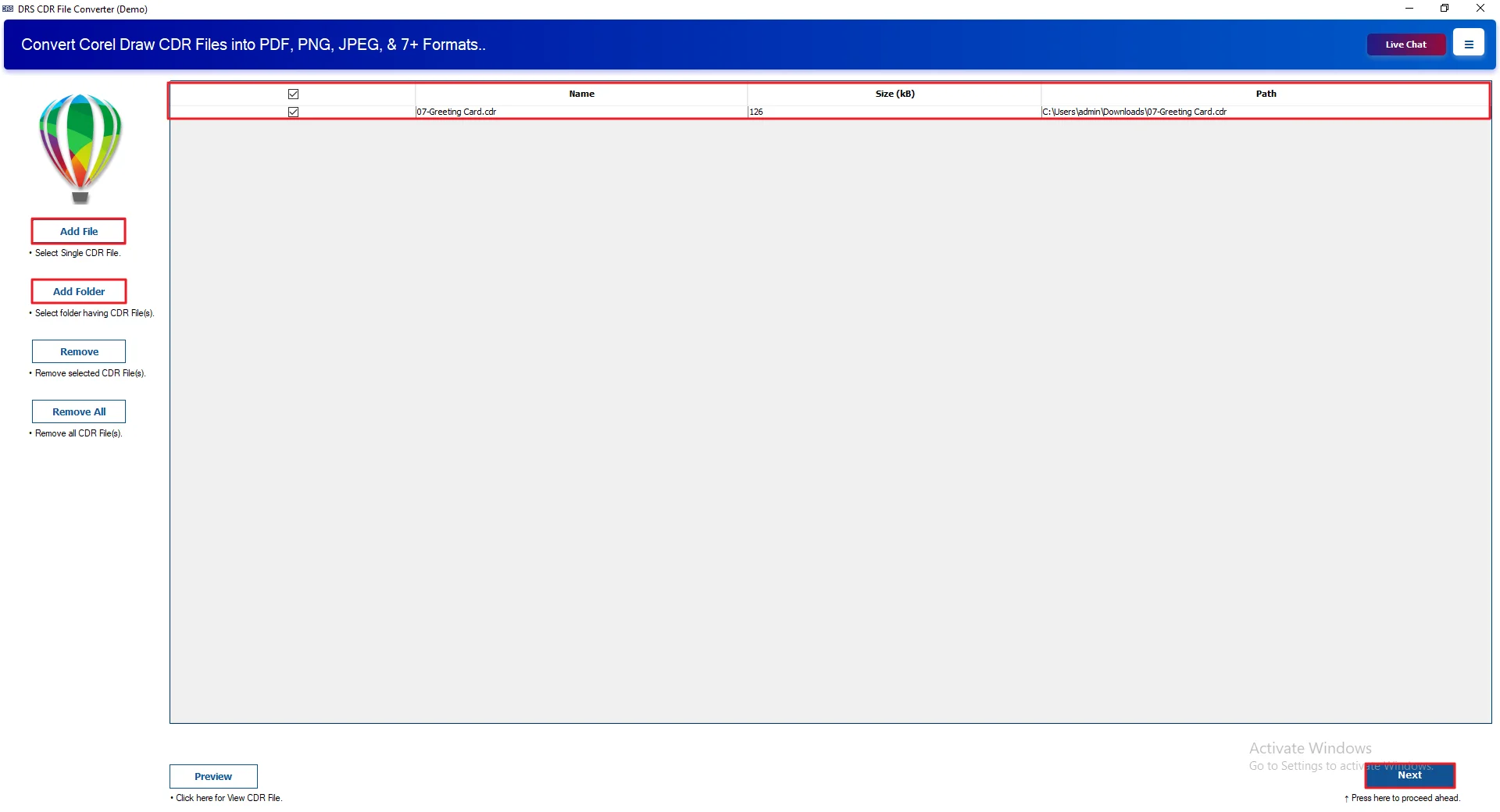
- Now, choose TIFF as the output file format from the given lists.
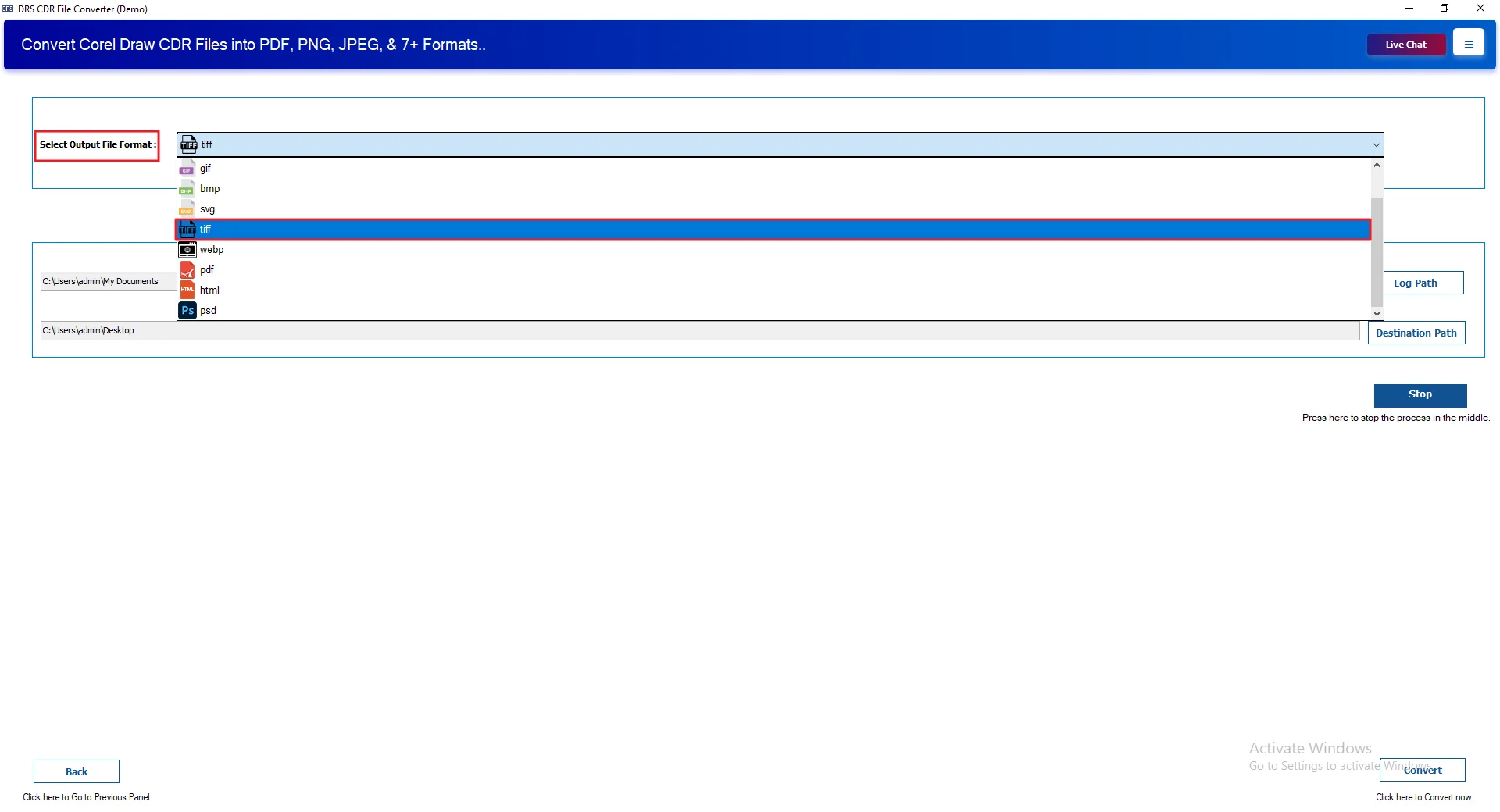
- Then, set the Log Path for saving logs & choose the Destination Path.
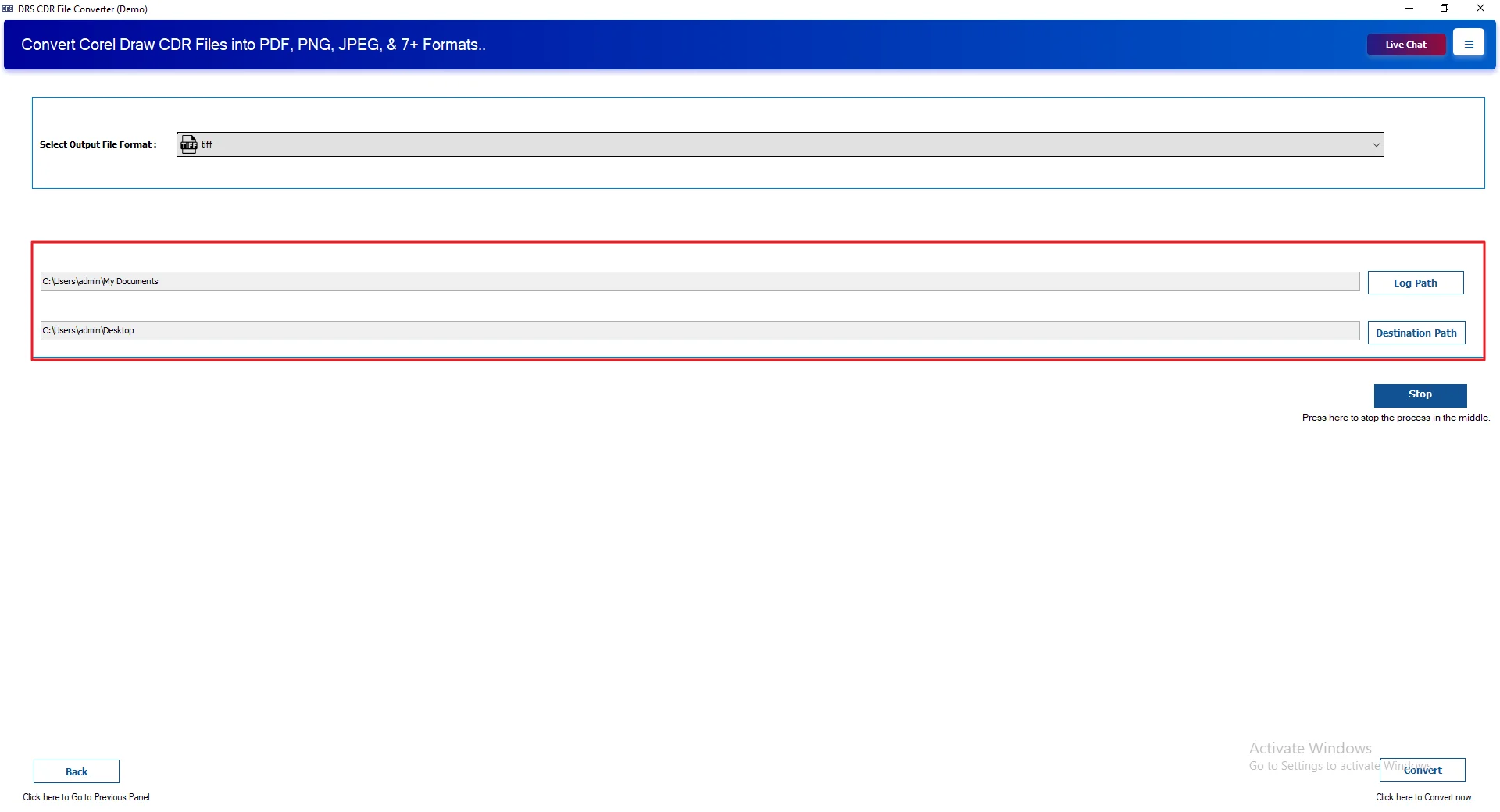
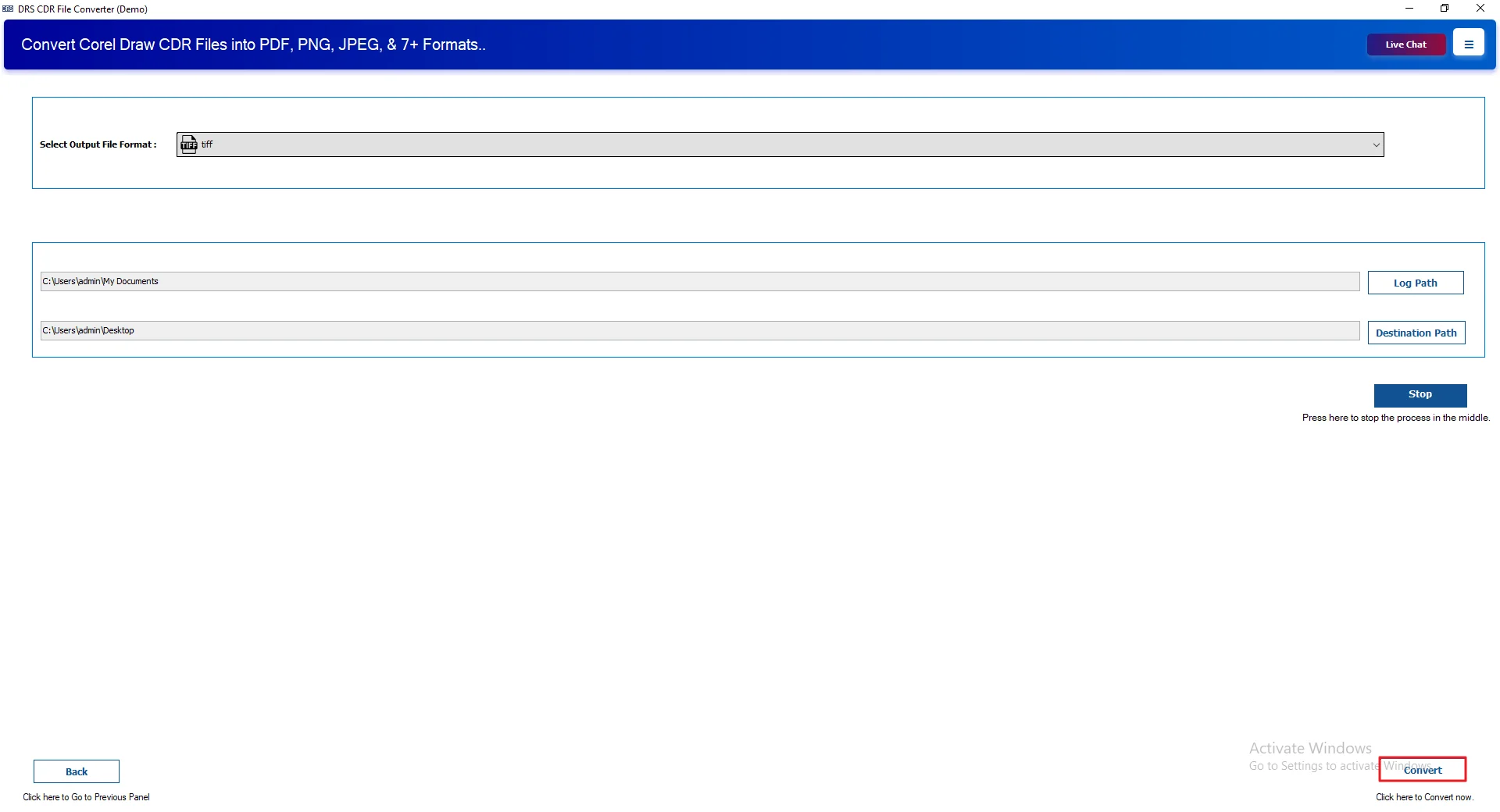
- Lastly, click Convert to start the process.
Real-Life Scenario:
David is a graphic designer based in California. Over time, he ended up with a lot of CDR files—mostly client work and print designs. As his workload grew, he needed an easier way to share and print those files in TIFF format. He tried doing it manually in CorelDRAW, but it got slow. Handling one file at a time wasn’t practical.
Sometimes, he also had to convert CDR to JPG just to send quick previews to clients. That added a few extra steps and made things even more time-consuming. Later, he switched to a CDR Converter Tool. It made the process simpler. All the files were converted in less time, with the same quality as before.
Advantages to Convert CDR to TIFF Online
- You can convert CDR to PNG and other formats
- Handles multiple files at once, so it saves time.
- Supports files from different CorelDRAW versions.
- Keeps your data the same; nothing gets lost.
- There’s a trial version, so you can try it first.
- Simple layout, easy to use without much effort.
Conclusion
In this blog, we went through a few ways to convert CDR to TIFF. Sure, you can handle the conversion manually, but it’s often a slow process & the steps can get pretty confusing if you aren’t a CorelDRAW expert. Using a dedicated tool is much faster and saves you the hassle. Most options even let you try a demo first to see how it works. At the end of the day, it’s about what fits your workflow, but if you’re looking for the simplest path, going the automated route is definitely the better move.
Frequently Asked Questions
Q1. Is there a free method to convert CDR to TIFF?
Ans. Yes, there are free ways to do it. If you already have CorelDRAW, you can use the Export option to save your file as a TIFF. Some online tools also offer free conversion, but they often have limits on file size and may not always maintain full quality.
Q2. Which is the best tool to convert CDR files to TIFF format?
Ans. A dedicated solution is usually the best choice for smooth and accurate results. The MigrateEmails CDR Converter Tool is a reliable option because it keeps the layout, colors, and quality intact during conversion.
Q3. Can I convert CDR file to TIFF on Windows and Mac?
Ans. Yes, you can convert CDR files on both Windows and Mac. CorelDRAW is mainly available for Windows, but on Mac, you can use software like the MigrateEmails CDR Converter, which works across different systems.
Q4. Easy Way to Export CDR to TIFF?
Ans. The easiest way is to open the file in CorelDRAW and go to File → Export, then choose TIFF as the format. If you want a quicker and simpler way, you can use the MigrateEmails CDR Converter Tool to avoid manual steps.
Q5. Do I need any technical knowledge to convert CDR to TIFF?
Ans. No, you don’t need advanced technical skills. The process is quite simple. However, settings like resolution and color mode can sometimes be confusing, so using a tool like the MigrateEmails CDR Converter can make things easier.
Q6. What is the CDR Converter Tool?
Ans. A CDR Converter Tool is software that helps convert CorelDRAW files into other formats like TIFF, PDF, or PNG. For example, the MigrateEmails CDR Converter Tool allows you to convert files without installing CorelDRAW while keeping the output accurate.
Q7. How can I batch-convert CDR files to TIFF?
Ans. Manual methods don’t support batch conversion, so you have to convert files one by one. To save time, you can use the MigrateEmails CDR Converter Tool, which allows you to convert multiple files at once.
Q8. Can I transfer CDR to TIFF without installing CorelDRAW?
Ans. Yes, it’s possible. You can use online converters or a dedicated tool like the MigrateEmails CDR Converter Tool. This way, you don’t need CorelDRAW, and the conversion process becomes much easier.
About The Author:

I am Neeru Kuchhal, a Technical Content Writer who focuses on turning complex ideas into clear, engaging, and impactful content. I combine creativity with strategy to write blogs, web content, and technical articles that connect with the right audience and support brand goals. I believe great content is not just written. It is thoughtfully created to inform, build trust, and drive action.
Related Post