-
Written By Kiran Sharma
-
Approved By
Vikash Bajpai -
Updated on December 2nd, 2025
Best Way to Migrate Gmail to IMAP Quickly and Safely
User Query:-
“I want to transfer all my Gmail emails to another IMAP-supported email service. What is the most reliable and simplest way to migrate Gmail to IMAP without losing data or formatting?”
“I want to transfer all my Gmail emails to another IMAP-supported email service. What is the most reliable and simplest way to migrate Gmail to IMAP without losing data or formatting?”
Introduction: Gmail is a widely used email platform. But many users prefer switching to IMAP-supported services. IMAP allows you to synchronize emails across multiple devices. Therefore, it is an ideal choice for users seeking better accessibility and server-level storage. This guide explains the manual and automated methods to migrate emails from Gmail to IMAP. You will also learn how the MigrateEmails Gmail Backup Tool helps in secure and error-free migration.
Strategic Reasons for Adopting IMAP Over Gmail
Users often convert Gmail emails to an IMAP server for the following reasons:
- Switch to a new email service provider.
- For better privacy, storage, or organizational email management.
- Centralizing emails across different accounts.
- To migrate Gmail to Zoho Mail and other supported email clients.
- Also, creating a synchronized backup on another server.
- Moreover, to maintain folder hierarchy and metadata across devices.
Inbuilt Procedure to Migrate Gmail to IMAP
Gmail does not provide a built-in feature to save Gmail to IMAP. However, you can set up both Gmail and the IMAP account in an email client. This process works manually. But it is slow and requires careful configuration.
Handbook to Transfer Gmail emails to IMAP Manually
- Firstly, enable IMAP in your Gmail account:
- Go to Gmail → Settings → See All Settings → Forwarding and POP/IMAP → Enable IMAP.
- Now, generate an App Password:
- Visit your Google Account → Security → App Passwords → Select “Mail” → Generate.
- Then, configure Gmail in Outlook or Thunderbird via App Password.
- After that, add your destination IMAP account.
- Select the Gmail emails you want to migrate.
- Drag and drop them into your IMAP account folders.
- Lastly, wait for synchronization to complete.
Disadvantages to Migrate Gmail to IMAP Manually
- This process requires Outlook/Thunderbird installation.
- IMAP syncing is slow and may hang for large mailboxes.
- There is a risk of email duplication or missing emails.
- It is very time-consuming for multiple folders.
- Unfortunately, there are no advanced filtering options.
- Also, the method is complex for non-technical users.
Optimized Technique to Move Gmail Emails to IMAP
To save Gmail to any IMAP server without data loss, the MigrateEmails Gmail Backup is highly recommended. This software automates the entire process with zero data loss. The efficient approach allows users to migrate Gmail to Google Workspace. It ensures 100% data accuracy, preserves folder structure. Also, it is suitable for both personal and business users.
One-Time Service Option:- If you prefer not to use the software, MigrateEmails offers a One-Time Email Migration Service. Our experts will securely migrate Gmail to IMAP. It ensures the process with complete privacy, accuracy, and zero manual effort required from your side.
Quick Navigation Guide to Convert Gmail to IMAP
- Firstly, download and install the MigrateEmails Gmail Backup Tool.
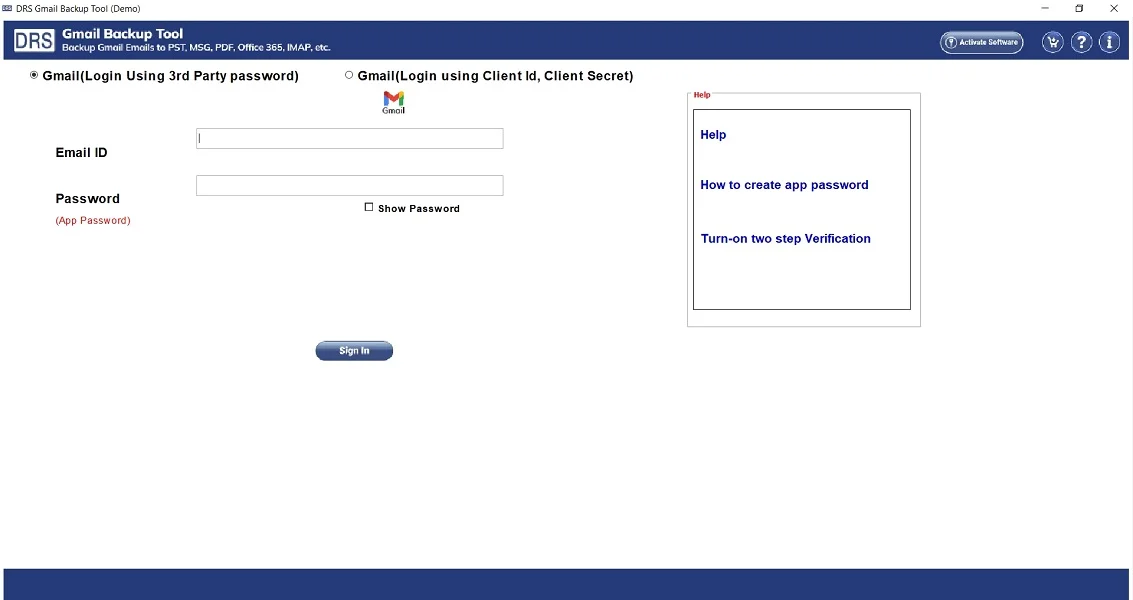
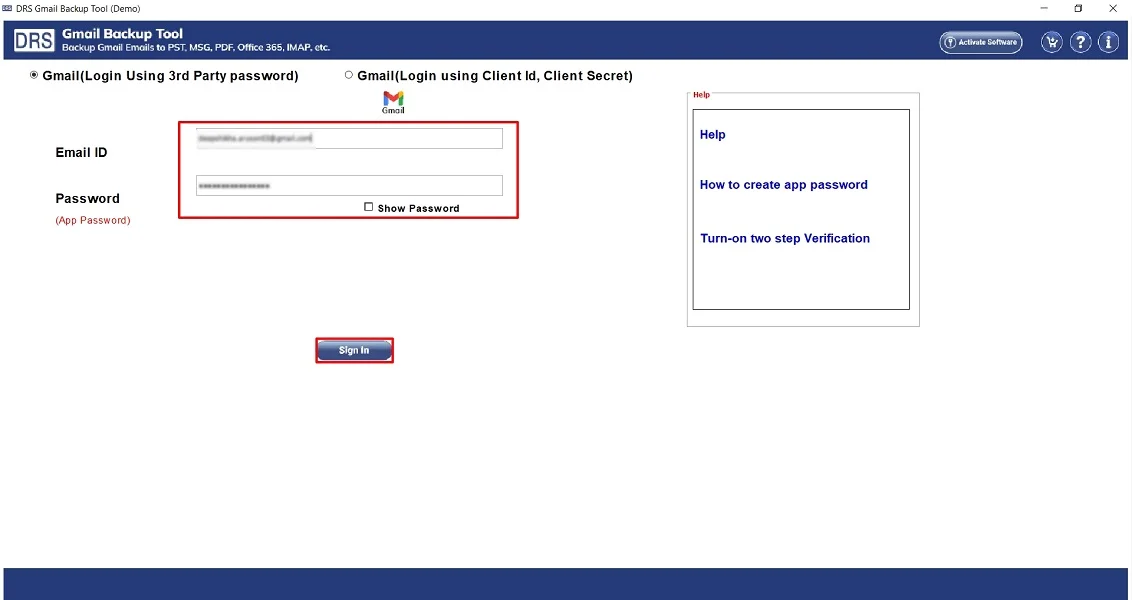
- Choose Gmail as the email source → Sign in using the Gmail Account credentials.
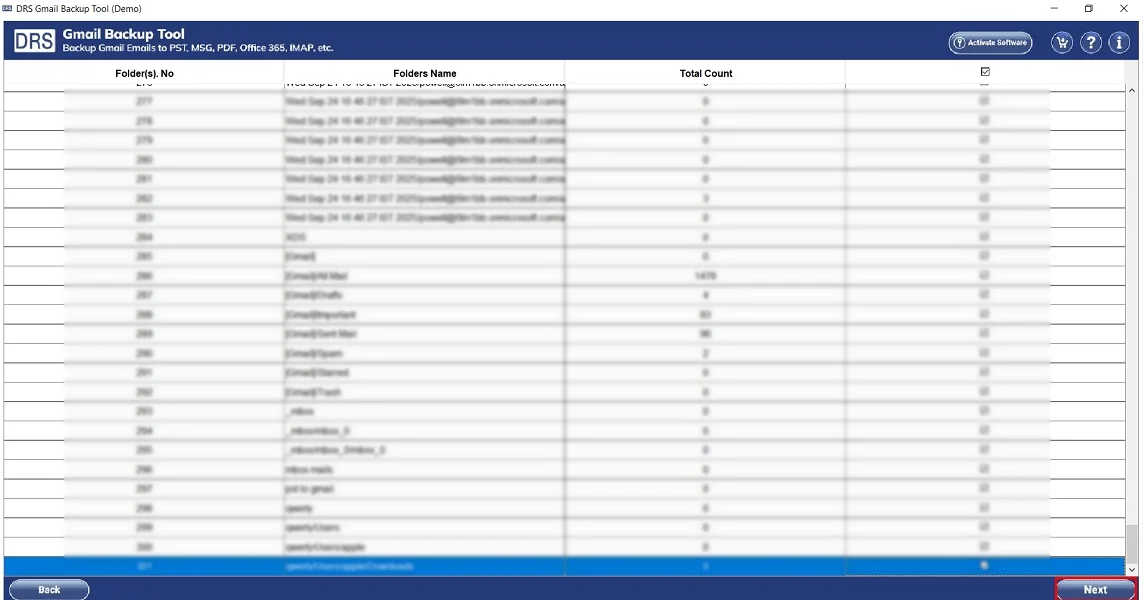
- Now, preview mailbox folders → Click Next to the next panel.
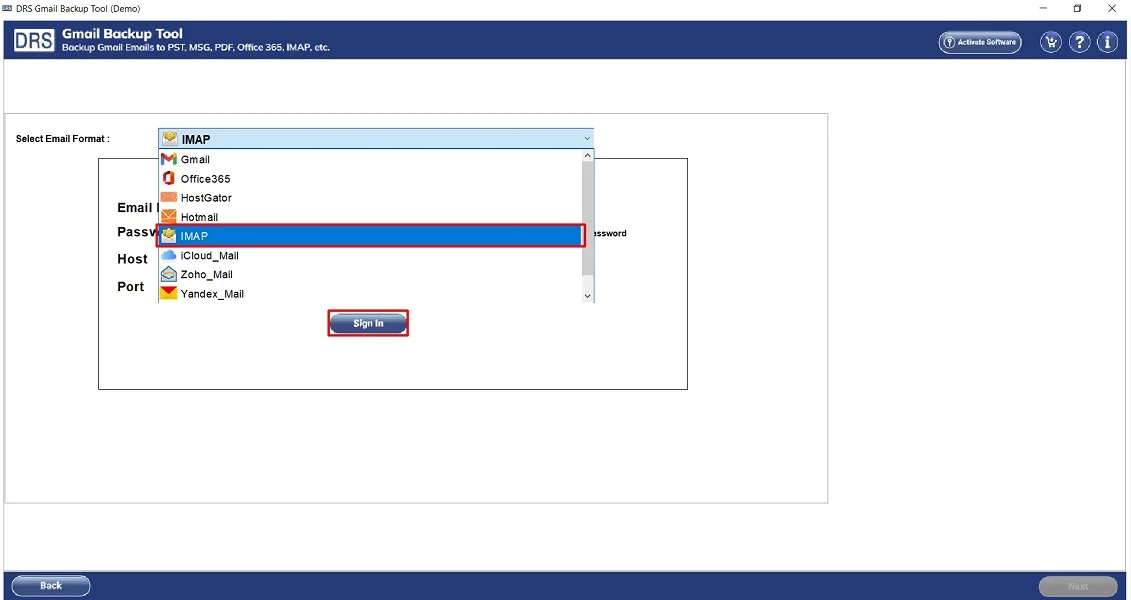
- After that, select IMAP as the saving email client.
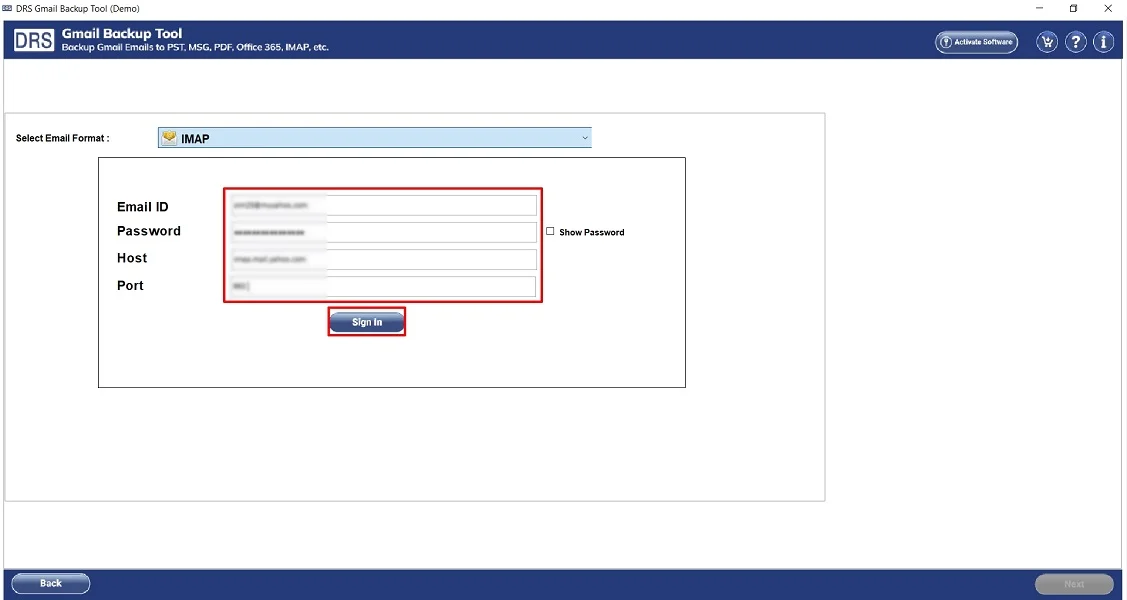
- Sign in using the IMAP server details and credentials.
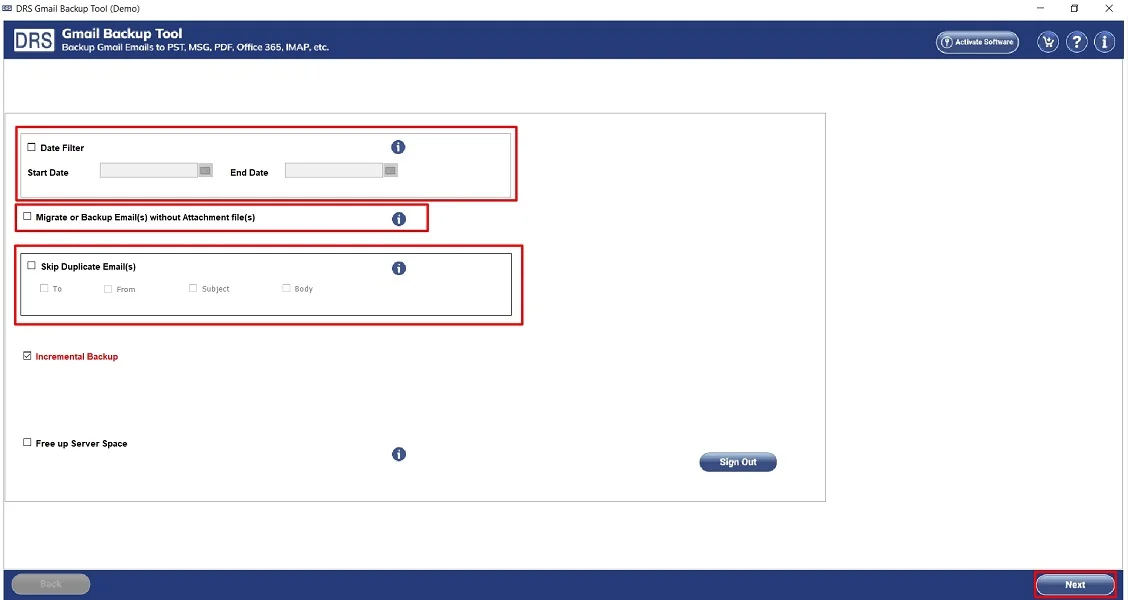
- Lastly, apply filters if required → Click Next to start the process.
Major Benefits of Using the Tool to Migrate Gmail to IMAP
- This process directly migrates Gmail to any IMAP server.
- Preserves email formatting, metadata, attachments, and hierarchy.
- Supports bulk migration of entire Gmail accounts.
- Offers selective migration using smart filters.
- Works on both Windows and Mac OS.
- There are no IMAP sync issues or data loss.
- Also, it is designed for technical and non-technical users.
Real-Life Example:-
A corporate employee needed to move years of Gmail communication to a dedicated IMAP server after switching companies. Therefore, manual steps failed due to the large mailbox size.
They use the MigrateEmails Gmail Backup to migrate Gmail to IMAP with attachments. This completes the process without losing attachments, folders, or metadata.
Differences: Manual vs Automated Migration
|
Factors |
Manual Migration (Using Email Client Configuration) |
Automated Migration (Using MigrateEmails Gmail Backup Tool) |
|
Slow process, IMAP sync takes hours for large mailboxes |
Extremely fast, direct Gmail to IMAP transfer without sync delays |
|
Risk of missing emails |
100% accurate |
|
Difficult to migrate |
Easily migrates |
|
Requires configuration and app passwords |
No technical skills needed |
|
May break |
Fully preserves |
Conclusion
To sum up, migrating Gmail to an IMAP server ensures better storage control and enhanced email management. However, the manual method works but is slow and prone to errors. For secure, fast, and error-free migration, use the Gmail Backup Tool to migrate Gmail to IMAP. This guarantees data accuracy and complete preservation. Moreover, it saves time, avoids configuration, and supports multiple IMAP platforms effortlessly.
Frequently Asked Questions
Q.1 How can I migrate Gmail to IMAP easily?
Ans. The easiest method is to use the MigrateEmails Gmail Backup Tool. This directly converts Gmail emails to any IMAP server. It eliminates manual setup, saves time, and ensures error-free migration.
Q.2 How can I migrate emails from Gmail to IMAP without losing my folder structure?
Ans. Using a professional tool is the safest option. The MigrateEmails Gmail Backup Tool preserves your entire folder hierarchy, metadata, labels, and attachments exactly as they appear in your Gmail account.
Q.3 Can I transfer Gmail emails to IMAP if I have multiple Gmail accounts?
Ans. Yes. The automated Gmail Backup tool supports multiple-account migration. Also, allows you to move data from several Gmail accounts to an IMAP server without affecting accuracy.
Q.4 Is there an easy way to move Gmail emails to IMAP without needing any technical skills?
Ans. Absolutely. The automated tool is designed for both beginners and advanced users. Its simple interface allows you to migrate emails from Gmail to IMAP smoothly. Therefore, no technical expertise is required.
About The Author:

I am Kiran Sharma, a Technical Expert in Content writing. I have technical expertise in the field of Email Backup, Data Recovery, and Email Migration, and resolve technical queries related to Cloud Backup or Email Migration for individuals and businesses.
Related Post