-
Written By Kiran Sharma
-
Approved By
Vikash Bajpai -
Updated on April 27th, 2026
Reliable Methods to Convert PST to CSV: Top Solutions
User Query:“I have a lot of emails saved in my Outlook PST file, and I need to open and manage that data in Excel. I’ve heard CSV is the right format for that, but I’m not sure how to convert PST files to CSV without messing up the data. Is there an easy way to do this?”
Introduction:- Working with Outlook data can get a bit messy, especially when you need it outside the app. That’s why many people try to convert PST to CSV. It keeps things simple. You can open the file in Excel or use it anywhere else without trouble. In this guide, we’ll walk you through a manual method and also a MigrateEmails PST File Converter Tool to make things easier.
Possible Reasons to Convert PST file to CSV
- PST files need Outlook, but CSV files open in many apps.
- Data looks cleaner and easier to read in rows and columns.
- You can sort and edit data quickly in Excel.
- No need to rely on Outlook all the time.
- Sharing data becomes simple with CSV files.
- It’s easier to manage and review large amounts of data.
Native Methods to Convert PST to CSV
If you need to turn a PST file into a CSV, you can do it right from Microsoft Outlook. It already has an export option built in. So you don’t really need to install anything extra or mess with other tools.
Simplified Steps to Export PST to CSV:
- First, open MS Outlook on your computer.
- Then, click File from the top-left corner.
- Next, go to Open & Export >> Import/Export.
- Choose Export to a file. Click Next.
- Now, select Comma-Separated Values. Press Next.
- Pick the folder you want to export, like Contacts / Inbox.
- Afterward, click Browse & choose where you want to save the file.
- At last, give your file a name & click Finish to start the process.
Limitations: Transfer PST to CSV Manually
- There’s a high chance of minor mistakes while doing it.
- Working with several PST files together isn’t possible.
- It can feel confusing if you’re new to MS Outlook.
- You have to deal with one file or folder at a time.
- Attachments and formatting don’t come through properly.
- It may not work well with the newer Outlook versions.
- Doing it again and again gets tiring quickly.
Automated Method to Convert PST to CSV
The MigrateEmails PST File Converter Tool gives you an easier way to convert PST files to CSV without dealing with long manual steps. It works well for both small and large PST files, and you can convert multiple files in one go. Your email data stays the same, including formatting and structure. It also comes with useful options like previewing data before conversion, removing duplicate items, and applying date filters if needed. Along with CSV, it also lets you convert PST file to PDF and other formats and email platforms if required.
Simple Steps to Transfer PST to CSV:
- Firstly, install and launch the PST File Converter Tool on your PC.
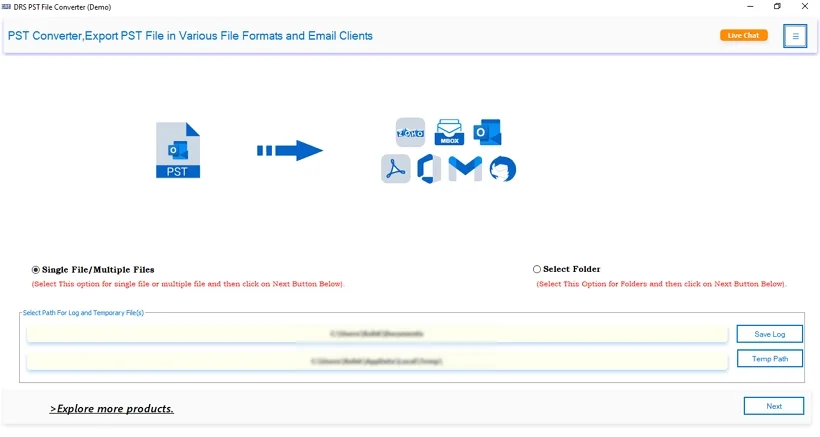
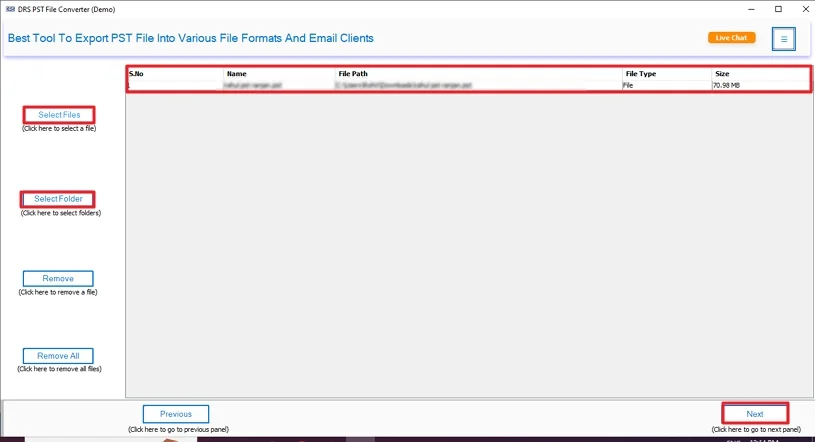
- Afterwards, click Select Files or Select Folder to load the PST file. Press Next.
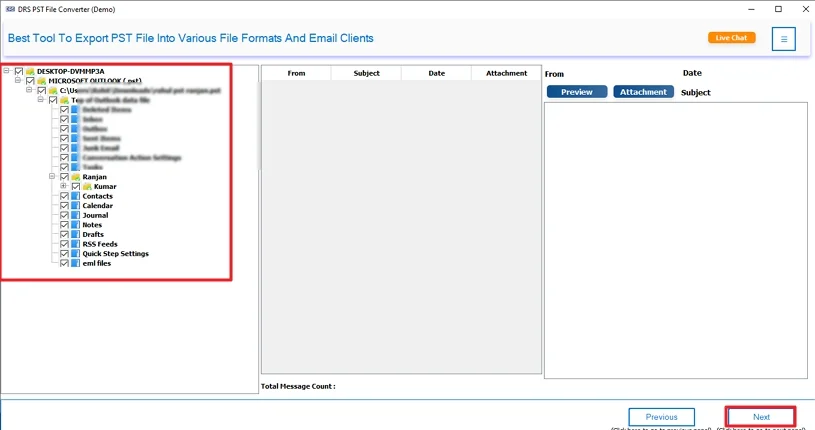
- Then, expand the tree structure >> Preview and select your files >> Next.
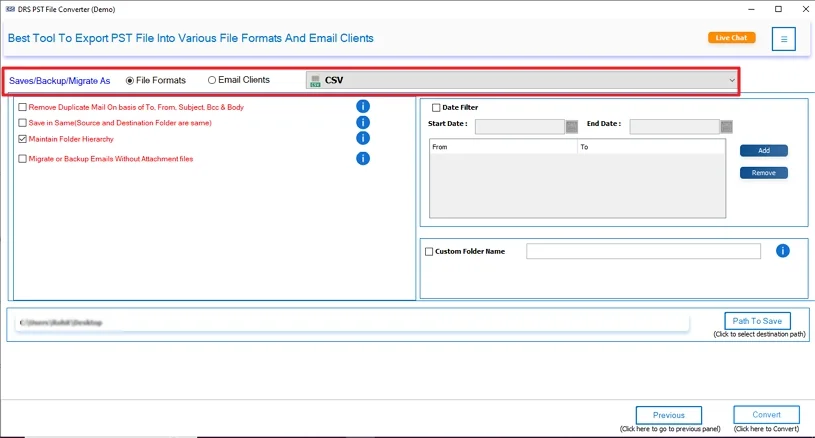
- Now, choose CSV as the file format from the given options.
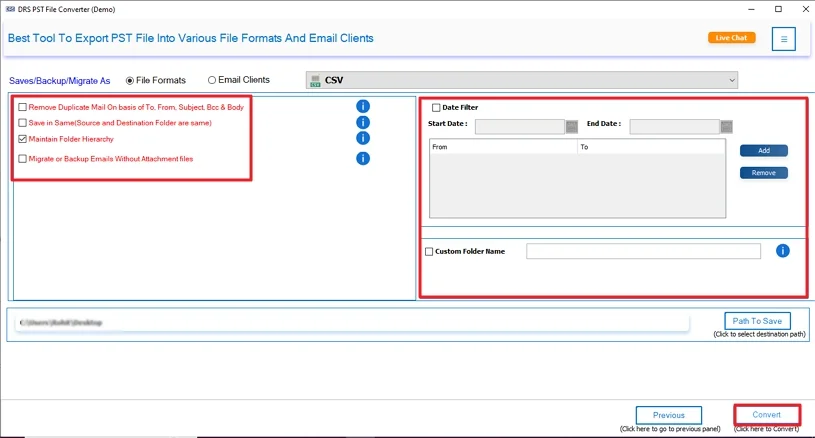
- Lastly, apply additional filters/features and click Convert.
Real-Life Scenario: Convert PST to CSV without Outlook
Michael, a project manager in Canada, had a lot of old emails sitting in Outlook. He needed some of that data in Excel for a report, but PST files don’t really open there. That’s where things got tricky.
He gave the manual method a try, but it took a while, and the output wasn’t that clean. Later, he switched to the MigrateEmails PST File Converter tool. It made the whole process much simpler. The data converted quickly, and he was able to sort and review everything in Excel without any trouble. He also found it useful for other tasks, like when he needed to convert PST to ICS for sharing calendar data.
Why Choose This Automated Solution?
- It allows you to convert PST to DOC and many formats like PDF, EML, CSV, DOC, and JPG.
- You can move your emails to services like Gmail or Yahoo without much trouble.
- It brings over everything, like the inbox, sent items, and drafts.
- You can handle multiple PST files together instead of doing them one by one.
- You get to check your data before starting, so there are no surprises.
- It helps clean things up by removing duplicate emails.
Final Words
In the end, converting PST to CSV isn’t that hard. There are two options to convert PST to CSV here—manual and tool-based. The manual method gets the job done, but it can take time and isn’t always smooth. Sometimes the data can come out a bit off. A tool makes the whole process quicker and much easier to handle. You can also try it out first, since the demo lets you convert up to 50 emails per folder for free.
Frequently Asked Questions
Q1. Can I convert PST to CSV in bulk at once?
Ans. Yes, you can convert multiple PST files in bulk, but not with manual methods. For bulk conversion, you’ll need a tool like the MigrateEmails PST File Converter Tool, which allows you to process many files at the same time.
Q2. Are there any free ways to convert a PST File to CSV?
Ans. Yes, you can use Microsoft Outlook’s built-in export feature for free. But it has limits. It can be slow and doesn’t work well for large files or multiple PST files.
Q3. What are the best tools to export PST to CSV?
Ans. There are several tools available, but the MigrateEmails PST File Converter Tool is a reliable option. It supports bulk conversion, keeps data intact, and makes the process much easier.
Q4. Do I need any technical knowledge to convert PST file to CSV?
Ans. Not really. The manual method in Outlook is simple, but it can feel confusing if you’re new. Tools like the MigrateEmails PST File Converter Tool are designed to be easy, so even beginners can use them without issues.
Q5. Can I preview data by converting PST to CSV?
Ans. With manual methods, preview options are limited. But many tools, including the MigrateEmails PST File Converter Tool, let you preview emails and data before conversion.
Q6. What is the PST File Format?
Ans. A PST file is used by Microsoft Outlook to store emails, contacts, calendars, and other mailbox data. It’s mainly used for backup and data storage.
Q7. How can I manually convert PST to CSV?
Ans. You can do it using Outlook:
Open Outlook
Go to File > Open & Export
Click Import/Export
Choose Export to a file
Select CSV format
Pick the folder and save
Q8. Is it safe to transfer PST to CSV on Windows and Mac?
Ans. Yes, it’s safe if done correctly. On Windows, you can use Outlook or a tool. On Mac, since Outlook PST support is limited, using a trusted tool like the MigrateEmails PST File Converter Tool is a safer and easier option.
About The Author:

I am Kiran Sharma, a Technical Expert in Content writing. I have technical expertise in the field of Email Backup, Data Recovery, and Email Migration, and resolve technical queries related to Cloud Backup or Email Migration for individuals and businesses.
Related Post