-
Written By Neeru Kuchhal
-
Approved By
Vikash Bajpai -
Updated on March 13th, 2026
Quick & Easy Guide to Migrate IMAP to iCloud- 2026 Update
Jack’s Query:-
“My email account has been installed with IMAP for a long time. But recently, I started using iCloud Mail on my Apple devices. Now I want all my emails from the IMAP account to be linked to my iCloud mailbox. However, I’m worried about losing emails, attachments, or folder organization during the migration. Is it possible to securely migrate IMAP to iCloud?”
“My email account has been installed with IMAP for a long time. But recently, I started using iCloud Mail on my Apple devices. Now I want all my emails from the IMAP account to be linked to my iCloud mailbox. However, I’m worried about losing emails, attachments, or folder organization during the migration. Is it possible to securely migrate IMAP to iCloud?”
Introduction:- Many people manage their emails through IMAP-based accounts provided by hosting companies, business domains, or other email services. Later, when they start using Apple devices, they often prefer using iCloud Mail. It integrates smoothly with Apple’s ecosystem. The challenge arises when users want to move their existing emails to iCloud. Without a clear process, transferring emails can become confusing when users want to keep their details intact. To fix this issue, this guide covers the most effective solutions to transfer emails from IMAP to iCloud. Besides this, it mainly focuses on the MigrateEmails IMAP Backup Tool.
Factors That Drive Users to Prefer iCloud Over IMAP
- Better integration with Apple devices like iPhone, iPad, and Mac.
- Centralized email management within the Apple ecosystem.
- Improved synchronization across multiple Apple devices.
- To simplify email access through iCloud Mail.
- Also, for backup and long-term email storage.
Hands-on Troubleshooting Guide
| Emails not appearing in iCloud after migration This usually happens when linking is still in progress. Wait for the mail client to finish syncing with the iCloud server. | Duplicate emails after migration Duplicates may occur if the migration process is repeated or interrupted. It is best to migrate folders only once. |
| Folder structure changed after conversion Some email clients treat folders differently. Creating folders in iCloud before migration can maintain organization. | Login or authentication errors If iCloud login fails, make sure that app-specific passwords are used when required. |
Step-by-Step Manual Method to Migrate IMAP to iCloud
In case you don’t want to depend on third-party software, you can therefore use the manual methods. You can use an email client to complete this task manually.
Use the Following Steps to proceed
- Firstly, add your IMAP email account to the email client.
- Then, add your iCloud email account to the same client.
- Allow both accounts to fully synchronize.
- Select the folders or emails from the IMAP mailbox.
- After that, drag and drop them into the iCloud mailbox folders.
- Lastly, wait for the emails to upload to the iCloud server.
After linking finishes, the emails will appear in your iCloud account.
Limitations of the Manual Method to Migrate IMAP to iCloud
Although the manual approach can work, it has several barriers:
- Dragging large numbers of emails can be slow.
- Internet interruptions may interrupt the process.
- Folder structure may need manual adjustment.
- There are high chances of duplicate emails.
- Moreover, it is not suitable for migrating very large mailboxes.
Because of these issues, many users prefer a more reliable IMAP Backup Tool.
Organized Method for Migrating IMAP to iCloud
To get rid of manual limitations, using the MigrateEmails IMAP Backup Tool is the best solution. This is the most practical approach that helps users to directly import multiple IMAP emails to iCloud. It provides the ability to migrate emails from IMAP to Zoho Mail and more email platforms. Additionally, its simple interface delivers accurate results with complete information protection.
How does the Tool Enhance the Process to Migrate IMAP to iCloud?
- It connects directly to the IMAP server.
- Preserves folder hierarchy and email structure.
- Transfers large mailboxes more efficiently.
- Convert IMAP to MSG and more formats as well.
- Simple interface suitable for non-technical users.
This approach reduces the time and effort needed to move emails.
How to Operate the Tool to Move Your Emails from IMAP to iCloud
- Firstly, start installing the MigrateEmails IMAP Backup Tool and tap Continue.

- Now, access the Select Files/Folders option and authenticate with your IMAP login details.

- Navigate through the folder hierarchy to view the complete mailbox and hit Next.

- Furthermore, choose IMAP as the mailbox where emails will be saved.
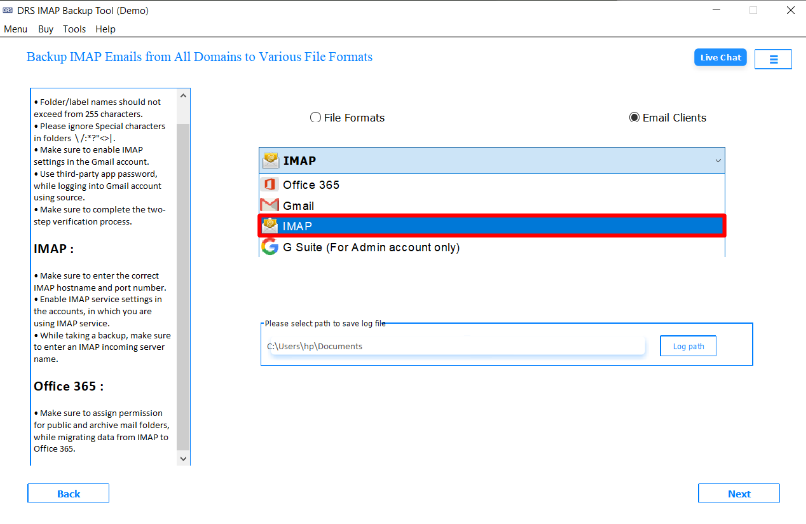
- Then, authenticate using the iCloud mail account credentials.

- Finally, choose the filters according to your needs and click Start Process to begin.

Note: If you want to learn more, you can check how to export IMAP email to CSV.
Conclusion
To sum up, migrating emails from an IMAP account to iCloud is a common step for users who want better integration. While the manual approach using an email client can work for smaller mailboxes. It may become slow and difficult for large email collections. Therefore, choosing a reliable IMAP Backup Tool confirms that every detail remains intact during the conversion. With this right method, users can migrate IMAP to iCloud and continue managing their communication without interruptions.
Frequently Asked Questions
Q1. How can I migrate IMAP emails to iCloud Mail easily?
Ans. You can save IMAP emails to iCloud Mail by adding both accounts to an email client such as Apple Mail or Outlook and then moving the emails from the IMAP folders to the iCloud mailbox folders. For larger mailboxes, many users prefer using a dedicated MigrateEmails IMAP backup tool because it can transfer emails more efficiently while keeping folders and attachments intact.
Q2. Why do duplicate emails appear after migrating IMAP to iCloud?
Ans. Duplicate emails usually appear if the migration process is performed more than once or if the synchronization is interrupted and restarted. Sometimes email clients re-sync messages during transfer, which can create duplicates. To avoid this, it is recommended to migrate each folder only once and allow the process to complete fully.
Q3. Can I migrate multiple IMAP accounts to iCloud at the same time?
Ans. Manually migrating multiple IMAP accounts at the same time can be difficult because most email clients handle one mailbox transfer at a time. However, the MigrateEmails IMAP backup tool allows users to connect and migrate multiple accounts sequentially, making the process easier for businesses or users with several mailboxes.
Q4. Do attachments migrate when moving IMAP emails to iCloud?
Ans. Yes, attachments are usually migrated along with the emails because they are stored as part of the email message. If the migration process is completed properly, attachments, sender details, timestamps, and message formatting remain unchanged.
Q5. Can I migrate IMAP emails to iCloud without losing folder structure?
Ans. Yes, it is possible to maintain the original folder structure if the migration is done carefully. When using an email client or an IMAP backup tool, the folders from the IMAP mailbox can be transferred to iCloud while keeping the same hierarchy.
Q6. Is there a file size limit when migrating IMAP emails to iCloud?
Ans. The main limitation usually depends on the storage available in your iCloud account. If the mailbox size exceeds your available iCloud storage, some emails may not upload until additional space is available. It is a good idea to check your iCloud storage capacity before starting the migration.
About The Author:

I am Neeru Kuchhal, a Technical Content Writer who focuses on turning complex ideas into clear, engaging, and impactful content. I combine creativity with strategy to write blogs, web content, and technical articles that connect with the right audience and support brand goals. I believe great content is not just written. It is thoughtfully created to inform, build trust, and drive action.
Related Post