-
Written By Kiran Sharma
-
Approved By
Vikash Bajpai -
Updated on December 23rd, 2025
How to Easily Migrate AOL to G Suite Without Losing Emails
User Query:-
“I want to save my AOL emails to G Suite. What is the easiest and safest way to migrate AOL to G Suite without losing emails or attachments?”
“I want to save my AOL emails to G Suite. What is the easiest and safest way to migrate AOL to G Suite without losing emails or attachments?”
Introduction:- Migrating from AOL Mail to G Suite is a common requirement for users. G Suite offers better security, collaboration, and email management. However, AOL does not provide a direct option to migrate to Google Workspace. The users must rely on manual IMAP methods or automated solutions. This blog explains how to easily migrate emails from AOL to Google Workspace. Also, covers an efficient MigrateEmails AOL Backup Software.
Why AOL Mail and G Suite Use Different Formats?
|
AOL Mail |
G Suite |
|
|
Why Is There A Need to Migrate AOL to G Suite?
Users prefer moving from AOL Mail to G Suite for several reasons:
- To use a professional business email platform.
- For improving email security and spam protection.
- Managing emails centrally using Google Admin Console.
- Preserves important AOL emails before account inactivity.
- Integrate emails with Google Drive, Calendar, and Meet.
- Also, to enhance collaboration within teams.
Manual Technique to Transfer AOL Mail to Google Workspace
G Suite supports IMAP migration. Therefore, this allows users to change AOL emails manually. This method is suitable only for small mailboxes and requires technical setup.
Steps to Shift AOL to G Suite Manually
- Firstly, log in to the Google Admin Console.
- Navigate to Data Migration → Set Up Data Migration.
- Now, choose IMAP Server as the migration source.
- After that, enter AOL IMAP server details and account credentials.
- Map AOL users with Google Workspace users.
- Lastly, start the migration process and monitor progress.
Limitations to Migrate AOL to G Suite Manually
- It has a complex IMAP configuration.
- This process is slow for large mailboxes.
- There is a high chance of sync failures.
- Attachments may not migrate properly.
- No duplicate control or advanced filters.
- Moreover, it requires technical expertise.
Automated Tool to Export AOL emails to Google Workspace
To avoid manual errors, the MigrateEmails AOL Backup Tool is a secure option. The tool migrate AOL Emails to Zoho Mail while preserving metadata. This method ensures fast migration with complete accuracy and zero data loss. Additionally, this is the highly recommended software that comes with a free demo version as well. It will be suitable mainly for users with a non-tech background.
One-Time Backup Service Available:-
If you prefer expert handling, the MigrateEmails One-Time Backup Service is available. The professionals securely migrate AOL to G Suite, while ensuring complete confidentiality and data integrity.
Complete User Manual to Use the Software
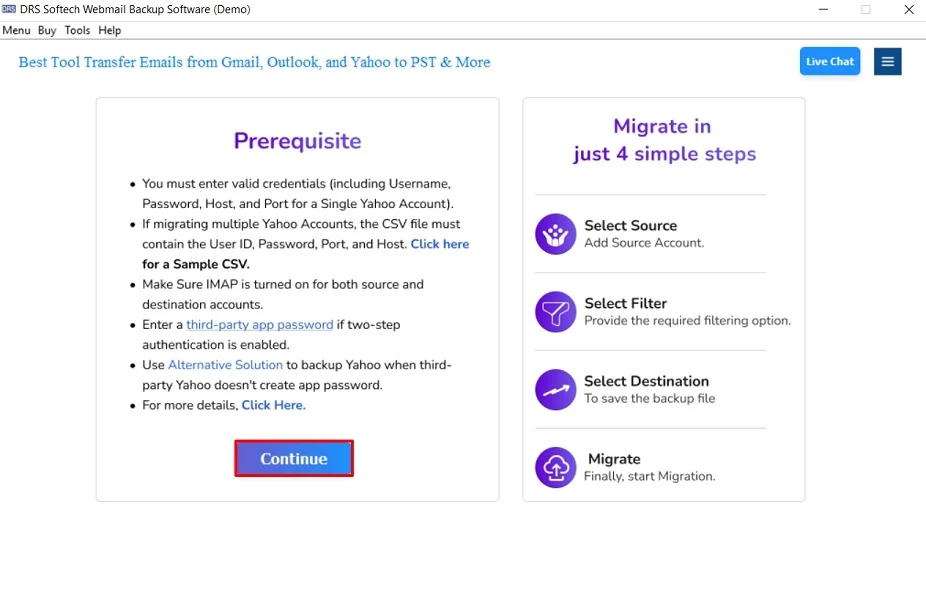
- Firstly, launch the MigrateEmails AOL Backup Tool and click Continue.
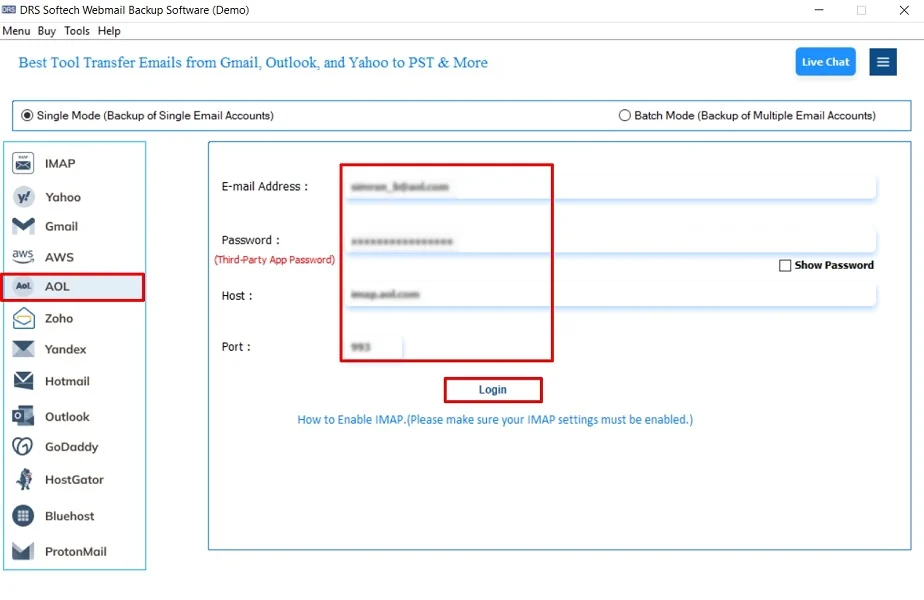
- Now, choose AOL and log in using the AOL Mail account credentials.
- Further, drop down the structure and verify the entire mailbox → Next.
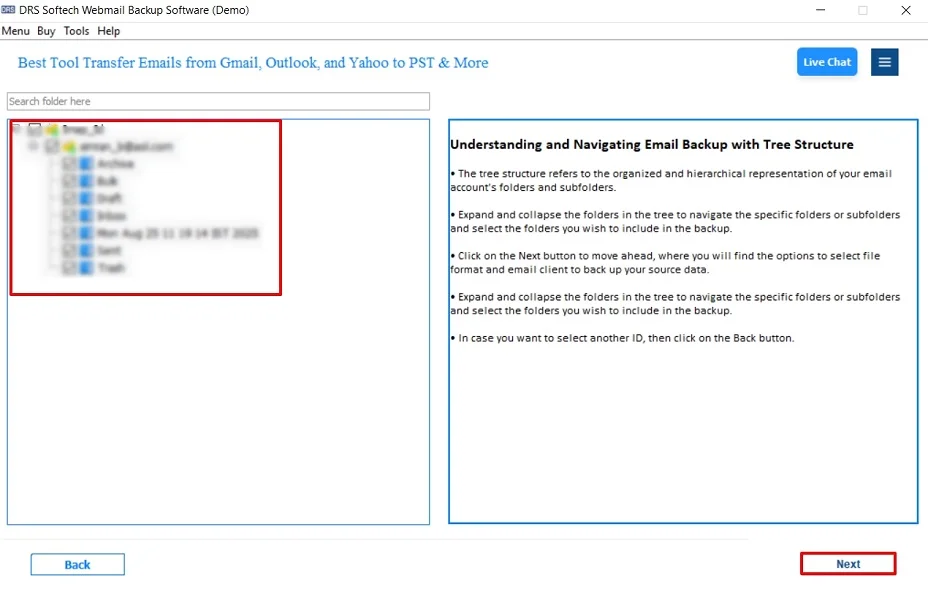
- After that, select IMAP as the saving email platform and hit Next.
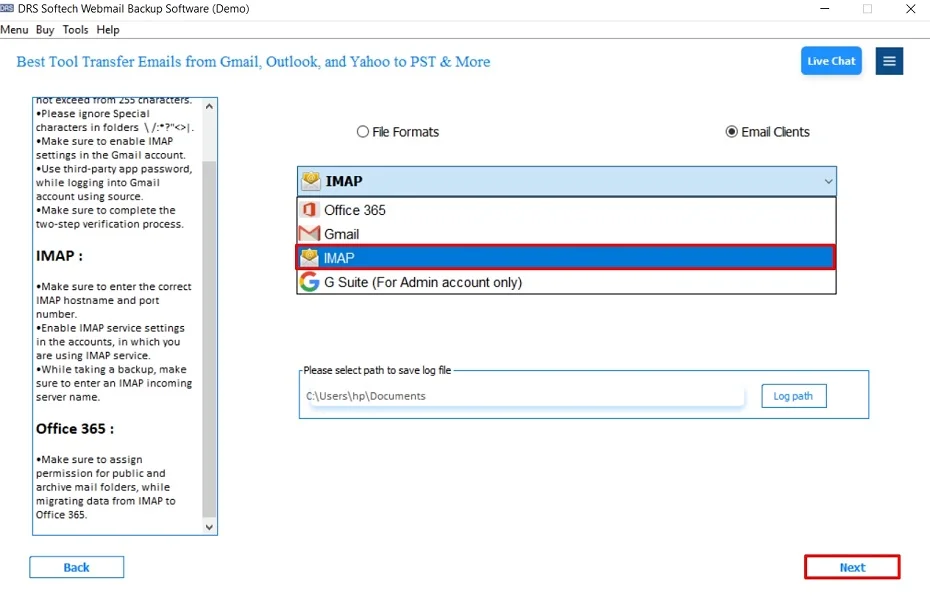
- Subsequently, log in using the G Suite account credentials.
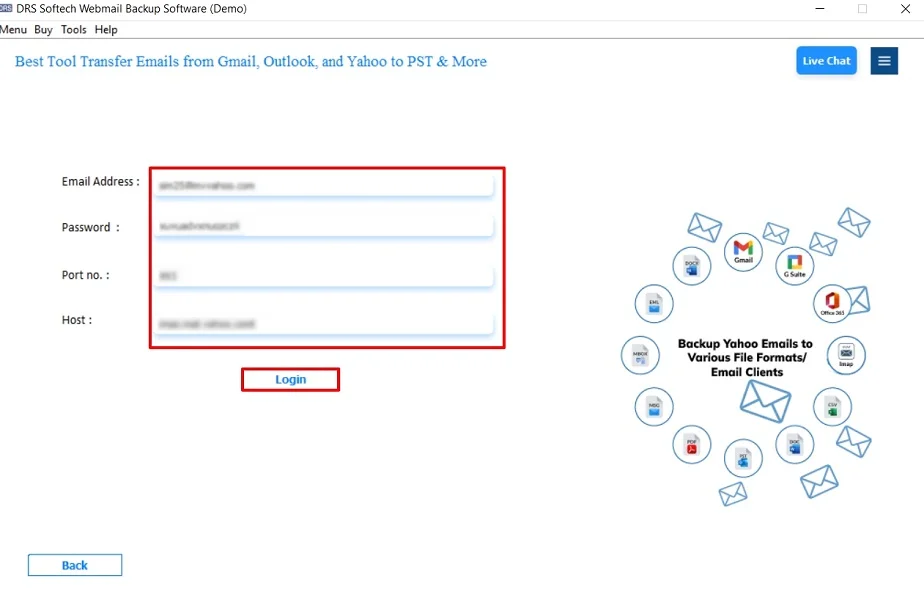
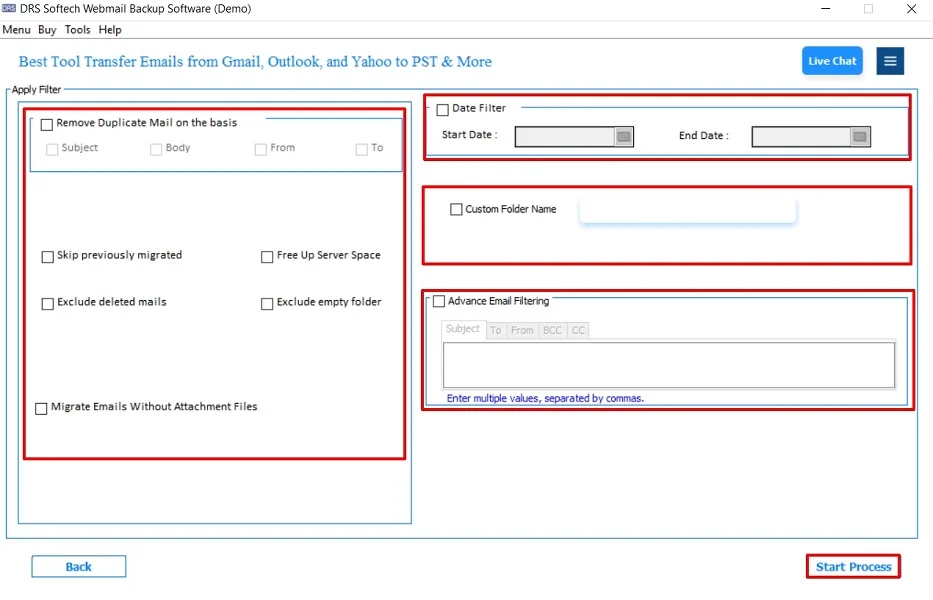
- In the end, apply the additional filters and click Start Process to begin.
Benefits of Using the Tool to Migrate AOL to G Suite
- There is a bulk migration of AOL emails to G Suite.
- Preserves folders, attachments, and email headers.
- Supports users to import AOL Emails to Thunderbird.
- It is compatible with all versions of Windows and macOS.
- Also, it is suitable for non-technical users.
Conclusion
In short, migrating AOL to G Suite requires a reliable approach to protect email data. While the manual IMAP method works for small mailboxes. But it is slow and technically complex. The AOL Backup Tool offers an easy and secure solution to migrate AOL to G Suite without losing data. For a smooth and error-free migration, this automated method is highly recommended.
Frequently Asked Questions
Q.1 What is the best way to migrate AOL to Google Workspace?
Ans. The best way is to use an automated MigrateEmails AOL Backup Tool. This will securely move AOL emails to Google Workspace while preserving folders, attachments, and email metadata.
Q.2 Can I migrate emails from AOL to Google Workspace without data loss?
Ans. Yes, data loss can be avoided by using a trusted professional MigrateEmails tool. As it ensures complete email integrity, including attachments and original folder structure.
Q.3 How can I transfer AOL Mail to Google Workspace without technical skills?
Ans. You can shift AOL Mail easily by using an automated solution that requires only account credentials and completes the migration through a simple, guided process.
Q.4 Can I export AOL emails to Google Workspace for free?
Ans. G Suite provides a limited IMAP migration option. But it is suitable only for small mailboxes. For bulk and error-free migration, an automated MigrateEmails paid solution is recommended.
About The Author:

I am Kiran Sharma, a Technical Expert in Content writing. I have technical expertise in the field of Email Backup, Data Recovery, and Email Migration, and resolve technical queries related to Cloud Backup or Email Migration for individuals and businesses.
Related Post