-
Written By Kiran Sharma
-
Approved By
Vikash Bajpai -
Updated on February 3rd, 2026
Import MBOX to Thunderbird Account: A Complete Guide
User Query:-
“I have several email backup files saved in MBOX format from my old email program. I want to open and read those emails in Thunderbird, but I’m not sure how to import MBOX to Thunderbird without losing any messages.”
“I have several email backup files saved in MBOX format from my old email program. I want to open and read those emails in Thunderbird, but I’m not sure how to import MBOX to Thunderbird without losing any messages.”
Introduction:- Many users store their emails in MBOX files when switching email services, taking backups, or exporting data from another email client. Mozilla Thunderbird is a free email program that supports MBOX files, but many users find it difficult to import them at first. In this blog, we will explain how to import MBOX files in Thunderbird step by step. Also, we discuss the professional MigrateEmails MBOX Converter Tool for a hassle-free solution.
Why Import MBOX into Thunderbird?
There are several real-life reasons why users need to import their MBOX files into Thunderbird. Common reasons are as follows:
- To access old email backups.
- Move emails from another email client.
- Open archived email data.
- Organize emails in a single application.
- Moreover, switch to a free and reliable email client.
Manual Methods to Import MBOX to Thunderbird
There are mainly two manual ways to import MBOX files into Thunderbird.
- Using ImportExportTools Add-on
- Using Local Folders
Method 01: Import Files from MBOX to Thunderbird Using ImportExportTools Add-on
This is the most commonly used and reliable method. Step-by-Step Process
Step 01: Install Thunderbird
- Download and install the latest version of Mozilla Thunderbird on your computer.
- Now, open the application and set up a basic email account or local folders.
Step 02: Install ImportExportTools Add-on
- Then, open Thunderbird.
- Next, go to Add-ons and Themes.
- Search for ImportExportTools NG.
- Install the add-on and restart Thunderbird.
Step 03: Import MBOX File
- After that, right-click on Local Folders.
- Select ImportExportTools.
- Further, click Import MBOX file.
- Choose your MBOX file from the system.
Method 02: Convert MBOX File to Thunderbird Using Local Folders
This method works only in limited cases and requires more effort. Steps Involved
- Create a new folder in Thunderbird.
- Locate the Thunderbird profile folder.
- Copy the MBOX file into the folder.
- In the end, restart Thunderbird.
Limitations of Manual Methods
Although manual methods are free, they are not suitable for everyone. Users often face problems during the import process, especially when working with large or multiple MBOX files.
Common Issues with Manual Methods
- ImportExportTools may fail with large MBOX files.
- Risk of duplicate emails.
- Folder structure may not remain the same.
- Furthermore, time-consuming for multiple files.
Professional Tool to Import MBOX to Thunderbird
To avoid problems with manual methods, many users choose the MigrateEmails MBOX Converter Tool. This tool is used to import MBOX safely and efficiently without data loss. It allows users to convert and import single or multiple MBOX files directly into Thunderbird while keeping emails, attachments, and folder hierarchy intact. You can convert MBOX to PDF and other file formats. A free version of this tool is available to understand its features and functions. Moreover, it is highly compatible with all Windows and Mac versions.
Simple Steps to Import MBOX File in Thunderbird
- Launch the MigrateEmails MBOX to Thunderbird Backup Tool.
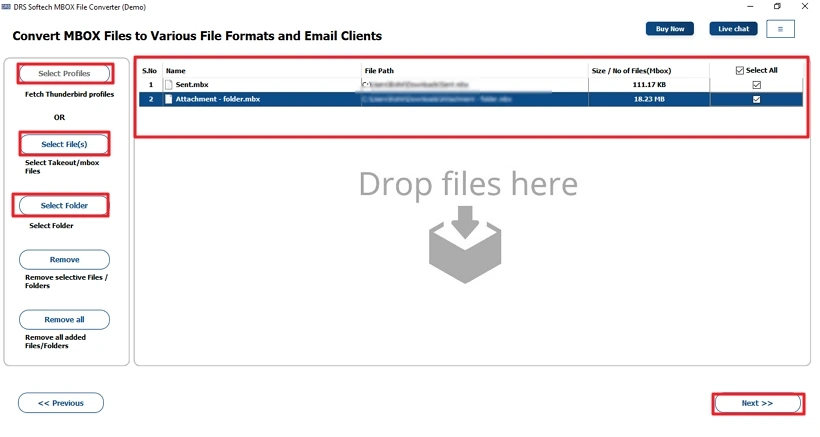
- Choose “Select Files” or “Select Folder” to add your MBOX file.
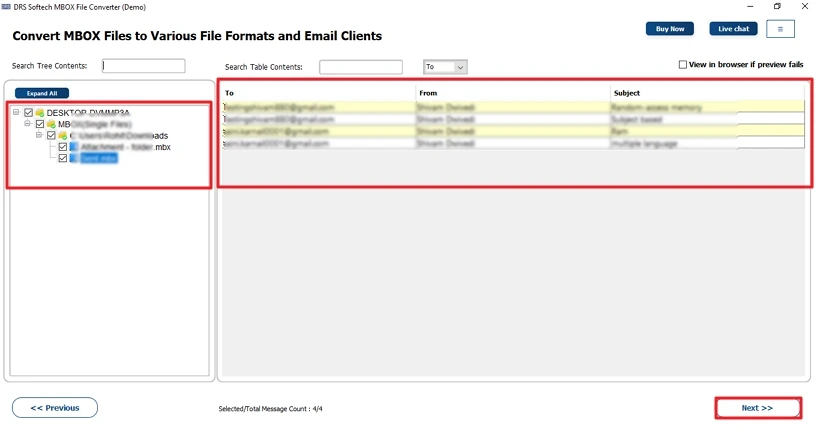
- Preview and select the MBOX emails to import. Hit Next.
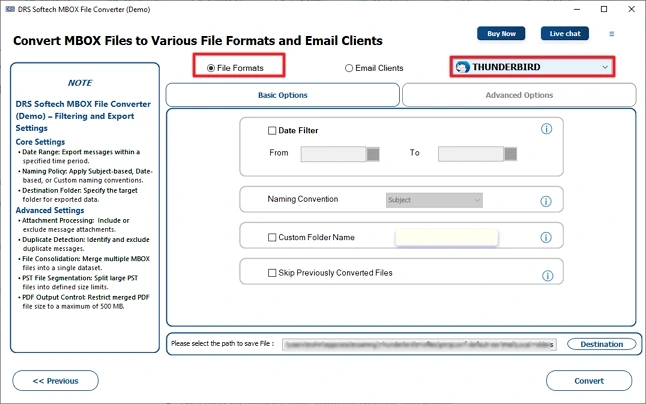
- Then, pick Thunderbird as the Saving Format from the list.
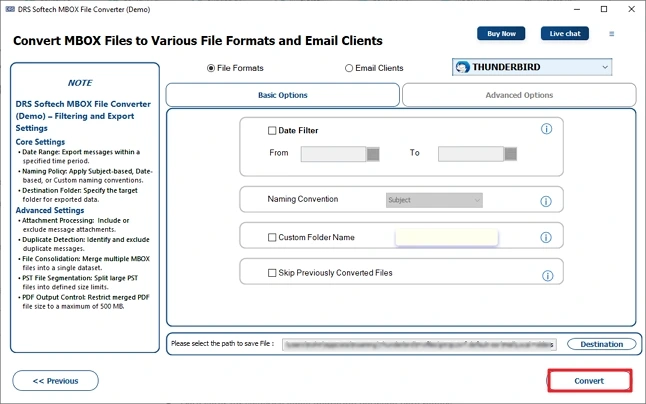
- Apply advanced features as per your needs. Click Convert.
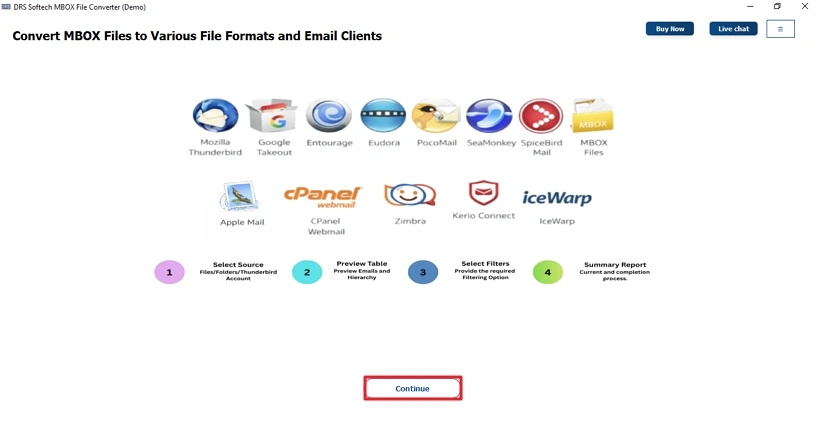
Features of MigrateEmails MBOX File Converter
- Preview option to cross-verify the added MBOX files.
- Remove Duplicate Feature to exclude duplicate emails.
- Date Filter for selective email migration between date ranges.
- Option to import MBOX to iCloud and other email clients.
Conclusion
In this technical blog post, we suggested several methods to import MBOX to Thunderbird. The manual method is free, but it works only when you need to import a small number of MBOX emails. However, it has several limitations that make it an irrelevant choice for many users. That’s why using the professional tool is the best solution. It converts multiple MBOX files at once with no data loss. So, download the free version of this tool and evaluate its features.
Frequently Asked Questions
Q1. How do I import an MBOX file to Thunderbird directly?
Ans: You can import an MBOX file into Thunderbird by using the ImportExportTools add-on or by using a professional MigrateEmails MBOX converter tool. The add-on method works for small files, while a professional tool is better for large or multiple MBOX files.
Q2. Is it possible to import MBOX to Thunderbird without duplicates?
Ans: Yes, it is possible. Manual methods may create duplicate emails, especially when importing multiple files. To avoid duplicates, it is recommended to use a professional MBOX converter tool that includes a duplicate removal option.
Q3. What is the best method to convert MBOX file to Thunderbird?
Ans: The best method depends on your needs. For a few emails, the ImportExportTools add-on is enough. However, for bulk MBOX files, large data size, or accurate results, using a professional MigrateEmails MBOX to Thunderbird conversion tool is the safest and most reliable option.
Q4. Can I import MBOX into Thunderbird with Attachments?
Ans: Yes, you can import MBOX files into Thunderbird along with attachments. Both manual and professional methods support attachments, but a professional tool ensures that attachments remain intact and properly linked with their emails.
About The Author:

I am Kiran Sharma, a Technical Expert in Content writing. I have technical expertise in the field of Email Backup, Data Recovery, and Email Migration, and resolve technical queries related to Cloud Backup or Email Migration for individuals and businesses.
Related Post