-
Written By Kiran Sharma
-
Updated on December 4th, 2025
Import ICS to Apple Calendar Safely Without Data Corruption
User Query:-
“I have several ICS files exported from different calendar apps. Now, I wanted to import them into Apple Calendar. How can I import ICS to Apple Calendar safely without facing data corruption?”
“I have several ICS files exported from different calendar apps. Now, I wanted to import them into Apple Calendar. How can I import ICS to Apple Calendar safely without facing data corruption?”
Introduction: ICS files are widely used for storing event details, meeting schedules, reminders, etc. On the other hand, Apple Calendar supports ICS, but manual methods might result in duplicated entries or corrupted events. These issues are very common when working with large ICS files. This guide explains the complete manual working to import ICS files to Apple Calendar. Also, explains an advanced MigrateEmails ICS Converter Tool.
Practical Reasons for Integrating ICS Files with Apple Calendar
Here are the common reasons users prefer adding ICS files to Apple Calendar:
- To transfer events from Outlook, Google Calendar, or other apps.
- For viewing multiple schedule sources in one unified Apple Calendar.
- Keep all meetings synced across iPhone, MacBook, and iPad.
- Restore or re-import previously exported ICS backup files.
- Move business or personal data while switching devices or platforms.
- Also, enables users to import ICS to Google Calendar
- Moreover, prevent losing old schedules after account deletion or migration.
Manual Working to Import ICS to Apple Calendar
Apple provides built-in options to add ICS files to your Mac Calendar. Although this method is free and easy for single files. But it becomes inconvenient and error-prone for bulk ICS imports. Follow these methods to import iCalendar to Apple Calendar:
Method 1: Drag & Drop Import (Mac Calendar)
- Firstly, open the Calendar app on your Mac.
- Now, locate the ICS file on your system.
- Drag the file and drop it into the desired calendar.
- Review the events and click OK to add.
Method 2: Using the Import Function
- Firstly, open Apple Calendar.
- After that, go to File → Import.
- Select the ICS file you want to import.
- Choose the calendar where you want to add events.
- Click Import to complete the process.
Restrictions to Import ICS Calendar to Apple Calendar Manually
- This process cannot import multiple ICS files at once.
- There is a risk of duplicate or missing events.
- Event metadata like reminders may not sync properly.
- Sometimes, time-zone mismatches may occur.
- Also, it is not suitable for corrupted or large ICS files.
- Moreover, there is no option for selective event import.
|
Note: Additionally, you can use the MigrateEmails professional software to maintain the accuracy. |
How to Remove Duplicates From an ICS File?
To remove duplicate ICS files, using the MigrateEmails ICS Converter Tool is highly recommended. This tool ensures clean conversion of ICS files into Apple Calendar-friendly formats. It supports bulk processing without corruption. Also, preserves event details intact with zero data loss. Moreover, this tool allows users to import ICS to Office 365 and other supported email clients.
One-Time Service Option:
Don’t want to perform the conversion yourself?
MigrateEmails provides a One-Time ICS conversion Service. Connect with our team. They will import ICS to Apple Calendar securely. Also, ensures full accuracy,
privacy, and zero data loss.
Quick Tutorial to Use an Automated Tool
- Firstly, download and install the MigrateEmails ICS File Converter.
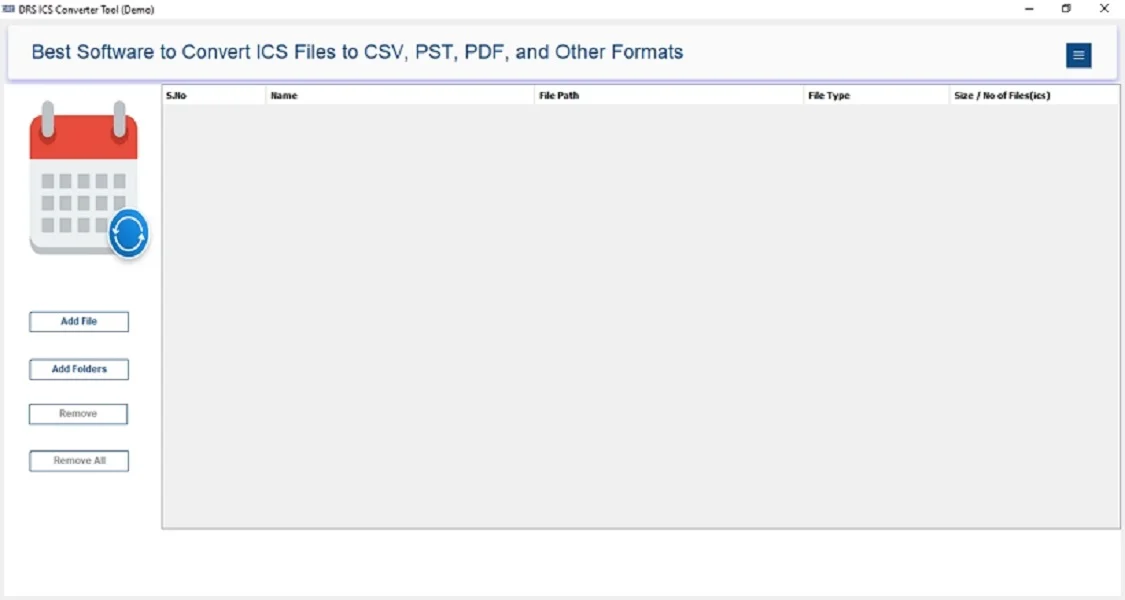
- Now, click to add files/folder → Open.
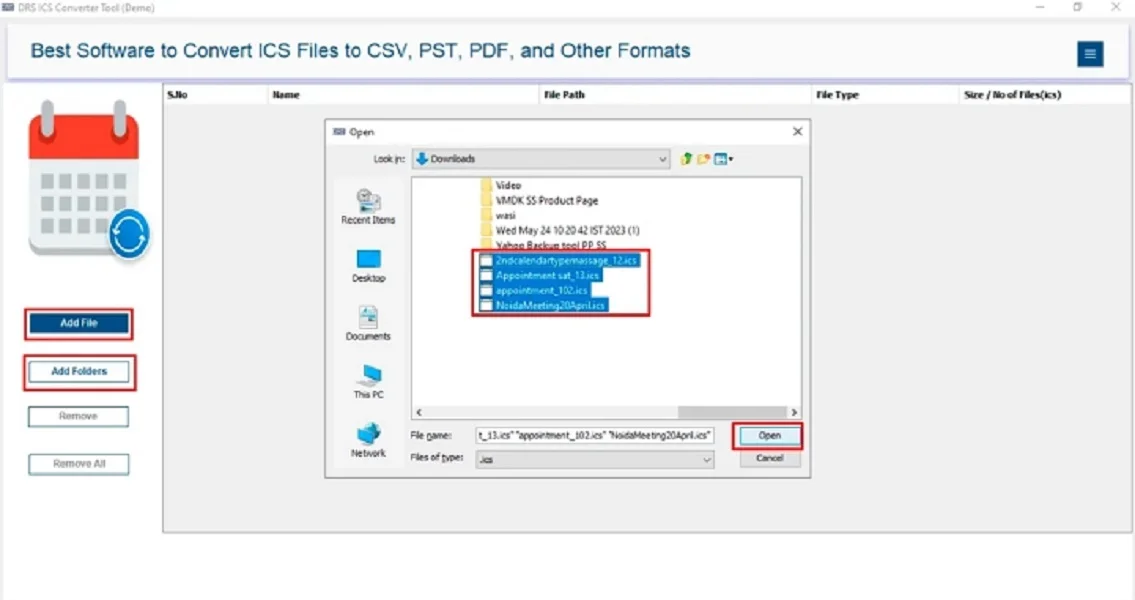
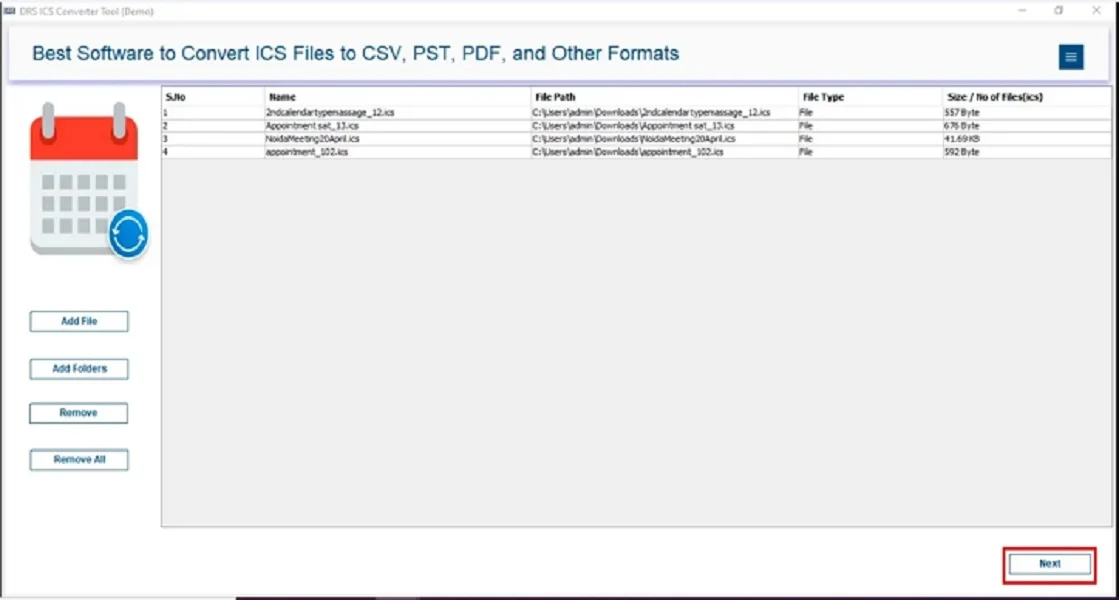
- After that, choose the ICS file that you want to convert → Next.
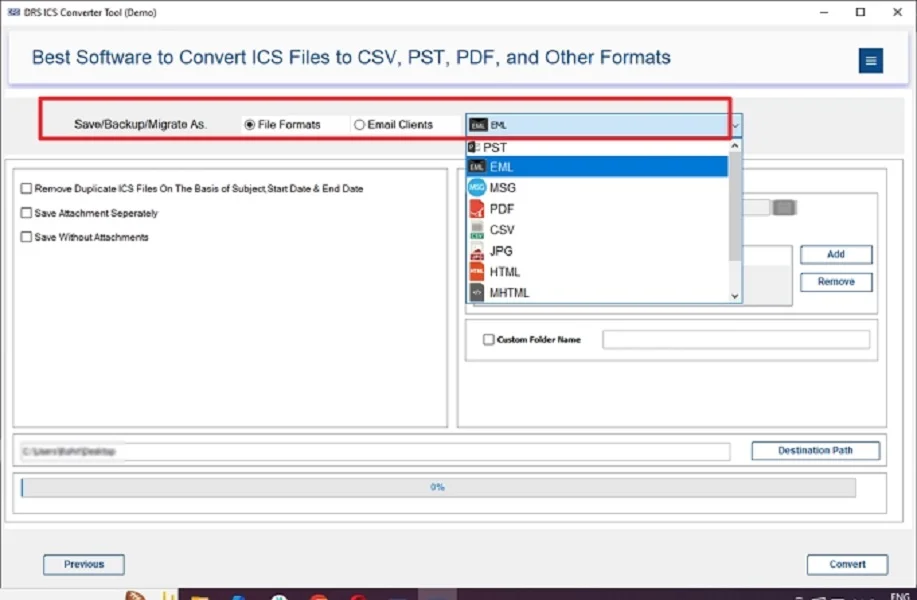
- Select the EML as the saving file format.
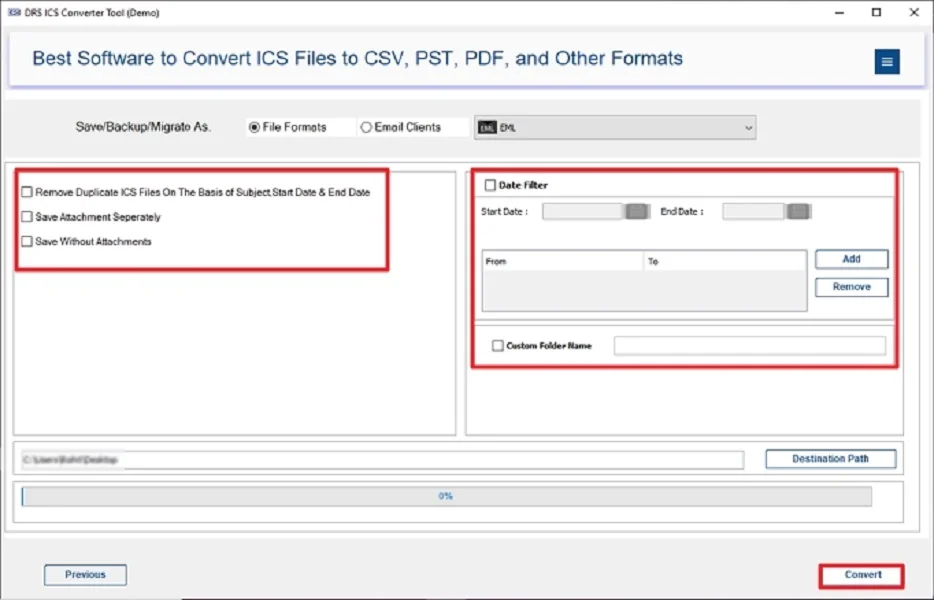
- Lastly, apply the filters if needed → Click Convert to begin.
|
Note: Our tool converts an ICS file into EML format, which opens directly in Apple Mail. |
Major Benefits of Using the Tool to Import ICS to Apple Calendar
- Imports multiple ICS files without corruption.
- Maintains event integrity, including recurrence, reminders, and descriptions.
- Supports conversion to Apple-compliant formats.
- Prevents event duplication and formatting issues.
- Offers selective event conversion using filters.
- Ideal for beginners, no technical expertise required.
Real-Life Example:
A project manager had over 200 ICS files exported from multiple platforms.
While manual import caused duplicate entries and missing reminders, using the automated MigrateEmails ICS Converter tool ensured a clean, corruption-free import into Apple Calendar. Therefore, it saves hours of manual effort.
Conclusion
In short, importing ICS to Apple Calendar is essential for organizing schedules across different platforms. While the manual method works for a few small files. It may cause missing or corrupted events during bulk imports. For an accurate and safe migration, the ICS Converter Tool is the most preferred method to import ICS to Apple Calendar. It ensures complete preservation without any data loss. Also, it provides a smooth Apple Calendar integration experience.
Frequently Asked Questions
Q.1 What is the best way to import ICS to Apple Calendar?
Ans. The safest and most reliable way is to use a professional ICS File Converter Tool. This preserves event details, reminders, recurrence, and metadata. Manual import works for single, small ICS files, but a tool ensures corruption-free and bulk importing.
Q.2 Can I import multiple ICS files into Apple Calendar at once?
Ans. Apple Calendar does not support bulk ICS import, but you can easily import multiple ICS files using a MigrateEmails automated ICS converter tool. This combines or processes them together in a single operation.
Q.3 Can I import iCalendar files to Apple Calendar without any technical skills?
Ans. Yes. A dedicated ICS converter tool offers a guided interface. Therefore, this allows you to import ICS files to Apple Calendar with just a few clicks, no technical knowledge required.
Q.4 What’s the difference between free and paid tools to import an ICS calendar to Apple Calendar?
Ans. Free methods are manual, time-consuming, and often lead to missing fields, duplicates, or corrupted events. On the other hand, a paid tool ensures data accuracy, supports bulk ICS import, preserves all event attributes, and eliminates the risk of corruption or loss.
About The Author:

I am Kiran Sharma, a Technical Expert in Content writing. I have technical expertise in the field of Email Backup, Data Recovery, and Email Migration, and resolve technical queries related to Cloud Backup or Email Migration for individuals and businesses.
Related Post